
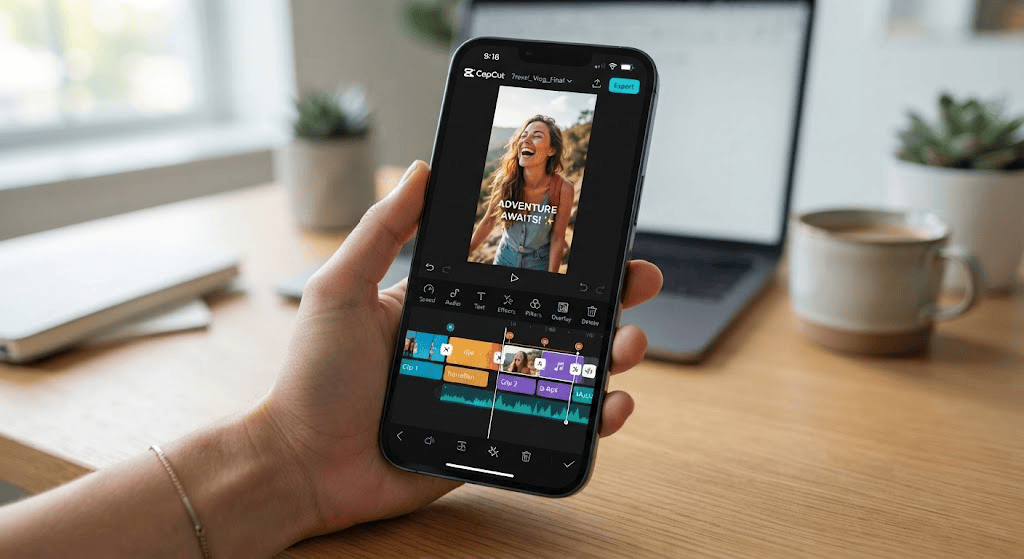
Learn how to find, use, and customize a CapCut Template for TikTok, Instagram Reels, and YouTube Shorts with practical tips for better videos.
Introduction
Creating a polished social media video can look complicated when you are starting from a blank timeline. You need to choose clips, arrange them, add transitions, synchronize music, place text, and decide which effects actually improve the final result. A CapCut Template can simplify much of that work by giving you a pre-designed structure that you can customize with your own photos and videos.
Instead of building every transition and effect from scratch, you start with an existing design and replace the sample media with your own content. CapCut’s official documentation describes templates as pre-designed combinations of elements such as effects, transitions, stickers, and music.
That makes templates useful for beginners, creators producing frequent short videos, and anyone who wants to experiment with different editing styles without learning every editing tool first.
This guide explains what CapCut Templates are, how to find and use them, how to choose one for TikTok, Instagram Reels, or YouTube Shorts, what to customize, and which mistakes to avoid.
What Is a CapCut Template?
A CapCut Template is a ready-made video editing design that provides a structure for creating a video.
Depending on the template, that structure can include:
- Video or photo placeholders
- Transitions
- Effects
- Text animations
- Stickers
- Filters
- Music or audio
- Timing and pacing
- Visual effects
- Pre-arranged scenes
The important point is that a template is not necessarily your finished video. It is a starting framework.
You replace the sample content with your own media and then make changes where the template allows them.
For example, imagine a template containing five fast-moving clips synchronized with music. Instead of spending time creating those cuts manually, you can insert five of your own clips and adjust the text or effects.
This is why templates are particularly useful for people who want to produce short-form content quickly.
Template vs. Starting From Scratch
| Editing Method | How It Works | Best For |
|---|---|---|
| CapCut Template | Start with a pre-designed structure | Beginners and quick edits |
| Manual Editing | Build the entire timeline yourself | Advanced customization |
| Template + Manual Editing | Start with a template and refine it | Most creators |
| Basic Preset | Apply a specific effect or setting | Simple visual changes |
A template saves time, but it does not automatically make a video interesting. Your footage, story, timing, text, and choice of template still matter.
Why Are CapCut Templates So Popular?
The main attraction is simple: they reduce the amount of work required to get started.
A beginner does not necessarily need to understand keyframes, advanced transitions, masking, or detailed timeline editing before creating a short video.
A template can provide a visual framework first.
1. Faster Video Creation
Starting from an existing structure is generally faster than building every element manually.
This is particularly useful for creators who publish regularly.
2. Easier Editing for Beginners
Someone who has never used a professional video editor can experiment with pre-built designs instead of facing an empty timeline.
3. Consistent Visual Style
Creators who produce multiple videos can use similar editing styles to maintain a recognizable look.
4. Easy Experimentation
Templates allow beginners to try different pacing, transitions, effects, and layouts without designing everything themselves.
5. Useful for Short-Form Content
Short videos often depend on quick cuts, visual movement, text, and music synchronization. Templates can provide a ready-made structure for those elements.
How to Find a CapCut Template
The exact template experience can vary by platform, version, and region, so it is useful to check the template options available on your device.
CapCut’s current help documentation says users can search templates on mobile, PC, and Web, although availability can differ between platforms.
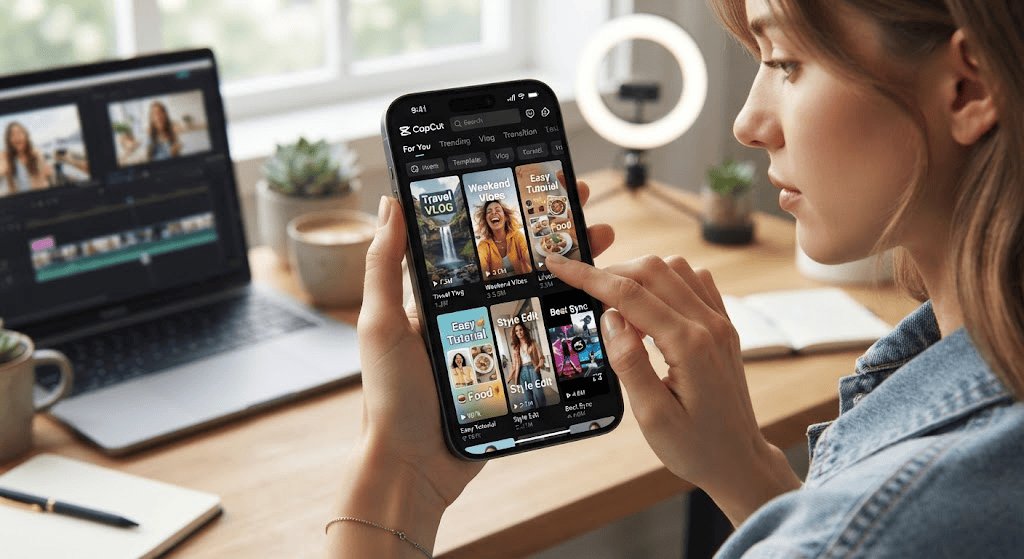
Finding Templates on Mobile
On supported versions of the CapCut mobile app:
- Open CapCut.
- Go to the Templates section.
- Search for a style or topic.
- Browse the available results.
- Select a template.
- Choose the option to use the template.
- Add your own photos or videos.
CapCut also explains that templates can be discovered through TikTok when a video contains a CapCut template link.
Finding Templates on the Web
CapCut’s official documentation provides a web workflow where users can open the Templates section, search or browse, select a template, and open it in the editor when the feature is available.
However, template availability can vary. If a template that appears on mobile is not available on your computer, that does not necessarily mean the template has disappeared.
The platform may simply offer different functionality depending on the version or device.
Searching With Better Keywords
Instead of searching only for “CapCut Template,” try more specific phrases based on the type of video you want.
Examples include:
- Travel CapCut Template
- Birthday CapCut Template
- Photo slideshow template
- Slow motion template
- Beat sync template
- Vlog template
- Instagram Reel template
- TikTok video template
- Cinematic template
- Before and after template
Specific searches can reduce the time you spend scrolling through unrelated results.
How to Use a CapCut Template
Once you find a template you like, the basic process is straightforward.
Step 1: Choose the Template
Look at the preview before selecting it.
Pay attention to:
- Number of clips required
- Clip duration
- Orientation
- Text style
- Music
- Transitions
- Overall pacing
A template that looks impressive may still be a poor fit if your footage does not match its structure.
Step 2: Select Your Photos or Videos
When you use the template, CapCut will generally ask you to provide the required media.
Choose footage that matches the template’s composition.
For example, if a template contains close-up portraits, using distant landscape shots may produce an awkward result.
Step 3: Review the Automatic Arrangement
The template will apply its existing structure to your media.
Watch the entire video before making additional changes.
Look for:
- Bad cropping
- Awkward transitions
- Text covering important subjects
- Clips that do not match the beat
- Images that appear too briefly
- Visual effects that are too strong
Step 4: Customize the Video
Do not assume you have to leave the template exactly as it appears.
Depending on the template, you may be able to modify elements such as text, stickers, music, or other editing components.
CapCut’s official guidance notes that templates can be customized, including elements such as stickers, text, and music.
Step 5: Preview Before Exporting
Watch the entire video from beginning to end.
Do not judge it only from the editing timeline.
A transition that looks fine while editing may feel too fast when viewed as a complete video.
Step 6: Export
When the video is ready, use the export controls available in your version of CapCut.
Choose an appropriate resolution and aspect ratio for the platform where you intend to publish it.
How to Choose the Right CapCut Template
The most visually complicated template is not necessarily the right one.
Instead, choose according to your content.
For Travel Videos
Look for:
- Fast transitions
- Cinematic pacing
- Landscape or portrait photo support
- Location-focused text
- Music synchronization
For Birthday Videos
Look for:
- Photo placeholders
- Celebration effects
- Text animations
- Multiple image slots
- Music that matches the mood
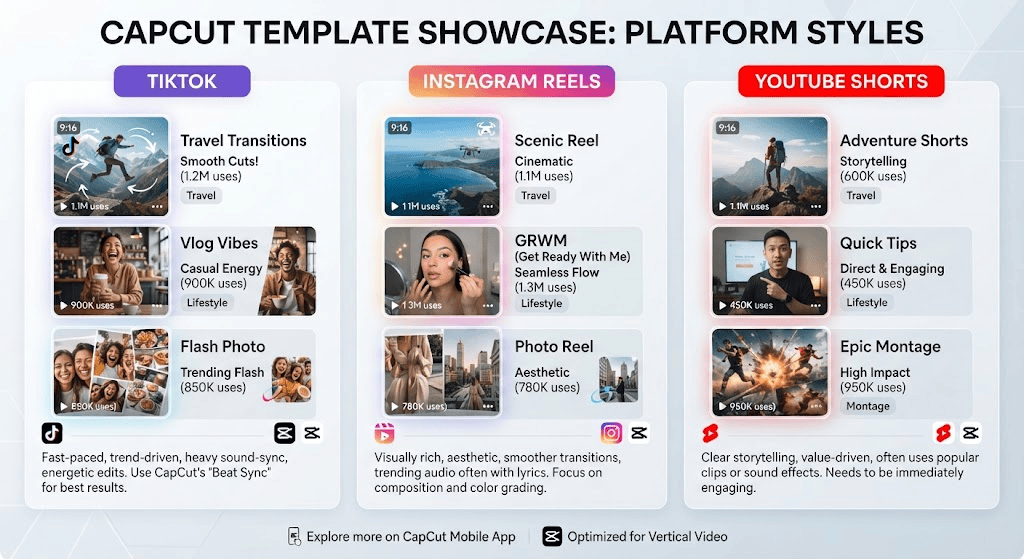
For TikTok
Look for templates designed around short, fast-moving content.
Strong options often have:
- Quick cuts
- Beat synchronization
- Vertical composition
- Large readable text
- Strong opening visuals
For Instagram Reels
Prioritize templates that work well in vertical video and leave enough visual space for the important parts of your footage.
Remember that platform interface elements can cover parts of the screen, so avoid placing critical text too close to the edges.
For YouTube Shorts
Choose a template that supports fast storytelling.
The first few seconds are especially important because viewers need to understand the video’s subject quickly.
Popular Types of CapCut Templates
CapCut’s template ecosystem covers many editing styles. Current official template pages include categories and examples ranging from slow-motion and photo templates to transitions, vlogs, effects, and trend-focused edits.
Photo Templates
These are designed around still images rather than long video clips.
They can work well for:
- Family memories
- Travel photos
- Birthday posts
- Before-and-after comparisons
- Personal slideshows
Beat-Sync Templates
These synchronize cuts or visual changes with music.
They are particularly useful when rhythm is an important part of the video.
Transition Templates
These emphasize movement between clips.
They can be useful for:
- Fashion edits
- Travel videos
- Dance videos
- Transformation videos
Slow-Motion Templates
These create a more dramatic or cinematic feeling.
They work best when your original footage contains movement that remains visually interesting when slowed.
Vlog Templates
Vlog-style templates can combine several short clips into a simple story.
They are useful for:
- Daily routines
- Travel diaries
- Food content
- Events
- Behind-the-scenes videos
Text-Focused Templates
These place more emphasis on animated words and captions.
They can be useful for:
- Quotes
- Announcements
- Promotional videos
- Educational content
- Short explanations
How to Make a CapCut Template Video Look More Original
One of the biggest mistakes beginners make is using a template without adding any personal style.
A template should provide structure, not replace creativity.
Use Your Own Footage
Your own photos and videos immediately make a template more personal.
Even a widely used template can look different when the source footage changes.
Rewrite the Text
If the template contains generic text, replace it with words that actually relate to your video.
Choose Appropriate Clips
Do not add random footage simply because the template requires a certain number of clips.
Select footage that contributes to the story.
Control the Effects
More effects do not automatically mean a better video.
If an effect distracts from the subject, reduce it or choose a simpler template.
Match the Mood
A romantic template may not work for a professional business video.
Likewise, a highly energetic template may not suit a quiet travel story.
The visual style should support the purpose of the video.
CapCut Template vs. Manual Editing
There is no need to choose one approach for every project.
A hybrid workflow can often be more useful.
| Approach | Speed | Creative Control | Beginner Friendly |
|---|---|---|---|
| Template | High | Moderate | Very high |
| Manual Editing | Lower | Very high | Moderate to low |
| Template + Manual Editing | High | High | High |
Templates are particularly useful when speed matters.
Manual editing makes more sense when you need precise control over every frame.
The hybrid approach gives you a starting structure while allowing you to personalize the final result.
Can You Create Your Own CapCut Template?
Yes, template creation is available to creators who have access to the relevant creator functionality.
CapCut’s official help documentation says creators can start a project, add clips, images, text, transitions, effects, and music, and then publish the project as a template when the required creator access is available.
A basic workflow is:
- Start a new project.
- Add your media.
- Build the editing structure.
- Add transitions and effects.
- Add text and other elements.
- Check the soundtrack and other content.
- Publish as a template if your account has access.
This is different from simply creating a normal video.
A template needs to be useful to another person who will replace your media with their own.
What Makes a Good Template?
A useful template should have:
- Clear media placeholders
- Logical pacing
- Easy customization
- A consistent visual style
- Appropriate transitions
- Readable text
- A clear purpose
Avoid creating a template that depends too heavily on one specific piece of footage.
Common CapCut Template Problems
Sometimes users cannot find or use the template they want.
The Template Button Is Missing
CapCut says template availability can depend on the version or device. If the Template option is missing, check whether the app is updated and whether the feature is available for your version or region.
A Template Works on Mobile but Not Desktop
Template functionality can differ across platforms.
CapCut’s current documentation specifically notes differences between mobile, Web, and desktop template functionality.
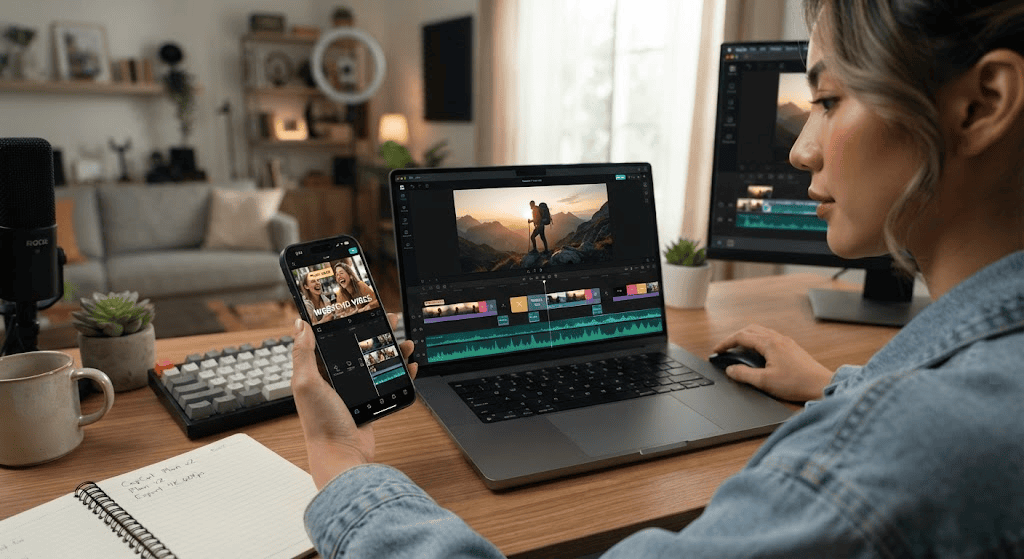
If a template is unavailable on your desktop version, try the supported mobile workflow instead.
The Template Looks Different With Your Photos
This is usually a content-matching issue.
A template designed around close-up portraits may not produce the same visual effect when you insert wide landscape photos.
Choose media that matches the original composition.
The Video Feels Too Fast
Some templates are designed around rapid cuts.
If your content needs more time, choose a slower template instead of forcing a fast template to fit your story.
Copyright and Safe Template Use
Using a template does not automatically mean every element inside it is free for every purpose.
Pay attention to:
- Music rights
- Third-party footage
- Images
- Logos
- Brand assets
- Creator content
- Commercial-use restrictions
CapCut’s own template guidance warns creators to check soundtrack copyright compliance when publishing templates.
For personal social media use, the practical question is still whether the specific audio or other material is licensed for your intended use.
For commercial content, advertising, client work, or monetized videos, be more careful.
Do not assume that because an audio track or visual appears inside an editor, you automatically have unrestricted rights to use it everywhere.
How to Make Better Videos With Templates
A template can speed up editing, but it cannot fix weak source material.
Use these practical habits.
Start With Good Footage
Clear, well-lit clips usually produce better results than blurry or poorly framed footage.
Keep the Story Simple
A short video does not need ten ideas.
Choose one central message or moment.
Put the Strongest Visuals First
If the opening clip is boring, viewers may leave before seeing the best part.
Keep Text Readable
Avoid placing small text over complicated backgrounds.
Match Music to the Content
The soundtrack should support the mood rather than fight against it.
Do Not Overuse Effects
A template full of transitions can become distracting when every clip changes dramatically.
Watch the Final Export
Always review the finished video rather than assuming the timeline preview tells the whole story.
A Simple CapCut Template Workflow for Beginners
If you are completely new to video editing, use this five-stage workflow:
1. Define the Purpose
Ask:
What should this video communicate?
It could be a travel memory, product promotion, birthday message, tutorial, or social media trend.
2. Collect Your Media
Select your best photos and videos before opening the template.
3. Find a Matching Template
Search using the purpose rather than a generic phrase.
4. Customize
Replace the media, edit text, review music, and adjust available elements.
5. Review and Export
Watch the complete video and fix anything that looks distracting or confusing.
This approach prevents the common mistake of selecting a template first and then trying to force unsuitable footage into it.
Are CapCut Templates Good for Beginners?
For many beginners, templates are an accessible way to learn video editing concepts.
They allow users to see how different elements work together without requiring them to build an entire project from zero.
As you become more comfortable, you can gradually move beyond templates.
Learn:
- Timeline editing
- Cutting and trimming
- Transitions
- Text animation
- Audio editing
- Speed controls
- Keyframes
- Color adjustments
- Effects
- Layering
Eventually, you may find that a template is simply the first draft of your project rather than the final product.
CapCut Templates and AI Video Editing
Modern video editing is increasingly combining traditional editing tools with AI-assisted features.
AI can help with tasks such as:
- Generating or modifying content
- Automating parts of an editing workflow
- Improving creative experimentation
- Helping users create social content faster
However, AI features and template features are not the same thing.
A template provides a predefined editing structure.
AI tools can perform or assist with tasks that would otherwise require more manual decisions.
Using both approaches can be useful, but creators should still review the final result for accuracy, visual quality, copyright considerations, and consistency.
When Should You Avoid a CapCut Template?
Templates are useful, but they are not appropriate for every video.
Consider manual editing when:
- You need precise timing.
- Your video has a complex story.
- You are producing a professional commercial.
- You need complete control over branding.
- The available templates do not match your footage.
- You need a unique visual identity.
A template is a shortcut, not a requirement.
The best workflow is the one that produces the result you need with an appropriate amount of effort.
Frequently Asked Questions About CapCut Templates
What is a CapCut Template?
A CapCut Template is a pre-designed video editing structure containing elements such as effects, transitions, text, stickers, music, or media placeholders that users can customize with their own content.
Are CapCut Templates free?
Some templates are available without an additional template purchase, but access to specific content and features can vary by platform, account, region, or subscription. Check the current options shown in your CapCut app or editor.
How do I use a CapCut Template?
Find a template, select the option to use it, add your own photos or videos, customize the available elements, preview the result, and export the finished video. The exact steps can vary by platform.
Can I use CapCut Templates for TikTok?
Yes. CapCut supports template workflows connected with TikTok, and some TikTok videos can include a CapCut template link that opens the template in CapCut. Availability can vary.
Can I use CapCut Templates for Instagram Reels?
Yes. A CapCut Template can be used to create vertical videos suitable for Instagram Reels. After editing, review the framing and text placement before publishing.
Can I create my own CapCut Template?
Creators with the required access can create a project and publish it as a template. CapCut says template publishing is associated with creator access through the Creator Center.
Why can’t I find a CapCut Template?
Template availability can vary by device, app version, platform, or region. Updating CapCut and checking the appropriate Templates section may help.
Can I use a CapCut Template for commercial videos?
You should check the rights associated with the individual elements, particularly music, third-party media, logos, and other copyrighted material. Do not assume that every element available through a template is automatically cleared for commercial use.
Conclusion
A CapCut Template can make video editing much easier when you know how to choose and customize it properly. Instead of starting with an empty timeline, you can begin with a prepared structure and replace the sample content with your own photos or videos.
The key is not simply finding a popular template. Choose one that matches your footage, platform, audience, and purpose. Then personalize the text, media, pacing, and other available elements so the final video feels like your own.
For beginners, templates can also serve as a practical introduction to editing. Once you understand how templates organize clips, transitions, text, and audio, you can gradually move toward manual editing and develop greater creative control.
The best template is ultimately the one that helps you communicate your idea clearly without getting in the way of the content.