
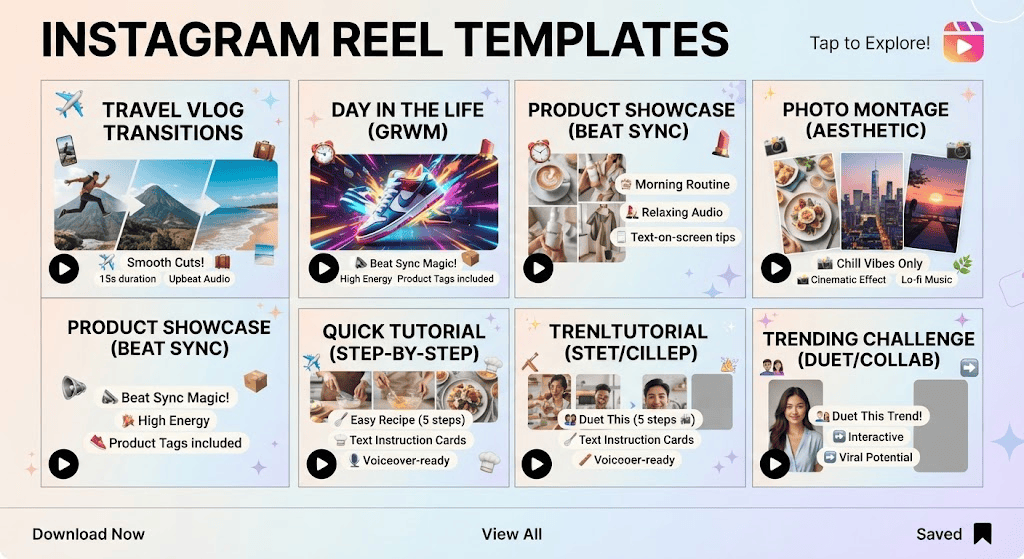
Looking for the perfect instagram reel template? Discover 15 free, trending CapCut templates for 2025, plus a step-by-step guide to using them.
Introduction
If you’ve ever scrolled through Instagram and wondered how creators make their Reels look so polished in seconds, the answer is usually the same: a good instagram reel template. Templates take the guesswork out of editing — the transitions, text animations, and music syncing are already done for you. All you need to do is drop in your own photos or clips.
CapCut has become the go-to app for this exact reason. It’s free, beginner-friendly, and packed with thousands of ready-made templates built specifically for Instagram Reels. Whether you’re a small business owner promoting products, a content creator chasing trends, or just someone who wants to share vacation photos in style, there’s a template for you.
In this guide, you’ll find 15 of the best CapCut templates for Instagram Reels in 2025, a breakdown of how to use them, tips to customize them so your content doesn’t look generic, and answers to the most common questions beginners ask. Let’s get into it.
Why Use an Instagram Reel Template?
Before jumping into the list, it helps to understand why templates have become so popular among creators of all skill levels.
- They save time. Editing a Reel from scratch can take 30–60 minutes. A template cuts that down to under 5 minutes in most cases.
- They follow proven formats. Many templates are built around trending styles that already have high engagement, so you’re working with a format that’s known to perform well.
- They keep transitions smooth. Beginners often struggle with timing cuts and transitions. Templates handle this automatically.
- They’re beginner-friendly. You don’t need editing experience — just tap, replace the media, and export.
- They maintain visual consistency. If you post regularly, templates help your feed feel cohesive rather than random.
According to Instagram’s own creator resources, short-form video continues to be one of the most-watched formats on the platform, which is part of why polished, template-based Reels tend to get more visibility. You can review Instagram’s official guidance for creators directly on the Instagram Creators site.
How to Find and Use an Instagram Reel Template in CapCut
If you’re new to CapCut, here’s the basic workflow before we get into specific templates.
Step 1: Open the Template Tab
Launch the CapCut app and tap the Templates icon on the home screen. This opens a library organized by category — trending, Instagram Reels, transitions, travel, business, and more.
Step 2: Search for a Style
Use the search bar to type keywords like “reel,” “aesthetic,” “product promo,” or “photo dump.” You can also browse the “Instagram Reel Template” collection directly.
Step 3: Preview and Select
Tap any template to preview it. Pay attention to:
- Number of clips/photos required
- Total video length
- Aspect ratio (Reels should be 9:16)
Step 4: Add Your Own Media
Tap “Use Template,” then select your photos or videos from your camera roll in the order requested. CapCut automatically fits them into the pre-built timeline.
Step 5: Customize Before Exporting
This is the step most beginners skip — don’t. Adjust text captions, swap the music if needed, and trim any awkward clip transitions.
Step 6: Export and Post
Export in the highest resolution available (1080p minimum), then upload directly to Instagram Reels or save it to your camera roll first.
15 Best CapCut Templates for Instagram Reels in 2025
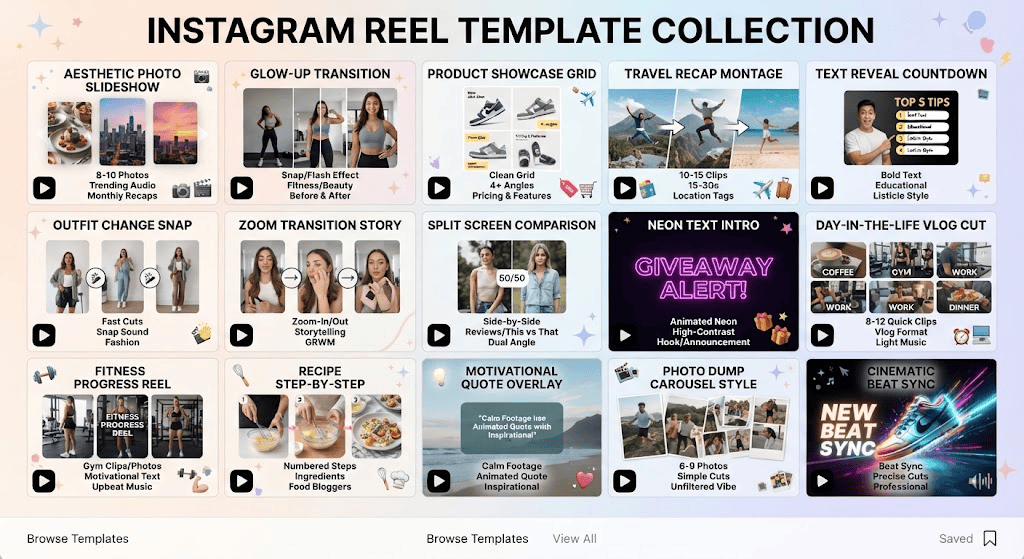
Below is a curated list of template styles that consistently perform well for different content types. Search these exact names or keywords inside CapCut’s template library.
| # | Template Style | Best For | Clips Needed | Difficulty |
|---|---|---|---|---|
| 1 | Aesthetic Photo Slideshow | Personal/lifestyle content | 8–10 photos | Easy |
| 2 | Glow-Up Transition | Before/after reveals | 2 clips | Easy |
| 3 | Product Showcase Grid | Small businesses | 4–6 clips | Medium |
| 4 | Travel Recap Montage | Vacation content | 10–15 clips | Medium |
| 5 | Text Reveal Countdown | Listicles, tips | 5 clips | Easy |
| 6 | Outfit Change Snap | Fashion/OOTD | 3–5 clips | Easy |
| 7 | Zoom Transition Story | Storytelling reels | 6–8 clips | Medium |
| 8 | Split Screen Comparison | Reviews, comparisons | 2 clips | Easy |
| 9 | Neon Text Intro | Announcements | 3 clips | Easy |
| 10 | Day-in-the-Life Vlog Cut | Vlog-style content | 8–12 clips | Medium |
| 11 | Fitness Progress Reel | Health/fitness creators | 4–6 clips | Easy |
| 12 | Recipe Step-by-Step | Food content | 6–10 clips | Medium |
| 13 | Motivational Quote Overlay | Inspirational posts | 5 photos | Easy |
| 14 | Photo Dump Carousel Style | Casual updates | 6–9 photos | Easy |
| 15 | Cinematic Beat Sync | Music-driven edits | 6–8 clips | Advanced |
1. Aesthetic Photo Slideshow
This is one of the most searched templates because it works for almost any niche. It arranges 8–10 photos with smooth fade or slide transitions, synced to a trending audio track. Great for monthly recaps or personal branding.
2. Glow-Up Transition
A classic before/after format where one clip transitions into another using a snap, spin, or flash effect. Popular with fitness, beauty, and home renovation accounts.
3. Product Showcase Grid
Designed for e-commerce and small business owners. It displays multiple product angles or variations in a clean grid layout with text callouts for pricing or features.
4. Travel Recap Montage
Built for longer clip counts (10–15), this template compresses a whole trip into 15–30 seconds with location tags and upbeat music.
5. Text Reveal Countdown
Perfect for “Top 5” or “3 Tips” style content. Each clip is paired with a bold text overlay that reveals as the video plays — ideal for educational or listicle Reels.
6. Outfit Change Snap
A fast-cut template where each clip transitions on a snap or clap sound, revealing a new outfit. Extremely popular in the fashion niche.
7. Zoom Transition Story
Uses a zoom-in/zoom-out effect between clips to create a storytelling feel, often used for “get ready with me” or narrative-style Reels.
8. Split Screen Comparison
Displays two clips side by side — useful for reviews, “this vs. that” comparisons, or showing a process from two angles simultaneously.
9. Neon Text Intro
A bold, high-contrast intro template with animated neon-style text. Works well for announcements, giveaways, or hook-driven openers.
10. Day-in-the-Life Vlog Cut
Stitches together 8–12 short clips with quick cuts and light background music, mimicking the popular “day in my life” vlog format.
11. Fitness Progress Reel
Combines gym clips or progress photos with motivational text overlays and upbeat music — a favorite among fitness influencers.
12. Recipe Step-by-Step
Breaks down a recipe into numbered steps with ingredient text overlays, perfect for food bloggers and home cooks.
13. Motivational Quote Overlay
Pairs calm background footage or photos with animated quote text — low effort, high engagement for inspirational accounts.
14. Photo Dump Carousel Style
Mimics the casual, unfiltered “photo dump” trend but in video form, with simple cuts between 6–9 photos.
15. Cinematic Beat Sync
An advanced template where every cut is precisely timed to the beat of the music. Requires slightly more editing skill but delivers a highly professional result.
How to Customize a Template So It Doesn’t Look Generic
One common mistake beginners make is using a template exactly as-is without any personalization. Since thousands of creators use the same templates, your Reel can start to look identical to everyone else’s. Here’s how to avoid that:
- Change the font style in text overlays to match your personal brand.
- Swap the background music if the default track feels overused (CapCut’s library and Instagram’s own audio library both work).
- Adjust the color grading using CapCut’s filter or adjustment tools to give it your own tone.
- Trim clip lengths slightly rather than using the exact default timing.
- Add your own captions or subtitles instead of relying only on the template’s built-in text.
These small tweaks take an extra 2–3 minutes but make a noticeable difference in originality.
Best Practices for Posting Instagram Reels
Using a great template is only half the equation. How you post matters just as much.
- Post during peak engagement hours — generally early morning or evening in your audience’s time zone.
- Use 3–5 relevant hashtags rather than stuffing 20+ into the caption.
- Write a caption that adds context — templates alone don’t explain your message.
- Keep the first 1–2 seconds attention-grabbing, since that’s when most viewers decide whether to keep watching.
- Use trending audio when possible, as Instagram’s algorithm tends to favor Reels using currently popular sounds.
For more detail on how Instagram’s algorithm evaluates Reels for distribution, Meta has published official guidance through its Meta Business Help Center, which covers content ranking factors relevant to Reels.
Common Mistakes to Avoid When Using Reel Templates
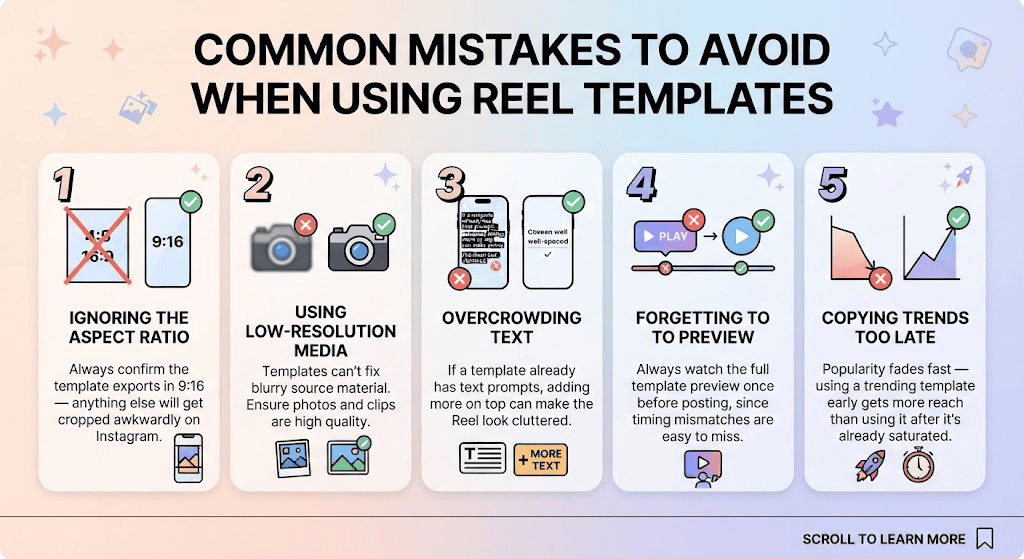
- Ignoring the aspect ratio. Always confirm the template exports in 9:16 — anything else will get cropped awkwardly on Instagram.
- Using low-resolution photos or clips. Templates can’t fix blurry source material.
- Overcrowding text. If a template already has text prompts, adding more on top can make the Reel look cluttered.
- Forgetting to preview before exporting. Always watch the full template preview once before posting, since timing mismatches are easy to miss.
- Copying trending templates too late. Popularity fades fast — using a trending template early gets more reach than using it after it’s already saturated.
Conclusion
Finding the right instagram reel template can completely transform how your content looks and performs — without requiring hours of editing experience. CapCut makes this process simple, offering a huge library of styles ranging from aesthetic slideshows to cinematic beat-synced edits. The key is choosing a template that fits your content type, then personalizing it just enough to keep it feeling authentic to your brand or personal style.
Start with one or two templates from this list, get comfortable with the CapCut workflow, and build from there. Once you find a style your audience responds to, you can reuse similar templates consistently to keep your Reels feed looking polished and cohesive.
FAQs
1. What is an Instagram Reel template?
An Instagram Reel template is a pre-built video structure — including transitions, text animations, and music timing — that you can customize by adding your own photos or video clips, usually through an app like CapCut.
2. Are CapCut templates free to use?
Yes, the vast majority of CapCut templates are free. Some premium effects or assets may require CapCut Pro, but core templates are accessible without a subscription.
3. Can I use CapCut templates for commercial or business content?
Yes, CapCut templates can be used for business promotions, product showcases, and marketing Reels, as long as you’re not redistributing the template itself as your own product.
4. Do Instagram Reel templates affect how many views I get?
Templates themselves don’t guarantee views, but using a trending, well-timed template can improve watch time and engagement, which are factors Instagram’s algorithm considers when distributing content.
5. How many photos or clips do most templates require?
This varies by template — some need as few as 2 clips (like transition templates), while slideshow-style templates may require 8–10 photos.
6. Can I edit the text and music in a CapCut template?
Yes. After applying a template, you can tap on any text element to edit the wording, font, or color, and tap the audio track to replace it with a different song or sound.
7. What’s the ideal video length for an Instagram Reel?
Instagram Reels can run up to 90 seconds, but most high-performing Reels fall between 7 and 30 seconds, especially for template-based content.
8. Do I need CapCut Pro to make good-quality Reels?
No. The free version of CapCut includes most templates, transitions, and export options needed to create high-quality Reels without watermarks.