

How to Delete Instagram Account Permanently or Temporarily in 2026
Learning how to delete Instagram account access for good is simpler than many people expect, but the option is buried deep in the settings, and the difference between deleting and deactivating matters a lot. If you delete your account, your profile, photos, videos, comments, likes and followers are removed permanently after a short grace period. If you deactivate it instead, everything is hidden for a while and can be restored simply by logging back in. This guide walks you through both options, step by step, on your phone and on a computer, so you can make the right choice without losing anything by accident.
Quick answer: To delete your Instagram account, open the Instagram app, go to your profile, tap the menu, then Accounts Centre, then Personal details, then Account ownership and control, then Deactivation or deletion. Choose the account, tap Delete account, then Continue, pick a reason, enter your password and confirm. Instagram keeps the account for a short period before permanent deletion, so you can still change your mind by logging back in during that window. Deactivation follows the same path but hides your account instead of removing it.
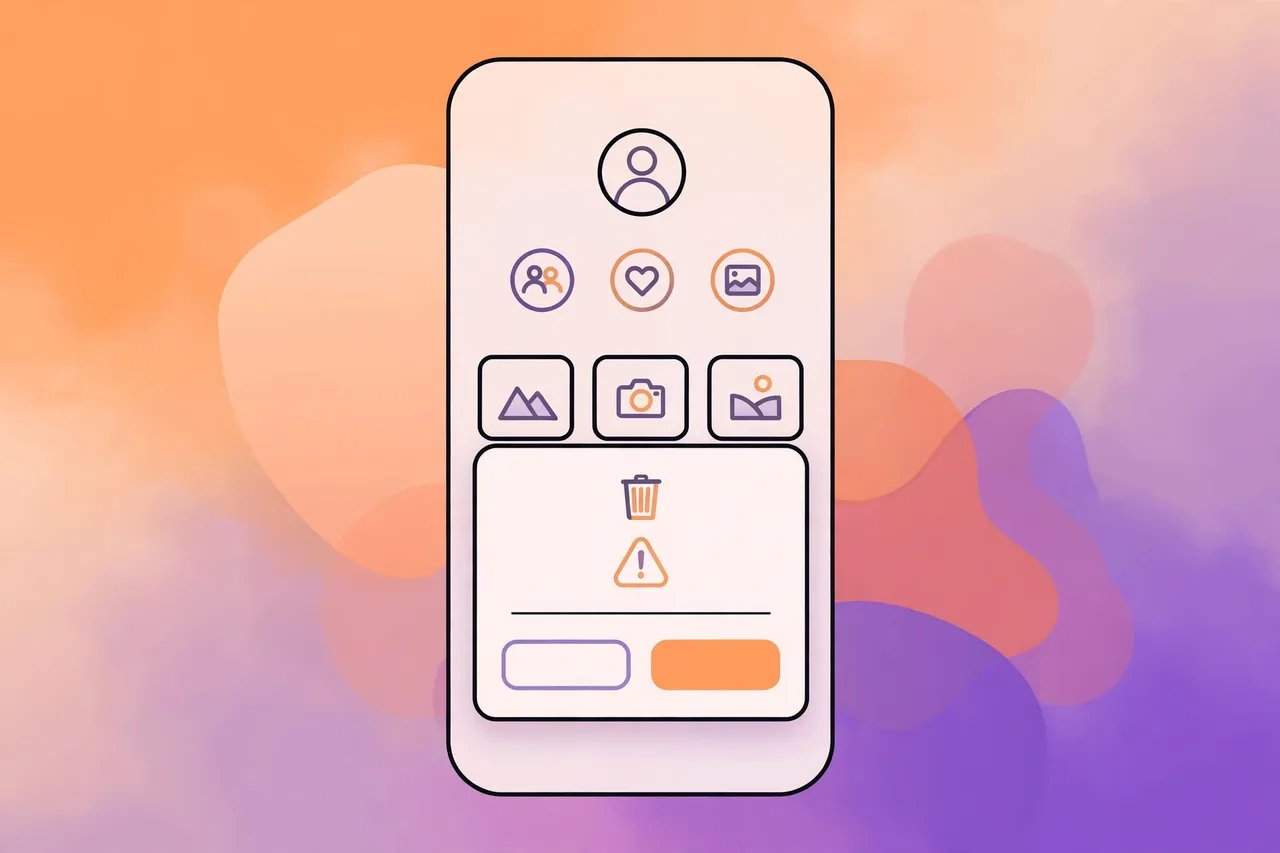
Delete vs Deactivate: Which One Should You Choose?
Before you tap anything, decide which outcome you actually want. Deleting and deactivating sound similar, but they do very different things to your account, and only one of them can be undone.
Deleting your account is permanent. Once the grace period ends, your profile, posts, stories, comments, likes, followers and messages are removed and cannot be recovered. You also cannot sign up again with the same username straight away, because Instagram may keep it unavailable for a while. Deletion is the right choice if you are leaving Instagram for good, you want your data removed, or you are closing an old account you no longer use.
Deactivating your account is temporary. Your profile, photos and comments are hidden from everyone else, but nothing is deleted. When you are ready to come back, you simply log in again and everything returns as it was. Deactivation is the better choice if you need a break from social media, you are studying for exams, you want some time away, or you are not sure yet whether you want to leave for good.
A simple rule helps: if you might return within a few months, deactivate. If you are certain you are done, delete. You can always deactivate first and delete later, but you cannot undo a completed deletion, so take the slower path when you are unsure.
Before You Delete: Download Your Data First
Once an account is deleted, its photos and videos are gone. Instagram lets you download a copy of your data before you delete, and doing this takes only a few minutes. It is worth doing even if you think you have everything saved elsewhere, because old stories, messages and saved posts are easy to forget.
Your download can include photos, videos, stories, messages and settings. Instagram prepares the file and emails you a download link, which can take a few minutes or up to a couple of days.
How to request your Instagram data
- Open Instagram and go to your profile.
- Tap the menu icon in the top right corner.
- Tap Accounts Centre, then Your information and permissions.
- Tap Download your information, then Request a download.
- Choose the account and the information you want, then tap Submit request.
- Check your email for the download link when it is ready.
Save the downloaded file somewhere safe, such as your computer or a cloud drive, and check that your favourite photos are inside it before you go any further. If you use Instagram to log in to other apps or websites, switch those logins to an email address and password first, because deleting your Instagram account can lock you out of them.
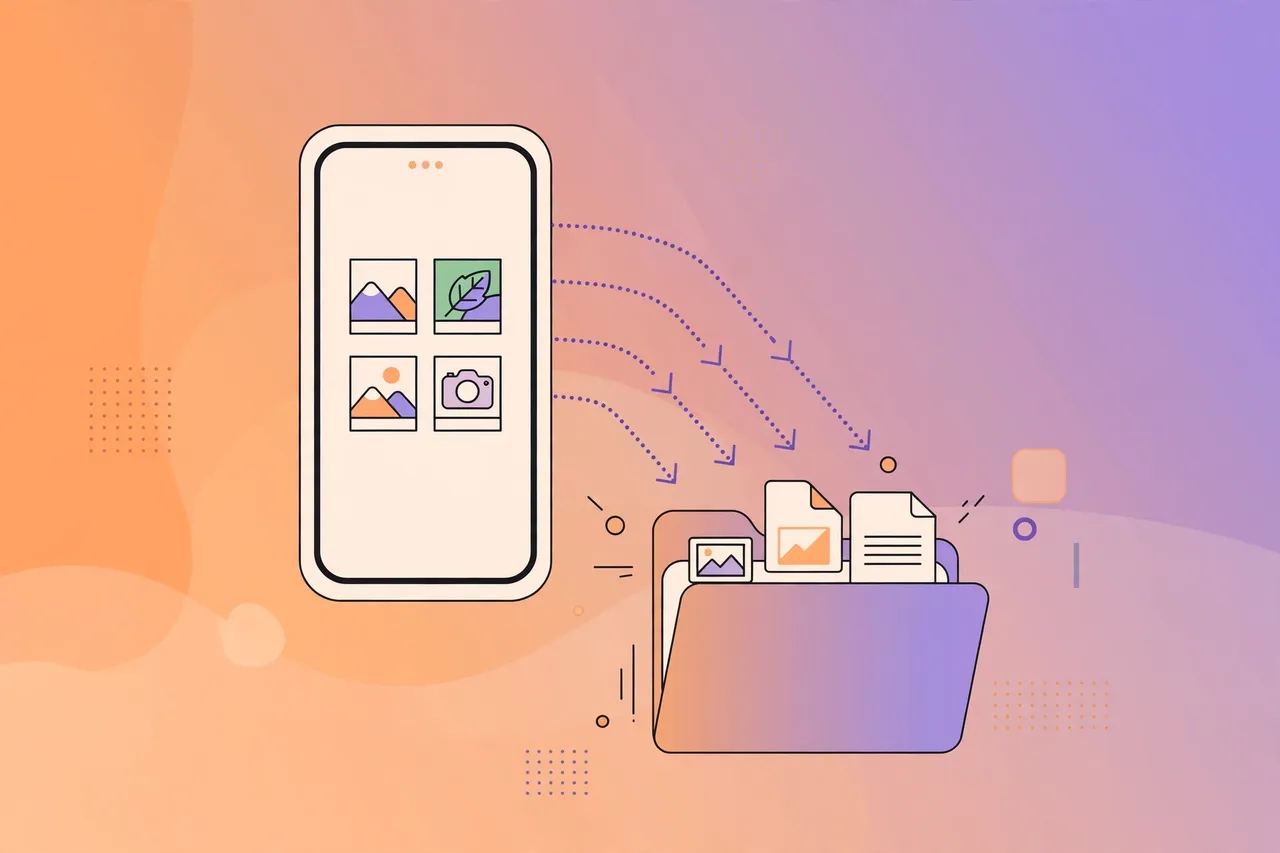
How to Delete Instagram Account on Your Phone
Most people delete Instagram from the app, and the steps are the same on Android and iPhone. Instagram moved the option into Accounts Centre, which is also where Meta manages the accounts linked to your profile, so do not look for it under the old privacy settings.
- Open the Instagram app and log in to the account you want to delete.
- Tap your profile picture in the bottom right to open your profile.
- Tap the three-line menu icon in the top right corner.
- Tap Accounts Centre at the top of the settings list.
- Tap Personal details, then Account ownership and control.
- Tap Deactivation or deletion.
- Choose the account you want to delete, then tap Delete account.
- Tap Continue, choose a reason for leaving, and tap Continue again.
- Enter your password, tap Continue, and confirm the deletion.
After you confirm, your account is not removed instantly. There is a short grace period, usually around 30 days, during which your profile is hidden. If you log back in during that period and ask to keep the account, the deletion is cancelled. After the period ends, it becomes permanent.
If you have more than one account logged in, check carefully that you selected the right one at step seven. Deleting the wrong account cannot be fixed after the grace period ends, so read the account name twice before you continue.
How to Delete Instagram Account on a Computer
Deleting from a web browser follows the same idea, and some people find it easier because the screens are larger and the confirmation steps are clearer.
- Go to instagram.com and log in to the account you want to delete.
- Click your profile picture in the bottom left, then click Settings.
- Click Accounts Centre, then Personal details.
- Click Account ownership and control, then Deactivation or deletion.
- Select the account, choose Delete account, and click Continue.
- Pick a reason, enter your password, and confirm.
The same grace period applies on the web as in the app. If you change your mind, log back in before the period ends and follow the prompt to keep your account. If you cannot see the Accounts Centre option, make sure you are logged in to the right account and that your browser is up to date, then try again.
How to Deactivate Your Instagram Account Instead
Deactivation uses exactly the same menu as deletion, which is why the two are easy to confuse. Follow the same path — profile, menu, Accounts Centre, Personal details, Account ownership and control, Deactivation or deletion — but choose Deactivate account instead of Delete account when you reach the choice screen.
Instagram will ask for a reason and your password, just as for deletion. Once you confirm, your profile disappears from search and your posts are hidden. To reactivate, simply log back in — your profile, posts and followers should return as they were.

Troubleshooting: Common Problems When Deleting Instagram
I cannot find the delete option
Make sure your Instagram app is updated to the latest version, because older versions place the option in different menus. The current path runs through Accounts Centre, not through the old privacy menu. If you still cannot find it, try deleting from a web browser instead.
Instagram says my password is wrong
Double-check your password, and remember that Instagram passwords are case-sensitive. If you have forgotten it, use the “Forgot password?” link on the login screen to reset it first. You cannot complete a deletion without entering the correct password.
The deletion button is greyed out or nothing happens
This is usually a temporary problem. Close the app completely, reopen it, and try again. A weak internet connection can also stop the confirmation from going through, so switch to a stable Wi-Fi connection if you are on mobile data.
I deleted the wrong account
Log back in to that account immediately, before the grace period ends, and cancel the deletion when Instagram offers you the choice. If the grace period has already ended, the account cannot be recovered, and you will need to create a new one.
Related Guides
If you are sorting out your Instagram privacy before you decide, you may also find our Instagram shadowban checker guide useful, along with our guide on how to turn off read receipts on Instagram. If you are wondering whether third-party Instagram viewers are safe to use at all, read is Pixwox safe before you share your details anywhere.
Frequently Asked Questions
How long does it take to delete an Instagram account permanently?
After you confirm the deletion, Instagram usually keeps the account for around 30 days before removing it permanently. During that time your profile is hidden, and logging back in lets you cancel the deletion.
Can I delete my Instagram account without a password?
No. Instagram asks for your password to confirm the deletion, so that nobody else can delete your account. If you have forgotten your password, reset it from the login screen first, then start the deletion steps again.
What is the difference between deactivating and deleting Instagram?
Deactivating hides your profile temporarily and everything can be restored by logging back in. Deleting removes your profile, posts and followers permanently after the grace period, and the account cannot be recovered.
Will my messages disappear if I delete my Instagram account?
Your sent messages may still be visible in the other person’s inbox, but your profile will no longer be attached to them in the usual way. Your own copy of the conversations is removed with the account, so download your data first if you want to keep it.
Can I use the same email or username after deleting Instagram?
You can usually use the same email address for a new account, but your old username may not be available immediately. Instagram can keep a deleted username unavailable for a while, and another person may claim it first.
Conclusion
Knowing how to delete Instagram account access properly means choosing between a permanent deletion and a temporary deactivation, downloading your data first, and following the Accounts Centre path carefully so you delete the right account. Deactivation is the safer choice when you only need a break, while deletion is right when you are certain you want to leave. Whichever you choose, take the extra minute to save your photos and switch any logins tied to Instagram before you confirm — it is a small step that prevents a much bigger headache later.
Sources: Instagram Help Center, About Instagram