

How to Turn Off Read Receipts on Instagram: App & Web Guide (2026)
When you open someone’s Instagram message, they see a small “Seen” label under it — and the clock starts ticking on your reply. Learning how to turn off read receipts on Instagram gives you back control: you can read a message when it suits you and reply when you are ready, without the other person knowing you have seen it. This guide shows you how to do it on iPhone, Android, and the web, and explains exactly what changes once the switch is off.
The short answer: open the chat, tap the person’s name at the top, tap Privacy & safety, and turn off Read receipts. It is a per-chat setting, so you repeat it for each conversation you want to keep private. The same switch exists on instagram.com in the chat details panel. Once it is off, that person will no longer see “Seen” under messages you have read.
What are read receipts on Instagram?
Read receipts are the “Seen” label that appears under a message after the other person opens it. They also show the time, such as “Seen 2h ago”. They exist in one-to-one chats and in group chats, where Instagram shows who has seen each message.
Read receipts are switched on by default, and for years there was no way to turn them off at all. Instagram added the option to disable them for individual chats in early 2024, which is why many people still do not know the setting exists. It is a small privacy win: you are not hiding, blocking, or restricting anyone — you are simply choosing not to send a read confirmation.
How to turn off read receipts on Instagram (iPhone & Android)
The steps are the same on iPhone and Android. If you cannot find the setting, update the Instagram app first — the switch only appears in recent versions.
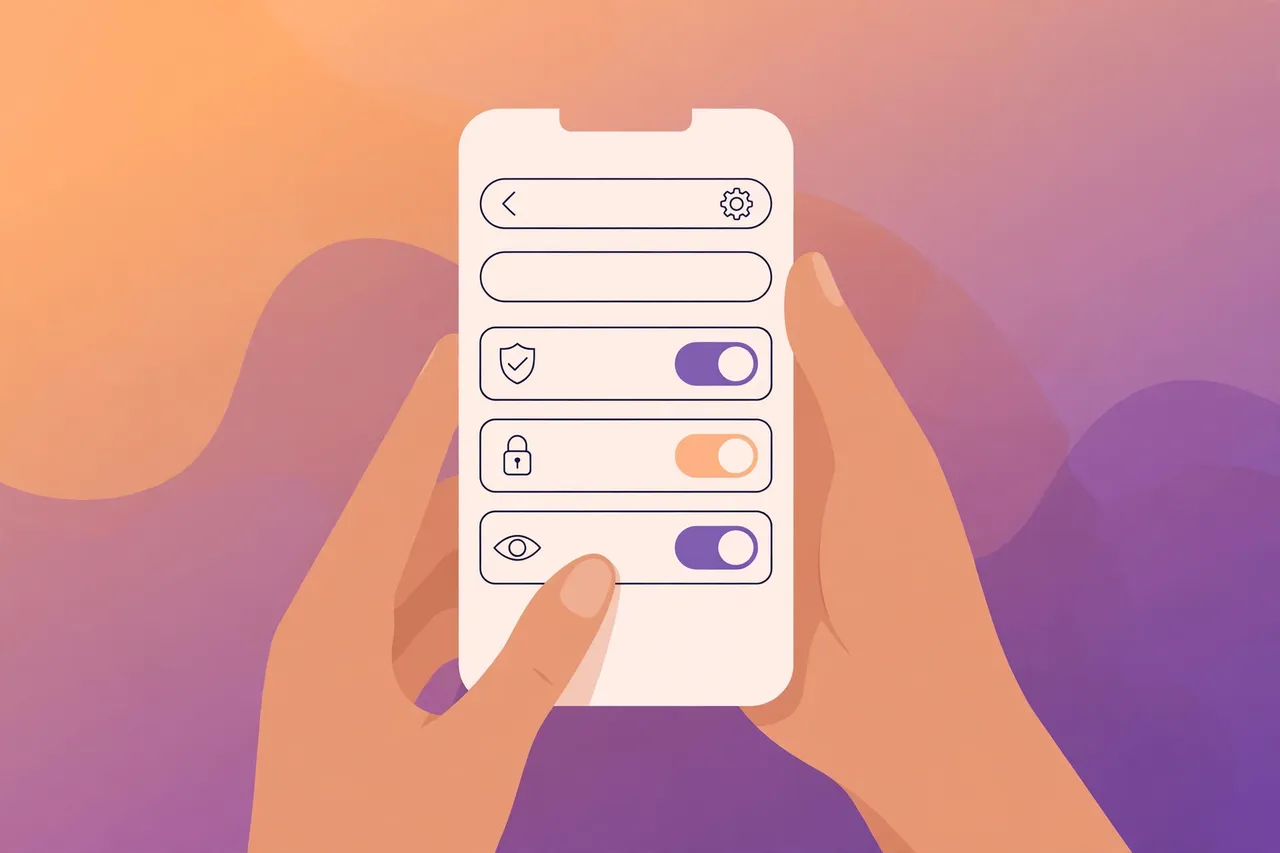
- Open Instagram and tap the Messenger icon (the paper plane or speech bubble) at the top right to open your direct messages.
- Open the chat where you want to turn off read receipts.
- Tap the person’s name or username at the top of the chat to open the chat details.
- Tap Privacy & safety.
- Find Read receipts and tap the toggle to turn it off.
- Go back. The change saves automatically — there is no save button.
That is all. From now on, when you read that person’s messages, they will not see “Seen” under them. The messages will simply stay marked as delivered on their side.
How to turn read receipts back on
Follow the same steps and switch the toggle back on. The change applies immediately. Note that turning receipts back on does not reveal “Seen” for messages you read while the setting was off — those stay hidden. Only messages you open after switching it back on will show as seen.

How to turn off read receipts on Instagram web
If you use Instagram on a computer, you can change the same setting on instagram.com. The web version of the setting works the same way and syncs with the app — change it in one place and it applies everywhere.
- Go to instagram.com and log in.
- Click Messages in the left menu to open your inbox.
- Open the conversation you want to change.
- Click the “i” (information) icon or the person’s name at the top of the chat to open the chat details panel.
- Click Privacy & safety.
- Turn off the Read receipts toggle.
If the details panel looks different on your screen, make sure you are using the current version of instagram.com — older cached pages sometimes show the old layout. A refresh usually fixes it.
Can you turn off read receipts for all chats at once?
No. Instagram does not offer a single global switch for read receipts. The setting is per conversation, so you need to repeat the steps for each chat. That is inconvenient if you want it off everywhere, but it is also flexible: you can keep receipts on for close friends or family, where a quick “Seen” is useful, and turn them off for work contacts, acquaintances, or anyone whose messages you prefer to read without pressure.
There is no shortcut, third-party app, or hidden menu that turns them all off at once. Any app that claims to do this is asking for your Instagram login, which is a security risk — never share your password with a third-party app for a feature Instagram already provides for free.
What happens after you turn read receipts off?
A few things change, and a few things do not. Here is the full picture:
- The other person stops seeing “Seen”. Messages you read stay marked as delivered on their side. They cannot tell whether you have read them or not.
- You still see their read receipts. Turning off your own receipts does not hide theirs. If they have receipts on, you will still see “Seen” under messages they have read.
- It only affects that one chat. Every other conversation keeps its own setting. New chats start with read receipts on.
- Group chats have their own switch. Open the group, tap the group name, then Privacy & safety, and turn off Read receipts there. Members will no longer see your name in the “Seen by” list.
- It does not hide your online status. Read receipts and Activity Status are separate settings. If your Activity Status is on, people can still see when you are active or were recently active. To hide that too, go to Settings, then Messages and story replies, then turn off “Show activity status”.
- It does not unsend or hide messages. The other person can still see everything you sent them, and they can still see the “Delivered” label.
Other ways to read Instagram messages without being seen
Turning off read receipts is the cleanest method, but there are a few other options worth knowing:
Read the preview from notifications. If message notifications are on, you can read short messages in the notification itself without opening the chat. Long messages get cut off, so this only works for short texts.
Use Restrict for a specific person. Restricting someone moves their messages to Message Requests, and they will not see when you are online or when you have read their message. This is a stronger step than turning off receipts, and it also hides their comments from everyone but them — use it for people you want distance from, not for everyday chats.
Turn on airplane mode before opening a chat. Reading a message with no connection means Instagram cannot send the “Seen” update at that moment. But the moment you reconnect, the app syncs and the receipt is sent. This is unreliable and not worth the hassle now that the official switch exists.
Troubleshooting: the read receipts switch is missing
Update the app. The setting arrived in an early 2024 update. Open the App Store or Google Play, search for Instagram, and install any available update. If your phone cannot run the newest version, the setting may never appear.
Check you are in the right place. The switch is inside each individual chat, under the chat name, then Privacy & safety. It is not in the main Settings menu, which is where most people look first.
Log out and back in. If the app is up to date and the switch is still missing, signing out and back in forces a fresh sync of your account settings. Make sure you know your password before signing out.
Wait for the rollout. Instagram rolls out features gradually, and a small number of accounts receive them later than others. If everything is updated and the switch is still absent, check again after a few days.
Frequently asked questions
Can someone tell if I turned off read receipts on Instagram?
No. Instagram does not notify the other person. They will only notice that messages they send you no longer show “Seen” — and even then, they cannot tell whether you turned the setting off or simply have not opened the chat.
Does turning off read receipts hide “Seen” in group chats too?
Yes, if you turn it off in that group. Open the group, tap the group name, go to Privacy & safety, and switch off Read receipts. Your name will no longer appear in the “Seen by” list for that group.
How do I turn off read receipts on Instagram web?
On instagram.com, open Messages, open the conversation, click the “i” icon or the person’s name at the top, open Privacy & safety, and turn off Read receipts. The setting syncs with the app.
If I turn read receipts back on, will old messages show as seen?
No. Messages you read while receipts were off stay hidden. Only messages you open after switching the setting back on will show “Seen” to the other person.
Does turning off read receipts also hide my active status?
No. Activity Status is a separate setting. Go to Settings, then Messages and story replies, and turn off “Show activity status” if you also want to hide when you are online.
Related guides
- How to Hide Followers on Instagram
- How to Know If Someone Blocked You on Instagram
- Does Instagram Notify When You Screenshot?
Conclusion
Turning off read receipts on Instagram takes about ten seconds per chat: open the conversation, tap the name at the top, open Privacy & safety, and switch Read receipts off. The same steps work on iPhone, Android, and instagram.com on the web. Remember that it is a per-chat setting, not a global one, and that it hides your read confirmations without hiding your online status. Used thoughtfully, it simply gives you space to read messages on your own time — and reply when you are ready, not when a “Seen” label says you should.