
Learn how to secure your Facebook account with this complete facebook security privacy guide — covering 2FA, privacy settings, phishing, and more.
Facebook Security Privacy Guide: 10 Essential Steps to Protect Your Account
Facebook remains one of the most targeted platforms for hackers, scammers, and data harvesters — not because it’s unsafe by design, but because so many accounts are left with weak passwords, loose privacy settings, and forgotten third-party app access. If you’ve ever wondered whether your account is truly protected, this facebook security privacy guide walks you through every setting that matters, in plain language, with no technical jargon.
Whether you’re securing a personal profile, a business Page, or an account you manage for a family member, this Facebook security privacy guide covers the exact steps to lock down your login, control who sees your posts, and stop apps and advertisers from collecting more of your data than necessary. By the end, you’ll have a fully hardened Facebook account and a repeatable checklist you can revisit every few months.
Why This Facebook Security Privacy Guide Matters
Facebook stores an enormous amount of personal information: your messages, photos, location history, contact list, and even the pages and ads you interact with. A compromised account doesn’t just expose your posts — it can be used to scam your friends, steal your identity, or access linked accounts through “Login with Facebook.”
Meta has built in strong protective tools over the years, including two-factor authentication, login alerts, and a centralized Privacy Center. The problem isn’t a lack of tools — it’s that most users never turn them on. That’s exactly what this facebook security privacy guide is designed to fix.
Security vs. Privacy: What’s the Difference?
| Aspect | Security | Privacy |
|---|---|---|
| Goal | Stop unauthorized access to your account | Control who sees your information |
| Examples | Strong password, two-factor authentication, login alerts | Post audience settings, profile visibility, ad preferences |
| Threat it addresses | Hackers, phishing, stolen passwords | Oversharing, data collection, stalking |
| Where to manage it | Settings > Accounts Center > Password and Security | Settings > Privacy Center |
Understanding this distinction is the foundation of any solid Facebook security privacy guide, since it tells you exactly where to go when you want to fix a specific issue.
Step 1: Create a Strong, Unique Password
Your password is still the single biggest factor in account security, and it’s the natural starting point for any facebook security privacy guide. According to the Cybersecurity and Infrastructure Security Agency (CISA), strong passwords are a core part of staying safe online, and the agency recommends using a password manager to generate and store them securely.
Best practices for your Facebook password:
- Use at least 12–16 characters, mixing letters, numbers, and symbols.
- Never reuse a password from another account, especially email or banking.
- Avoid personal details like birthdays, pet names, or your city.
- Use a reputable password manager instead of trying to memorize complex strings.
- Change your password immediately if you reused it elsewhere and that other site had a breach.
To update your password: go to Settings & Privacy > Settings > Accounts Center > Password and Security > Change Password.s & Privacy > Settings > Accounts Center > Password and Security > Change Password.
Step 2: Turn On Two-Factor Authentication (2FA)
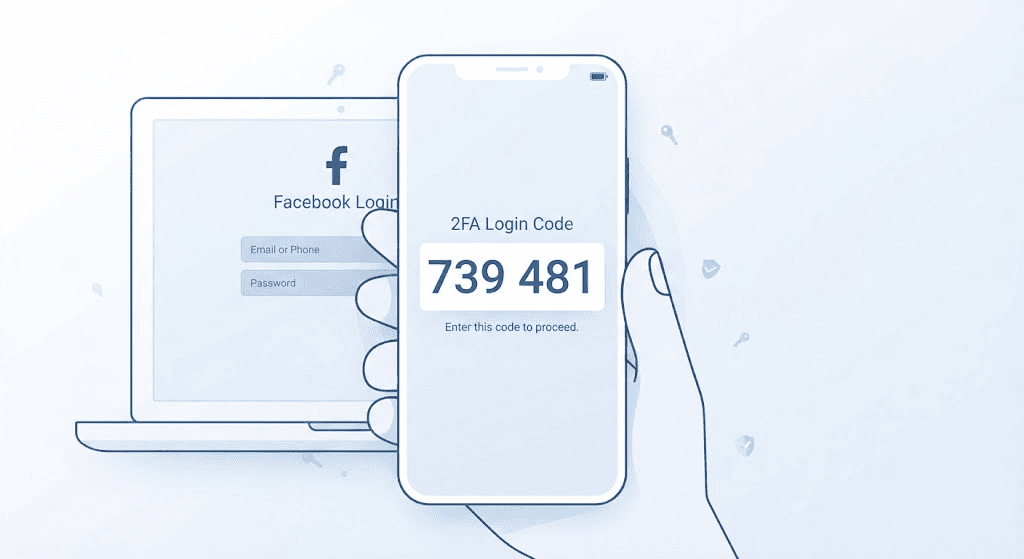
Two-factor authentication adds a second verification step beyond your password, so even if someone steals your password, they still can’t log in without your phone or authentication app.
Facebook currently offers three 2FA methods:
- Authentication app (recommended) — apps like Google Authenticator or Duo Mobile generate a rotating code.
- Text message (SMS) — a code sent to your phone number.
- Security key — a physical USB or NFC device, ideal for high-risk accounts.
How to enable it:
- Go to Settings & Privacy > Settings.
- Open Accounts Center > Password and Security.
- Select Two-Factor Authentication and choose your account.
- Pick your preferred method and follow the on-screen setup.
- Save your recovery codes somewhere safe — you’ll need them if you lose access to your phone.
An authentication app is generally considered more secure than SMS, since text messages can sometimes be intercepted through SIM-swapping attacks. If you only take one action from this facebook security privacy guide, make it this one. secure than SMS, since text messages can sometimes be intercepted through SIM-swapping attacks.
Step 3: Review Where You’re Logged In
It’s common to forget about old devices, browsers, or public computers where you once logged into Facebook. Each of these is a potential entry point if left unattended.
To check your active sessions:
- Go to Settings & Privacy > Settings > Accounts Center > Password and Security.
- Click Where You’re Logged In.
- Review the list of devices, locations, and login times.
- Click the three-dot menu next to any unfamiliar session and select Log Out.
If you spot a login from a country you’ve never visited or a device you don’t recognize, log out of that session immediately and change your password.
Step 4: Set Up Login Alerts
Login alerts notify you by email or notification whenever someone logs into your account from an unrecognized device or browser. This gives you an early warning if someone gets hold of your password.
To turn on login alerts:
- Go to Settings & Privacy > Settings > Accounts Center > Password and Security.
- Select Get Alerts About Unrecognized Logins.
- Choose to receive alerts via Facebook notification, Messenger, or email.
This takes less than a minute and is one of the highest-value, lowest-effort steps in this facebook security privacy guide.e of the highest-value, lowest-effort steps in this facebook security privacy guide.
Step 5: Run the Meta Privacy Checkup
Meta’s built-in Privacy Checkup tool walks you through the most important privacy settings in a guided, step-by-step format — ideal if you don’t want to hunt through menus manually.
To access it:
- Click your profile icon in the top right.
- Select Settings & Privacy > Privacy Checkup.
- Work through each category: who can see what you share, how people can find you, your data settings, and your login security.
You can revisit this checkup any time your circumstances change, such as after starting a new job or after an ex-partner has your old contact details.
Step 6: Control Who Can See Your Posts and Profile
Your default audience setting determines who sees new posts unless you change it manually each time. Many users unknowingly leave this set to “Public.”
To adjust your default audience:
- Go to Settings & Privacy > Settings > Privacy.
- Under Your Activity, set “Who can see your future posts?” to Friends or Only Me if preferred.
- Use Limit Past Posts to retroactively change old public posts to “Friends only.”
Other visibility settings worth checking:
- Profile Picture and Cover Photo — these are public by default; consider limiting the audience.
- Friends List — you can hide this from your profile if you don’t want others to see your connections.
- Search Visibility — control whether people can find your profile using your phone number or email.
Step 7: Manage App and Website Permissions
Every time you used “Login with Facebook” on another app or website, that service may have gained access to parts of your profile — sometimes long after you stopped using it.
To review and remove connected apps:
- Go to Settings & Privacy > Settings > Apps and Websites.
- Review the list of active apps.
- Click on any app to see exactly what data it can access.
- Remove any app you no longer use or don’t recognize.
This step is frequently overlooked, yet it’s one of the most common ways old data keeps leaking long after you’ve forgotten about an app entirely.
Step 8: Adjust Ad and Data Preferences
Facebook’s advertising system uses your activity — likes, searches, off-platform browsing, and even data shared by other businesses — to personalize the ads you see. You can limit this without breaking the platform.
Key settings to review:
- Ad Preferences — see which advertisers have uploaded your contact info and remove yourself from their lists.
- Off-Facebook Activity — view and clear data that businesses share with Meta about your activity outside the platform.
- Data About Your Activity From Partners — control whether this data personalizes your ads.
Meta explains its full approach to these controls within its official Privacy Center resources, which cover data settings across all Meta apps in one place.
Step 9: Recognize and Avoid Phishing Attempts
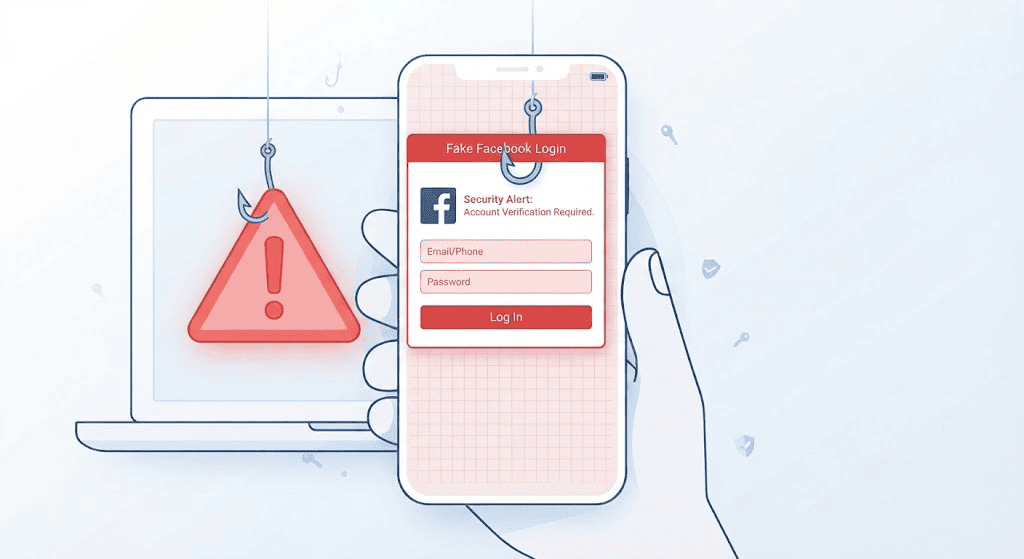
Even the strongest settings can’t protect you if you’re tricked into handing over your password directly. Phishing messages on Facebook often look like:
- A “friend” sending a suspicious link via Messenger.
- A fake “your account will be suspended” warning with a link to “verify.”
- A cloned login page that looks identical to Facebook’s real one.
How to protect yourself:
- Never enter your password after clicking a link from a message or email — always go to facebook.com directly.
- Check the URL carefully before logging in anywhere.
- If a friend’s account sends you a strange link, assume it may be compromised and notify them another way.
- Report suspicious messages using Facebook’s built-in Report feature.
Step 10: Keep Your Recovery Information Updated
If you ever lose access to your account, Facebook uses your recovery email, phone number, and trusted contacts to help you get back in.
Checklist:
- Confirm your recovery email and phone number are current under Accounts Center > Personal Details.
- Set up Trusted Contacts — friends who can help verify your identity if you’re locked out.
- Remove any old phone numbers or emails you no longer control.
Skipping this step is one of the most common reasons people permanently lose access to hacked accounts.
Quick Reference: Facebook Security Privacy Guide Checklist
| # | Task | Frequency |
|---|---|---|
| 1 | Update to a strong, unique password | Every 6–12 months or after a breach |
| 2 | Enable two-factor authentication | Once, then review yearly |
| 3 | Check “Where You’re Logged In” | Monthly |
| 4 | Turn on login alerts | Once |
| 5 | Run Privacy Checkup | Every 3–6 months |
| 6 | Review post and profile audience | Every 3–6 months |
| 7 | Audit connected apps | Every 3–6 months |
| 8 | Review ad and data preferences | Every 6 months |
| 9 | Stay alert to phishing links | Ongoing |
| 10 | Update recovery info | After any phone/email change |
Keep this facebook security privacy guide checklist bookmarked — running through it twice a year takes under 15 minutes and closes most of the common gaps that lead to hacked accounts.
What to Do If Your Facebook Account Is Already Hacked
If you suspect your account has been compromised, this part of the facebook security privacy guide becomes urgent rather than routine maintenance:
- Go to facebook.com/hacked from a device you trust.
- Follow the prompts to secure your account and reset your password.
- Check Where You’re Logged In and log out of all unfamiliar sessions.
- Review your recent activity for posts, messages, or friend requests you didn’t send.
- Re-enable two-factor authentication if it was turned off.
- Warn your friends not to click any links sent from your account during the breach window.
Acting quickly limits the damage a hijacked account can cause to both you and your contacts.
Frequently Asked Questions
1. Is Facebook actually safe to use if I follow these settings?
Yes. Facebook’s infrastructure includes strong backend security, but your personal safety depends heavily on the settings you control — password strength, two-factor authentication, and privacy audience choices. Following this facebook security privacy guide significantly reduces your risk.
2. How often should I change my Facebook password?
There’s no strict rule, but changing it every 6–12 months, or immediately after any data breach involving a reused password, is a reasonable practice. Using a unique password from the start matters more than frequent changes.
3. Does two-factor authentication slow down my login every time?
Only when logging in from a new or unrecognized device or browser. If you save your regular devices, you won’t be prompted every time.
4. Can someone see my private messages if my account is hacked?
Yes. If someone gains full access to your account, they can typically read Messenger conversations. This is another reason two-factor authentication and login alerts are essential.
5. What’s the difference between “Friends” and “Only Me” privacy settings?
“Friends” shares your post with everyone on your friends list, while “Only Me” keeps it visible to just you — useful for drafts, personal notes, or memories you don’t want to share yet.
6. Should I delete apps I connected to Facebook years ago?
Yes, if you no longer use them. Old, unused apps can retain access to your data indefinitely unless you manually revoke permission through Apps and Websites settings.
7. Will limiting ad tracking affect how Facebook works?
No. Adjusting ad preferences or off-platform activity settings changes how ads are personalized, not the core functionality of the app itself.
8. What’s the single most important takeaway from this facebook security privacy guide?
If you do nothing else, enable two-factor authentication and review your active login sessions. These two steps alone block the vast majority of common account takeovers.
Final Thoughts
Facebook security and privacy aren’t a one-time setup — they’re an ongoing habit. Passwords get reused, apps get forgotten, and new scams emerge regularly. By working through the ten steps in this facebook security privacy guide and revisiting the checklist every few months, you’ll keep your account significantly harder to compromise and your personal information under your control.
Start with the two highest-impact steps today: enabling two-factor authentication and reviewing your active login sessions. Everything else builds on that foundation — and that’s really what a good facebook security privacy guide is for.ds on that foundation.