
Facebook Security Privacy Guide: 10 Essential Steps to Protect Your Account
Facebook remains one of the most targeted platforms for hackers and scammers — not because it is unsafe by design, but because so many accounts are left with weak passwords, loose privacy settings, and forgotten third-party app access. This facebook security privacy guide walks you through every setting that matters, in plain language.
Whether you are securing a personal profile, a business Page, or an account you manage for a family member, the steps below show how to lock down your login, control who sees your posts, and stop apps and advertisers collecting more data than necessary. Work through them in order — the whole process takes under 30 minutes.
Why This Facebook Security Privacy Guide Matters
Facebook stores an enormous amount of personal information: messages, photos, location history, contacts, and the pages and ads you interact with. A compromised account can be used to scam your friends, steal your identity, or access linked accounts through “Login with Facebook”.
Meta has built strong protective tools over the years, including two-factor authentication, login alerts, and a central Privacy Center. The problem is that most users never turn them on — which is exactly what this guide fixes.
Security vs. Privacy: What Is the Difference?
Security and privacy solve different problems. Security stops unauthorised access: strong passwords, two-factor authentication, and login alerts. Privacy controls who sees your information: post audience settings, profile visibility, and ad preferences.
Security settings live under Settings, then Accounts Center, then Password and Security; privacy settings live under Settings, then Privacy, and in Meta’s Privacy Center. Knowing which side a setting belongs to tells you where to go to fix it.
Step 1: Create a Strong, Unique Password
Your password is still the single biggest factor in account security, and the Cybersecurity and Infrastructure Security Agency (CISA) recommends using a password manager to generate and store strong passwords securely.
- Use at least 12 to 16 characters, mixing letters, numbers, and symbols.
- Never reuse a password from another account, especially email or banking.
- Avoid personal details like birthdays or pet names.
- Use a reputable password manager instead of memorising complex strings.
- Change it immediately if you reused it elsewhere and that site had a breach.
To update it, go to Settings & Privacy, then Settings, then Accounts Center, then Password and Security, then Change Password. If you struggle to keep several logins straight, our guide to managing multiple online accounts shows a simple system.
Step 2: Turn On Two-Factor Authentication (2FA)
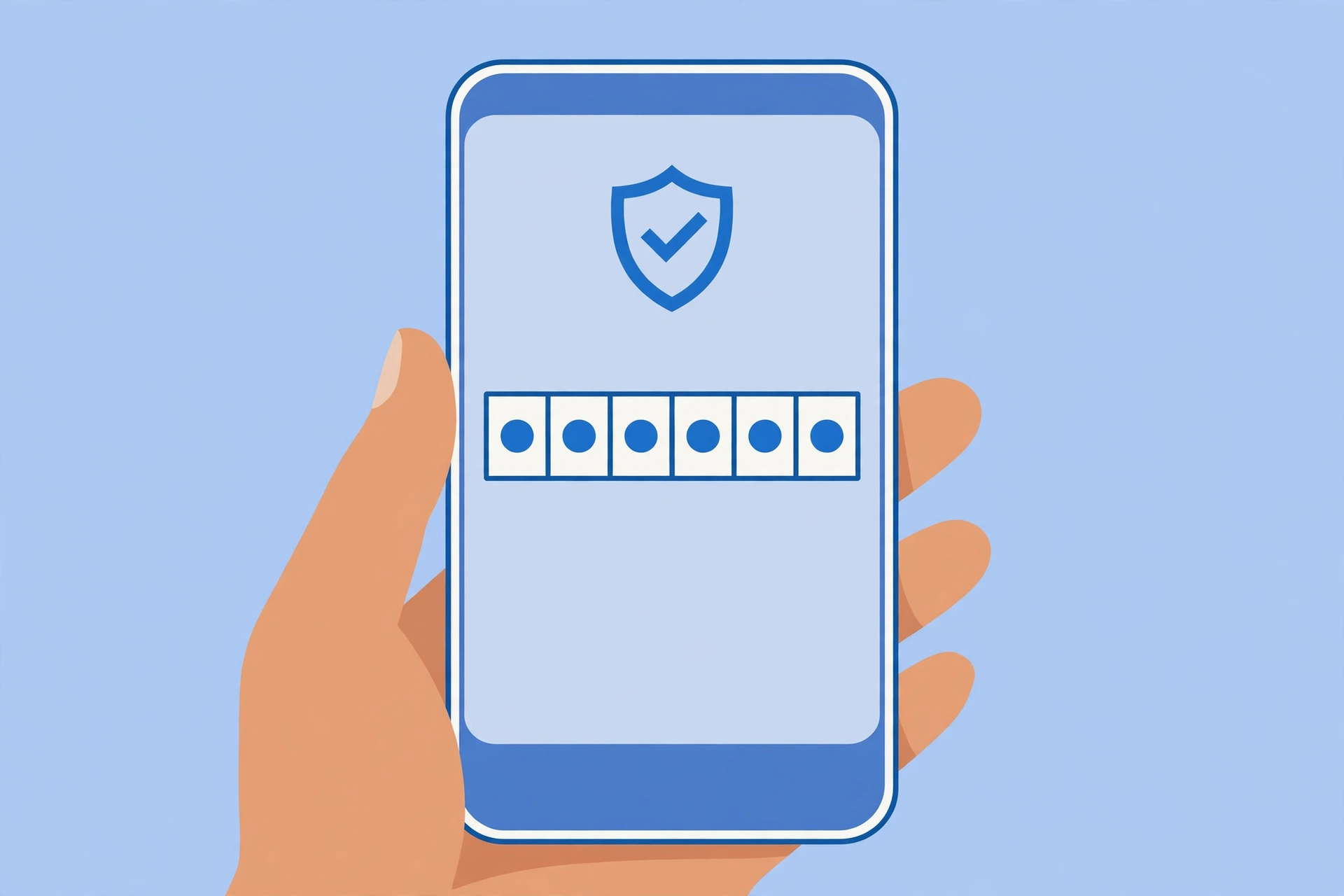
Two-factor authentication adds a second verification step beyond your password, so a stolen password alone is not enough to log in. Facebook offers three methods: an authentication app such as Google Authenticator, a text message code, or a physical security key.
An authentication app is generally more secure than SMS, since text messages can sometimes be intercepted through SIM-swapping attacks. A security key is the strongest option, suiting high-risk accounts like Pages with large audiences. To enable it, go to Settings & Privacy, then Settings, then Accounts Center, then Password and Security, then Two-Factor Authentication.
Save your recovery codes somewhere safe — you will need them if you lose access to your phone. If you only take one action from this guide, make it this one.
Step 3: Review Where You Are Logged In
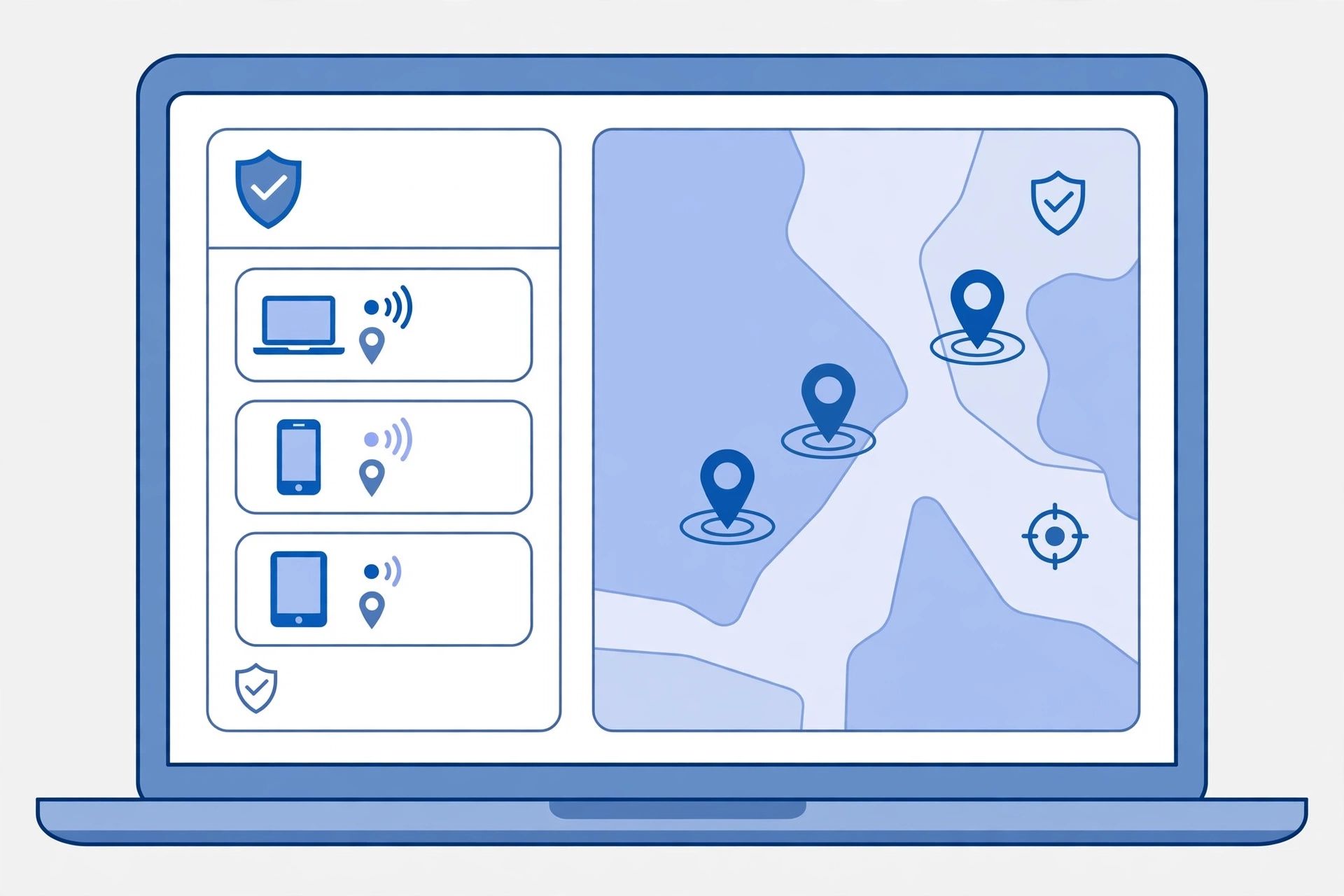
Old devices, browsers, or public computers where you once logged into Facebook are easy to forget, and each one is a potential entry point. To check your active sessions, go to Settings & Privacy, then Settings, then Accounts Center, then Password and Security, then Where You’re Logged In.
Review the devices, locations, and login times. If you see anything you do not recognise, log that session out immediately and change your password. Check this list monthly — it takes under a minute.
Step 4: Set Up Login Alerts
Login alerts notify you by email or notification whenever someone logs in from an unrecognised device or browser — an early warning if someone gets hold of your password. To turn them on, go to Settings & Privacy, then Settings, then Accounts Center, then Password and Security, and select Get Alerts About Unrecognized Logins. Choose Facebook notification, Messenger, or email.
This takes less than a minute: an alert noticed the same day can be the difference between a quick password change and a fully hijacked account.
Step 5: Run the Meta Privacy Checkup
Meta’s built-in Privacy Checkup walks you through the key privacy settings step by step — ideal if you do not want to hunt through menus. Click your profile icon, select Settings & Privacy, then Privacy Checkup, and work through each category: who can see what you share, how people can find you, your data settings, and your login security.
Revisit it whenever your circumstances change, such as after starting a new job, and run it every three to six months so your settings match your current life.
Step 6: Control Who Can See Your Posts and Profile
Your default audience determines who sees new posts unless you change it each time — and many users unknowingly leave it set to Public. To adjust it, go to Settings & Privacy, then Settings, then Privacy: under Your Activity, set “Who can see your future posts?” to Friends, and use Limit Past Posts to change old public posts to Friends only.
Also check that your profile picture and cover photo are public by default, hide your friends list if you prefer, and control whether people can find you by phone number or email. For more everyday safety habits, see our digital tips for social media users.
Step 7: Manage App and Website Permissions
Every “Login with Facebook” on another app or website may have given that service access to parts of your profile — sometimes long after you stopped using it. To review them, go to Settings & Privacy, then Settings, then Apps and Websites: click any app to see what data it can access, and remove anything you no longer use or do not recognise.
This step is frequently overlooked, yet it is one of the most common ways old data keeps leaking. Audit this list every three to six months.
Step 8: Adjust Ad and Data Preferences
Facebook’s advertising system uses your activity — likes, searches, off-platform browsing, and data shared by other businesses — to personalise ads. You can limit this without breaking the platform: in Ad Preferences, see which advertisers have uploaded your contact information and remove yourself from their lists; under Off-Facebook Activity, view and clear data businesses share with Meta about you. Meta explains these controls in its official Privacy Center.
Adjusting these settings changes how ads are personalised, not how Facebook works — your feed, messages, and groups keep working as before.
Step 9: Recognize and Avoid Phishing Attempts
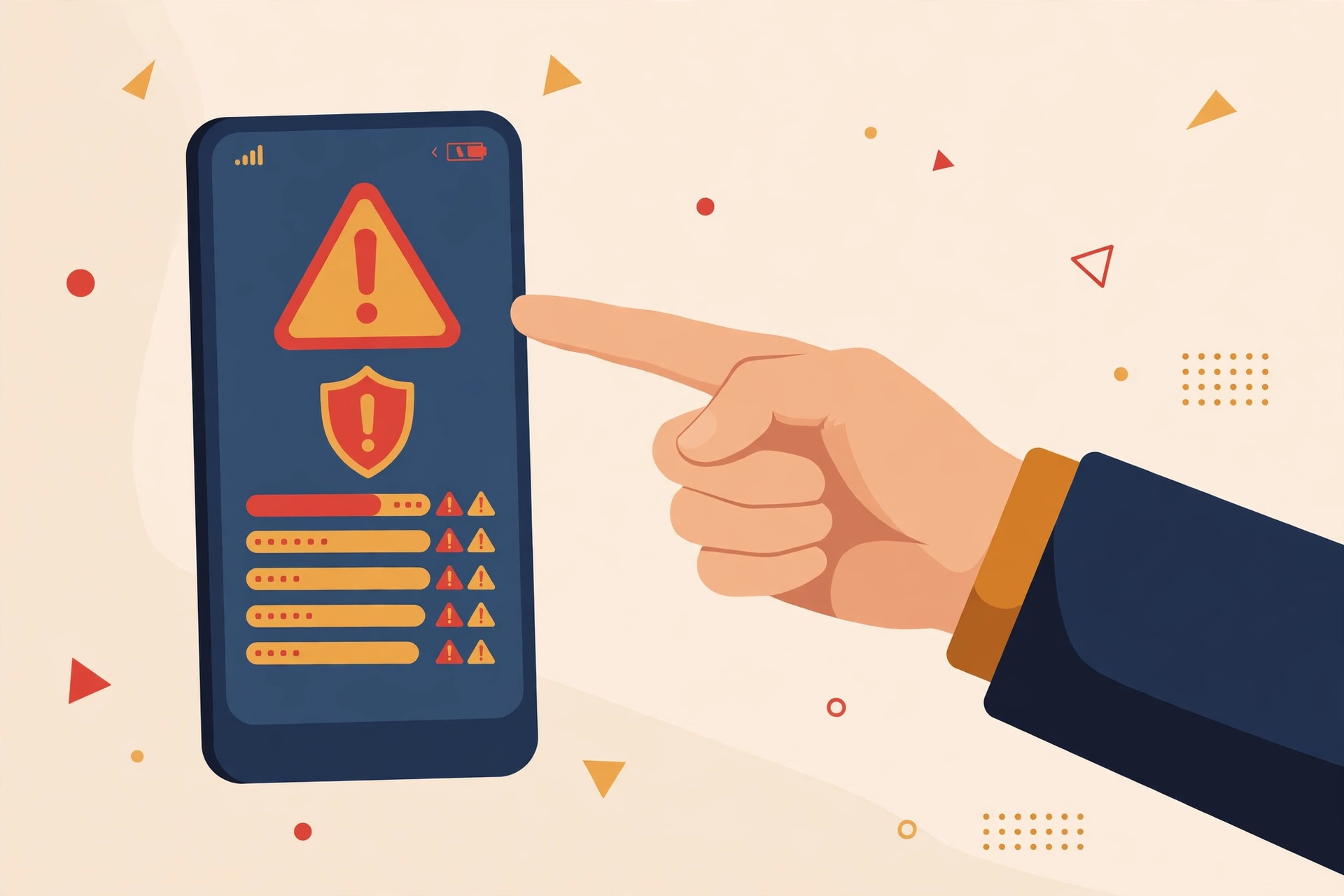
Even the strongest settings cannot protect you if you are tricked into handing over your password directly. Phishing on Facebook often looks like a “friend” sending a suspicious link via Messenger, a fake “your account will be suspended” warning, or a cloned login page identical to Facebook’s real one.
Protect yourself with four habits: never enter your password after clicking a link in a message or email — go to facebook.com directly; check the URL before logging in; if a friend’s account sends a strange link, assume it is compromised and tell them another way; and report suspicious messages with Facebook’s Report feature.
Step 10: Keep Your Recovery Information Updated
If you ever lose access, Facebook uses your recovery email, phone number, and trusted contacts to help you get back in. Confirm your recovery email and phone number are current under Accounts Center, then Personal Details, set up Trusted Contacts — friends who can help verify your identity — and remove old numbers or emails you no longer control.
Skipping this step is one of the most common reasons people permanently lose access to hacked accounts. Update recovery details whenever your phone or email changes, and back up important photos elsewhere too — our guide to the best free online backup tools shows free options.
Quick Reference Checklist
- Strong, unique password: update every 6 to 12 months, or after a breach.
- Two-factor authentication: set up once, review yearly, keep recovery codes safe.
- Where You’re Logged In: check monthly for unfamiliar sessions.
- Login alerts: turn on once and leave them on.
- Privacy Checkup: run every 3 to 6 months.
- Post and profile audience: review every 3 to 6 months.
- Connected apps: audit every 3 to 6 months, remove what you no longer use.
- Ad and data preferences: review every 6 months.
- Phishing awareness: ongoing — never log in via a link in a message.
- Recovery information: update after any phone or email change.
What to Do If Your Facebook Account Is Already Hacked
If you suspect your account has been compromised, act quickly: go to facebook.com/hacked from a device you trust, follow the prompts to secure your account and reset your password, then log out of unfamiliar sessions under Where You’re Logged In. Review recent activity for posts, messages, or friend requests you did not send, re-enable two-factor authentication if it was turned off, and warn your friends not to click links sent from your account during the breach window.
Frequently Asked Questions
Is Facebook safe to use if I follow these settings?
Yes. Facebook’s infrastructure includes strong backend security, but your safety depends on the settings you control — password strength, two-factor authentication, and privacy choices. Following this guide significantly reduces your risk.
How often should I change my Facebook password?
Changing it every 6 to 12 months, or immediately after any breach involving a reused password, is reasonable. Using a unique password from the start matters more than frequent changes.
Does two-factor authentication slow down my login every time?
Only on a new or unrecognised device or browser — saved devices are not prompted every time.
Can someone see my private messages if my account is hacked?
Yes — full access to your account usually includes Messenger conversations, which is another reason two-factor authentication and login alerts are essential.
What is the difference between “Friends” and “Only Me” privacy settings?
“Friends” shares your post with your friends list; “Only Me” keeps it visible to just you — useful for drafts.
Conclusion
Facebook security is not a single setting — it is a short list of habits: a unique password, two-factor authentication, login alerts, regular checks of your sessions and connected apps, and a healthy suspicion of links in messages. Set up the ten steps once, run the checklist twice a year, and your account will be far harder to steal.
Sources: Meta Privacy Center https://www.facebook.com/privacy/center/ and Cybersecurity and Infrastructure Security Agency (CISA) https://www.cisa.gov/topics/cybersecurity-best-practices