
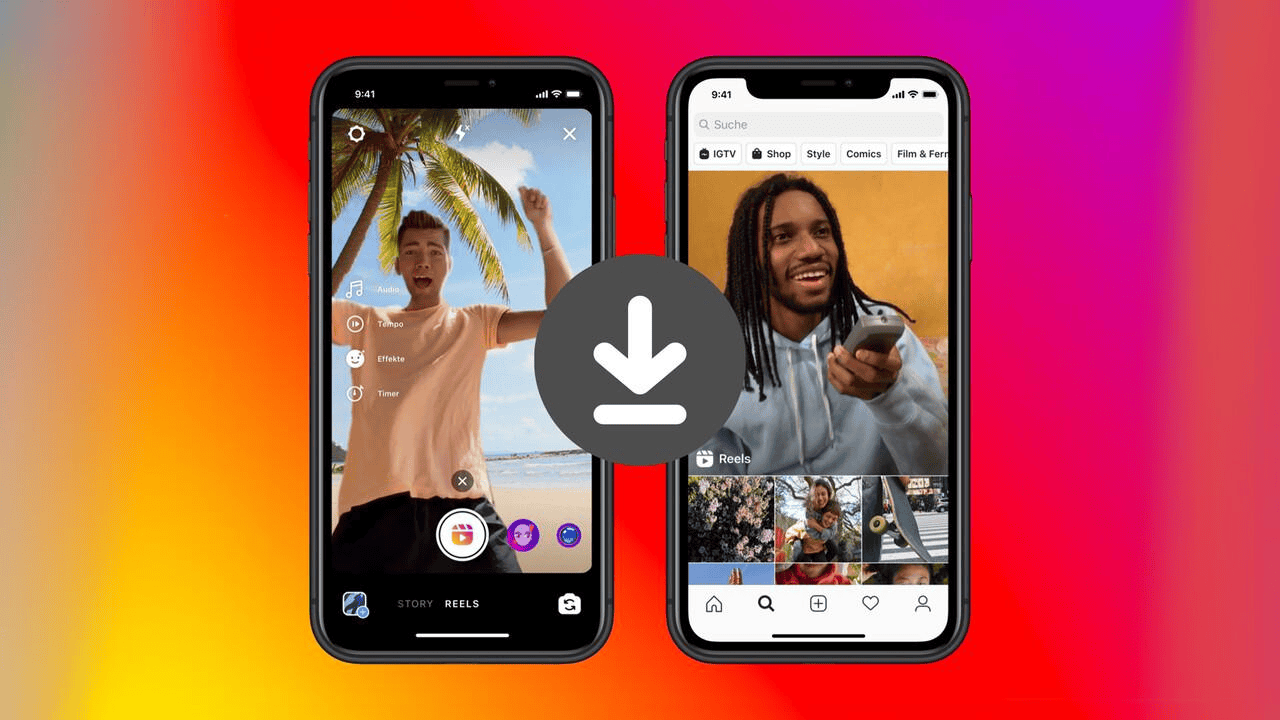
Learn how to save Instagram Reels to gallery on Android and iPhone. Follow 7 easy methods, fix download problems, and keep videos safely on your device.
How to Save Instagram Reels to Gallery: Easy Methods for Android and iPhone
Introduction
Instagram Reels are a popular way to discover short videos, tutorials, recipes, travel clips, entertainment, and creative ideas. Many users want to save Instagram Reels to gallery so they can watch useful videos later, even without opening Instagram. Whether you use Android or iPhone, there are several ways to keep eligible videos on your device.
Instagram provides a built-in download option for eligible Reels. You can use it to save certain public videos directly to your phone. However, the option is not available for every Reel. The creator may disable downloads, the account may be private, or the feature may not appear because of your app version or account settings.
This guide explains how to save videos on Android and iPhone, how to find downloaded clips, and what to do when the Download button is missing. If you also want to explore other Instagram content, you can visit Pixwox to learn about Instagram viewing tools and related features.
1. Understand the Difference Between Saving and Downloading Reels
Before choosing a method, understand that Instagram’s Save and Download options work differently.
Save adds a Reel to your Saved collection inside Instagram. It helps you find the video later, but it does not create a video file in your phone’s gallery.
Download creates a video file on your device when Instagram makes that option available. You can usually find the downloaded video in your phone’s Photos or Gallery app.
| Feature | Save option | Download option |
|---|---|---|
| Where the video is stored | Instagram account | Phone storage |
| Available offline | Usually no | Yes, after download |
| Creates a video file | No | Yes |
| Can be found in Gallery | No | Yes |
| Requires Instagram to revisit the original | Yes | No, for the downloaded copy |
If you only want to remember a Reel, use the Save option. If you want a local video file, use Download when it is available.
2. How to Download Instagram Reels Using the Official Option
If your goal is to save Instagram Reels to gallery without installing another application, Instagram’s official Download option is the best method to try first. It allows eligible public Reels to be stored directly on your phone.
Follow these steps:
- Open the Instagram app on your Android phone or iPhone.
- Find the Reel you want to download.
- Tap the Share icon, usually shown as a paper-plane symbol.
- Look through the available sharing options.
- Tap Download if the option is displayed.
- Wait for Instagram to finish processing the video.
- Open your phone’s Gallery or Photos app.
- Check the recent videos or Instagram folder.
If the Reel is eligible for downloading, it should appear as a video file on your device.
Important: Instagram does not provide the Download option for every Reel. It is generally available for eligible Reels from public accounts when the creator allows downloads. A private account or disabled download setting can prevent the option from appearing.
For more information about Instagram features and account controls, visit the official Instagram Help Center.
3. How to Save Reels on Android
Android users can save Instagram Reels to gallery by downloading eligible videos through the Instagram sharing menu. Once the download is complete, check Google Photos, your Gallery app, or the Videos folder.
Steps for Android
- Open Instagram on your Android device.
- Browse to the Reel you want to keep.
- Tap the Share icon.
- Select Download, if available.
- Wait until the download finishes.
- Open Google Photos or your phone’s Gallery.
- Select the Videos or Recent section.
- Find and play the downloaded Reel.
On some Android devices, downloaded videos may appear in a folder used by Instagram or in the general media library.
What if the video is not visible?
If you cannot find the downloaded Reel, try these steps:
- Open Google Photos and check the Videos section.
- Check the Downloads folder in your file manager.
- Close and reopen the Gallery app.
- Wait a short time for the media library to refresh.
- Check whether your phone has enough available storage.
These checks can help you locate a video that has downloaded successfully but is not immediately visible in your Gallery.
4. How to Save Reels on iPhone
The process to save Instagram Reels to gallery on an iPhone is simple when the Download option is available. After downloading, open Apple Photos and check the Recents album to locate your video.
Steps for iPhone
- Open the Instagram application.
- Find the Reel you want to save.
- Tap the Share icon below or beside the video.
- Check the available options.
- Tap Download if Instagram displays it.
- Allow the download to complete.
- Open the Photos app.
- Check Recents or the Videos section.
The downloaded video should appear in your photo library.
Check iPhone storage and permissions
If the download does not appear, make sure your iPhone has enough free storage. You can also check your Instagram and Photos permissions through the iPhone Settings app.
Menu names may differ slightly depending on your iOS version. If the download option is missing inside Instagram, changing Photos permissions will not make an unavailable download button appear.
5. How to Save Your Own Instagram Reels
If you regularly create Instagram videos, learning how to save Instagram Reels to gallery is useful for keeping backup copies of your original content. Save the original video before publishing whenever possible.
Download an already-published Reel
- Open your Instagram profile.
- Select the Reels tab.
- Open the Reel you published.
- Tap the three-dot menu or the available sharing controls.
- Look for Download or Save to device.
- Select the option if it appears.
- Check your phone’s Gallery or Photos app.
The exact controls can vary depending on the app version and account.
Save a Reel before publishing
If you are editing a Reel and want to keep a copy, look for the download or save option in the editing interface before sharing it.
It is also a good idea to keep the original video in your phone’s storage. This gives you a separate copy that does not depend on Instagram.
Tip: Do not rely only on Instagram drafts as a backup. Drafts may be stored locally on your device and may not transfer when you change phones or reinstall the application.
6. How to Save Instagram Reels Inside the App
Sometimes you do not need a video file. You may simply want to find a Reel again later.
Instagram’s bookmark feature is useful for this purpose.
Follow these steps
- Open the Reel you want to keep.
- Tap the three-dot menu or Save icon, depending on the interface.
- Choose Save if the option appears.
- Open your Instagram profile.
- Tap the menu icon.
- Select Saved.
- Find the Reel in your saved posts.
You can also organize saved posts into collections if that feature is available on your account.
Remember that this method does not create a local video file. It only bookmarks the original content inside Instagram.
If you are interested in viewing Instagram Stories and related content, read our guide to the Instagram Story Viewer Anonymous topic for more information.
7. Why Is the Instagram Reel Download Button Missing?
One common problem is that the Download option does not appear in the sharing menu. This does not necessarily mean your phone has a problem.
The creator has disabled downloads
Creators can control whether other people can download their Reels. If the creator has disabled this setting, you may not see the Download option.
The account is private
Instagram’s download feature is generally intended for eligible Reels from public accounts. Reels from private accounts may not have a download option.
Your Instagram app needs an update
An older version of Instagram may have different controls or experience technical issues. Check the Google Play Store or Apple App Store for an available update.
The Reel has specific restrictions
Some content may have restrictions related to music, ownership, or availability. The download experience can differ depending on the Reel.
Temporary app problem
A temporary issue can sometimes prevent Instagram’s controls from working correctly. Close the application, reopen it, and check the Reel again.
If the creator has disabled downloads or the account is private, updating the app will not override those restrictions.
8. Can You Save Reels Without an Extra App?
Yes, in some cases. Instagram’s own Download option can save eligible Reels directly to your device. You do not need to install another application when this option is available.
If you only want to watch a Reel later, you can use Instagram’s Save feature. It keeps the video in your Saved collection.
You can also use your phone’s built-in screen-recording feature to record content that you are authorized to capture. However, screen recording is not the same as downloading the original video. It may capture interface elements, reduce quality, or fail to record certain audio.
Always respect the creator’s privacy and content rights. A public video is not automatically free to copy, edit, or republish.
9. What to Do When a Downloaded Reel Does Not Appear in Your Gallery
When you save Instagram Reels to gallery, the downloaded file may take a little time to appear in your phone’s media library. Check your Downloads folder and available storage before trying again.
Try the following troubleshooting steps.
1. Check the correct folder
On Android, look in Recent, Videos, Downloads, and the media folders available in your file manager. On iPhone, check Photos and the Videos section.
2. Check available storage
Your phone may not have enough free space to complete a download. Remove unnecessary files or transfer older videos to another storage location.
3. Restart the application
Close Instagram completely and open it again. Then check your Gallery or Photos app.
4. Restart your phone
A restart can help refresh media indexing and resolve temporary device issues.
5. Check your internet connection
A weak connection can interrupt a download. Connect to a stable Wi-Fi or mobile data network and try again if the Reel is still eligible.
6. Update Instagram
Install the latest available version from your device’s official app store.
If the Reel still cannot be downloaded, the creator’s settings or Instagram’s content restrictions may be responsible.
10. Is It Safe to Use Third-Party Instagram Reels Downloaders?
You may find websites and applications that claim they can download any Instagram Reel. Some ask you to paste a public Reel link, while others request account access or additional permissions.
Be careful before using these services.
A third-party downloader may display misleading download buttons, aggressive advertisements, unwanted redirects, or requests for personal information. A website that asks for your Instagram password to download a public video should be avoided.
Keep these safety tips in mind:
- Never share your Instagram password with an unknown downloader.
- Avoid installing unknown APK files.
- Do not grant unnecessary access to your phone’s photos or files.
- Avoid websites that ask you to complete suspicious surveys.
- Do not download private content without permission.
- Check the final file before opening or sharing it.
For most users, Instagram’s built-in Download option is the simplest starting point. If it is unavailable, consider asking the creator for the original video or saving the Reel’s link for later.
11. Copyright and Privacy Considerations
Downloading a Reel does not automatically give you ownership of the video. The original creator may own the footage, editing, artwork, or other material used in the content.
You can keep a permitted copy for personal reference, but you should not assume that you can upload it to another platform, use it in an advertisement, or claim it as your own work.
Before reposting or editing another person’s Reel:
- Ask the creator for permission.
- Give appropriate credit when required.
- Respect music and other third-party rights.
- Follow Instagram’s terms and applicable copyright laws.
If you are downloading your own content, keep a separate original copy whenever possible. This is a better way to protect your work from accidental loss.
Frequently Asked Questions
1. How do I save Instagram Reels to gallery?
Open an eligible Reel, tap the Share icon, and select Download if Instagram displays the option. The video should appear in your phone’s Photos or Gallery app.
2. Can I save Instagram Reels on Android?
Yes. Open the Reel, tap Share, and select Download when available. Then check Google Photos, Gallery, or your device’s video folders.
3. How can I save Reels on iPhone?
Open the Reel in Instagram, tap Share, and choose Download if the option is available. Check the Photos app after the download finishes.
4. Why is there no Download button on Instagram Reels?
The creator may have disabled downloads, the account may be private, or the Reel may have restrictions. App version and feature availability can also affect the controls you see.
5. Does Instagram notify someone when I download their Reel?
Instagram does not generally send a personal notification to the creator when someone uses the built-in Download option. However, platform features can change, so check Instagram’s current guidance.
6. Does saving a Reel put it in my phone’s Gallery?
No. The Save or bookmark option keeps the Reel in your Instagram Saved collection. To create a local video file, use Download when available.
7. Can I download Instagram Reels without installing another app?
Yes. Instagram provides a built-in Download option for eligible Reels. You can use it without installing a separate downloader.
8. Why does my downloaded Reel have a watermark?
Instagram may add its branding and the creator’s username to downloaded Reels. The appearance of the downloaded video can depend on Instagram’s current implementation.
9. Can I download Reels from private Instagram accounts?
Instagram’s built-in public Reel download feature does not provide a way to download private-account content. Respect account privacy and ask the creator for permission if you need a copy.
10. Can I watch a downloaded Instagram Reel offline?
Yes. Once a video has been downloaded successfully to your phone, you can usually play that local file without an internet connection.
Conclusion
Learning how to save Instagram Reels to gallery helps you keep useful videos available on your Android or iPhone. Use Instagram’s official Download feature whenever it is available, check your phone’s storage, and respect the original creator’s privacy and content rights.
Remember that the Save button and Download button have different purposes. Save bookmarks a video inside Instagram, while Download creates a local copy on your device. If the download option is missing, check the creator’s settings, account privacy, and app version instead of assuming that your phone is faulty.
For the safest experience, use Instagram’s official features, protect your account information, and respect the rights of the original creator.
Publishing note: The two Pixwox internal links are placed in the introduction and relevant content sections. Please confirm that the Story Viewer URL is live before publishing.