
Instagram to MP3: How to Convert Instagram Audio to MP3
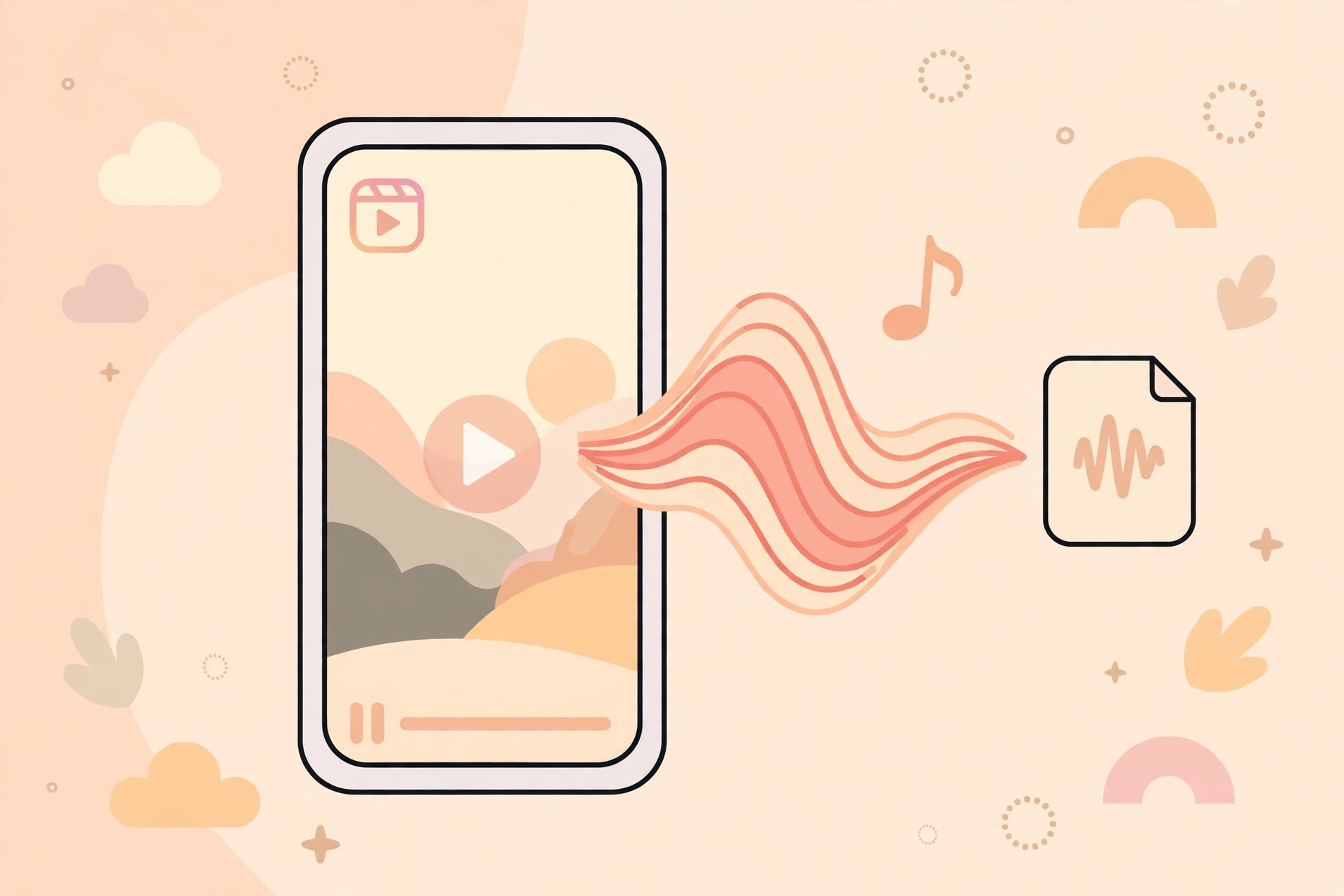
Instagram to MP3 means taking the sound from an Instagram Reel or video and saving it as an MP3 audio file. Maybe you heard a song, a podcast clip, a speech, or a funny voiceover in a Reel and you want to listen to it again without opening Instagram. An Instagram to MP3 converter does exactly that: you give it the link of the video, and it gives you back just the audio, as an MP3 you can keep on your phone or computer.
Instagram itself does not offer a button to save audio as an MP3. You can save a Reel inside the app, or save its audio to use in your own Reel later, but there is no built-in way to export the sound as a file. This guide explains how converters work, what audio quality to expect, and the rules that apply when the audio belongs to someone else.
What does Instagram to MP3 mean?
Every Instagram video has two parts: the picture and the sound. An Instagram to MP3 converter separates the two. It downloads the video from Instagram, pulls out the audio track, and saves that track as an MP3 file — the standard audio format that plays on almost every phone, tablet, computer, and music app.
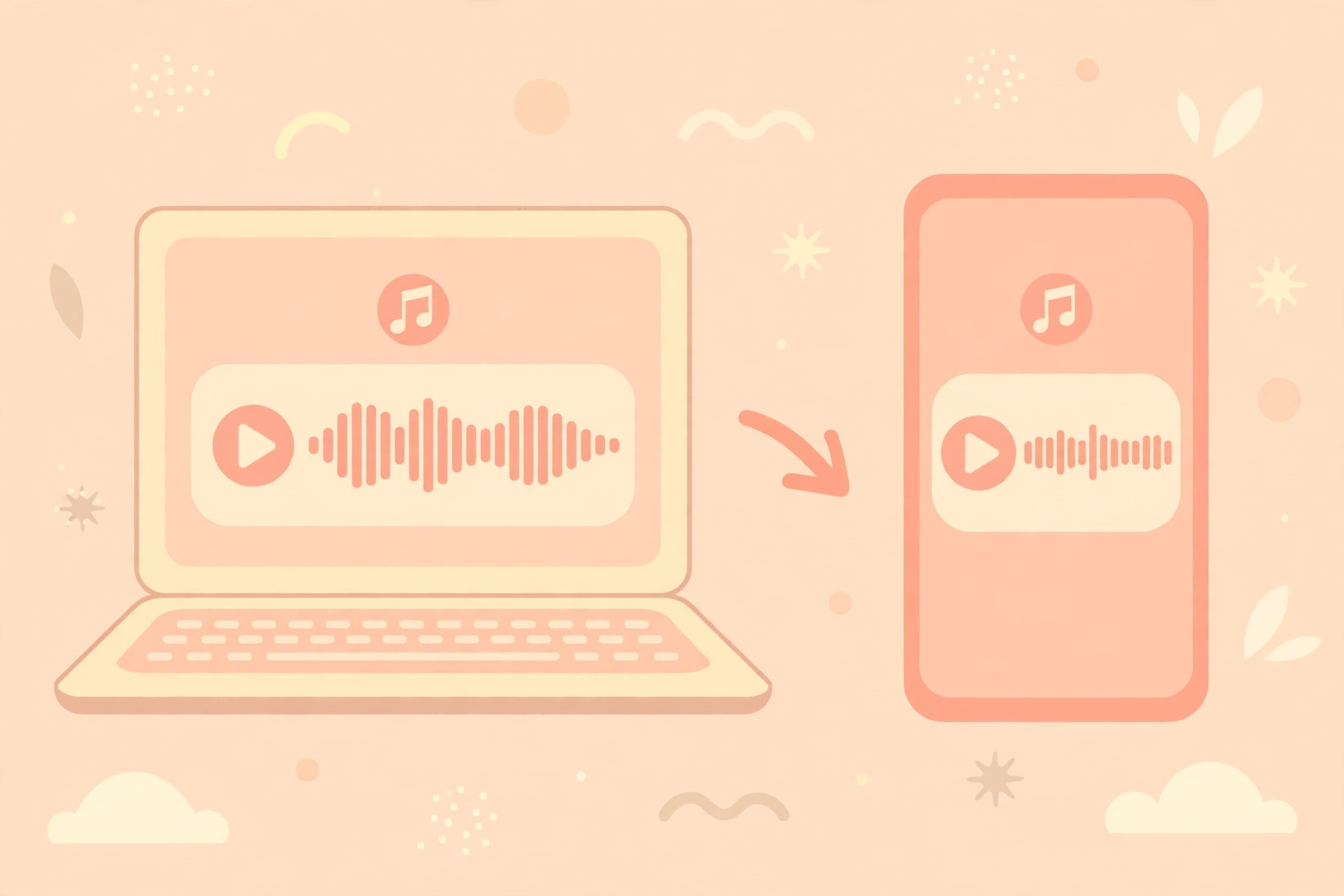
People use these converters for everyday reasons: saving a song they discovered in a Reel, keeping the audio of a speech or a podcast clip, or pulling the sound from their own video to listen offline. The MP3 works like any other audio file: play it in your music app, set it as a ringtone, or move it to another device.
A web-based converter runs entirely in your browser, while an app-based converter is an app you install on your phone. Web tools are the simpler and safer choice, and this guide focuses on them. If you want the video as well as the sound, see our guide on converting Instagram videos to MP4.
How to convert Instagram audio to MP3
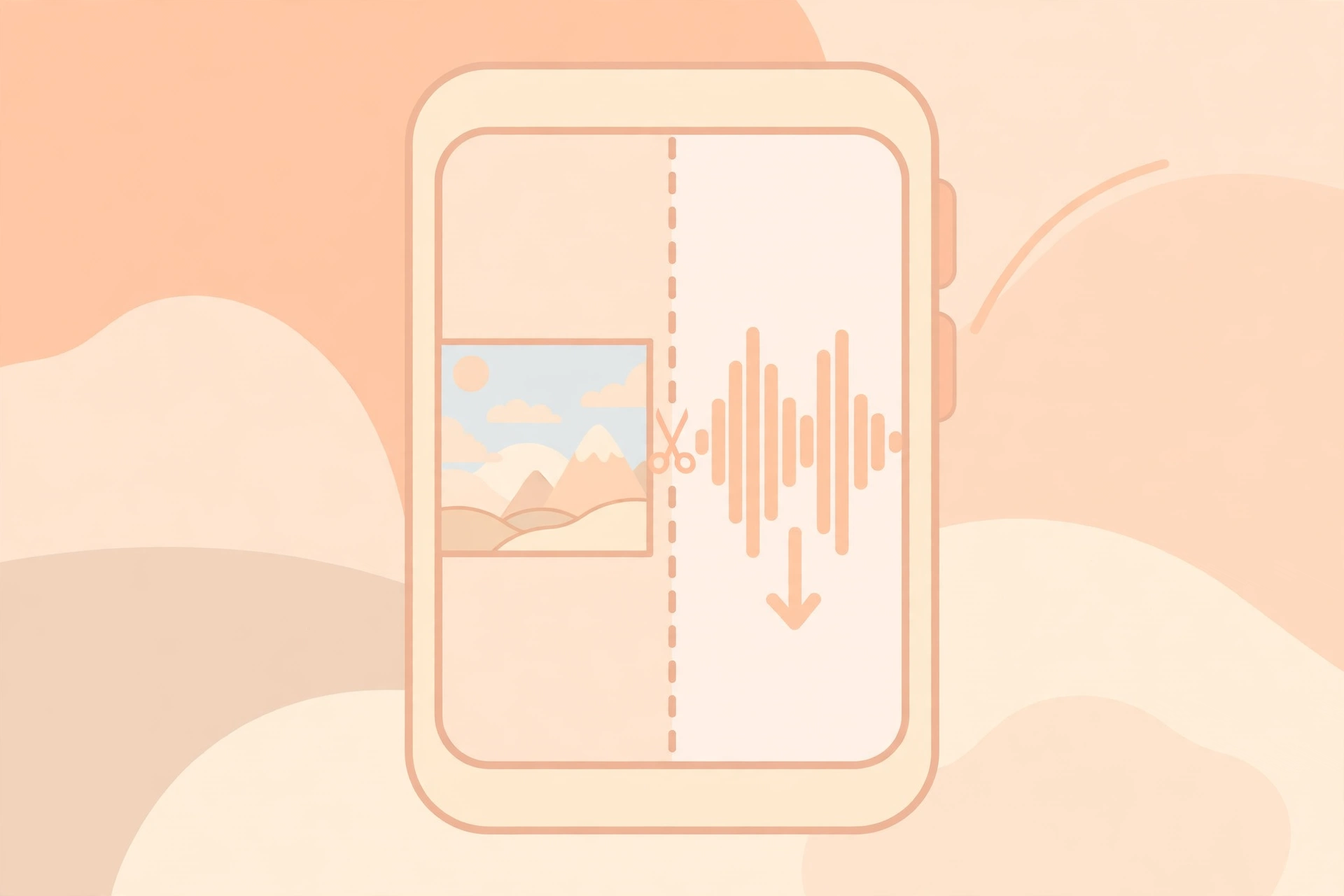
Converting Instagram audio to MP3 takes about a minute, and the steps are the same whether the sound comes from a Reel, a feed video, or a story.
Step 1: Copy the video link
Open Instagram and find the Reel or video with the audio you want. Tap the share icon, the paper plane, under the video, then tap Copy link. On a computer, open the post in your browser and copy the URL from the address bar. You need the link of the video itself, not the profile link.
If the copy option is missing, the creator may have turned off sharing for that post, or the account may be private. In that case this method will not work.
Step 2: Open the converter and paste the link
Go to a reputable Instagram to MP3 converter website in your browser. Paste the copied link into the input box and choose MP3 as the output format. Some tools default to video, so check that MP3 is selected before you continue. You do not need to sign in, and the tool should not ask you to.
Step 3: Download the MP3 file
Tap the convert or download button. The tool processes the video, usually in a few seconds, and offers you the MP3 file. Tap the download link, and the audio saves to your device, ready to play in any music app.
If the file opens and plays in your browser instead of downloading, long-press it on mobile, or right-click it on desktop, and choose the save or download option.
Instagram to MP3 on Android, iPhone and desktop
Android
After tapping the download link, the MP3 usually goes straight to your Downloads or Music folder. If it opens and plays in your browser instead, tap the three-dot menu on the player and choose Download.
iPhone
Safari handles downloads through the Files app. When the MP3 preview opens, tap the share icon and choose Save to Files, or long-press the audio link and tap Download Linked File. You can then find the MP3 under Downloads in the Files app.
Desktop
On a computer, the MP3 saves to your Downloads folder. Desktop converters often show more quality options than mobile ones.
Audio quality and bitrate: what to choose
Most converters let you choose a bitrate, measured in kbps. The bitrate decides how much detail the MP3 keeps: a higher bitrate means better sound and a bigger file, while a lower bitrate means a smaller file with less detail.
For most people, 128 kbps is fine. It sounds clear on phone speakers and earphones, and the file stays small. If you plan to listen on good headphones, edit the audio, or keep it long term, choose 192 kbps or 320 kbps if the converter offers it. The difference is real but small, and it matters most for music with a lot of detail.
One thing to remember is that the MP3 can never sound better than the original audio. Instagram compresses audio when a video is uploaded, so a higher bitrate setting cannot add detail that was already lost. If the original Reel had quiet or muffled audio, the MP3 will sound exactly the same.
If you want the video file instead, with the sound included, our guide to the Instagram video downloader explains how to save the full video as an MP4.
How to spot a safe Instagram to MP3 converter
Most Instagram to MP3 converters are simple, harmless tools. A small number are not — here is how to tell them apart.
Signs of a safe converter
- It works in the browser, with no app install and no account.
- It never asks for your Instagram username or password.
- It does not ask for your phone number, email address, or payment details.
- It shows the video title or a preview before converting.
- It has a clean page with a single input box, not a maze of pop-ups.
Warning signs to walk away from
- Login required. Any converter that asks you to log in with Instagram is trying to steal your account. Instagram never asks for your password outside its own app and website.
- “Verify you are human” surveys. Pages that make you complete surveys, install apps, or enter personal details before converting are harvesting your data, not serving a file.
- Promises about private accounts. No tool can convert audio from private accounts. Claims otherwise are a trap.
- Endless pop-ups and redirects. If clicking convert opens new tabs or starts a download you did not ask for, leave the site.
- Forced app installs. A converter that refuses to work unless you install its app is pushing the app, not the audio. Use a web tool instead.
As a general rule, if a converter asks for anything beyond a video link, close the tab and try a different one. There are plenty of safe tools, and none of them need your personal information.
What Instagram to MP3 cannot do
A converter has hard limits, and knowing them saves you time. It cannot convert audio from private accounts. Private posts are only visible to approved followers inside Instagram, and no web tool can get past that. It cannot convert a video that has been deleted, or a story that has already expired after 24 hours. And it cannot improve quality: the MP3 you get sounds like the audio Instagram serves, nothing better.
It also cannot separate mixed audio. If a Reel has music playing over someone talking, the converter gives you both together, exactly as they sound in the video. It cannot pull the voice out and leave the music behind.
Finally, a converter cannot give you the song itself as it exists on a music service — only the audio as it appears in that Instagram video.
Troubleshooting common problems
- “Invalid link” error. Make sure you copied the video link, not the profile link, and that the link is complete. Copy it again from the share menu.
- The converter only offers video, not MP3. Some tools are video downloaders, not audio converters. Look for an MP3 or audio option on the results page, or use a tool that is built for audio.
- The MP3 has no sound. Some stories and Reels store audio separately, and a few converters miss it. Try downloading again, or try a different converter.
- The audio is from a private account. No converter can access it. You can only listen to it inside Instagram while logged in as an approved follower.
- The site asks for your password. Stop immediately. A legitimate converter never needs your Instagram login. Close the site and use a different tool.
Frequently asked questions
Is Instagram to MP3 free?
Most browser-based Instagram to MP3 converters are free, supported by ads on the page. You should never need to pay, subscribe, or enter payment details to convert a video’s audio to MP3.
Do I need to log in to convert Instagram audio to MP3?
No. A legitimate converter works with just the link of a public video. Any tool that asks for your Instagram username or password is unsafe and should be avoided.
Can I convert audio from a private Instagram account?
No. Private account content is only visible to approved followers inside Instagram, and no web tool can access it. Sites that promise this are scams.
What quality will the MP3 be?
It depends on the converter and the original video, but 128 kbps is the usual standard, with some tools offering 192 or 320 kbps. The MP3 can never sound better than the audio in the original Instagram video.
Is it legal to convert Instagram audio to MP3?
Converting audio for your own personal listening is generally fine. But music on Instagram is licensed for use inside Instagram, and reusing a downloaded song in your own video, podcast, or commercial project without permission can infringe copyright. Keep MP3 downloads for personal use, and get permission before you reuse someone else’s audio.
Final word
Instagram to MP3 is a simple idea: copy the link of a public Reel or video, paste it into a clean browser-based converter, and save the audio as an MP3. Pick 128 kbps for everyday listening, or a higher bitrate if you plan to keep or edit the file. Keep your downloads for personal use, and never enter your Instagram password anywhere except Instagram itself.
Sources: Instagram Help Center — https://help.instagram.com/; Meta Accounts Centre — https://accountscenter.instagram.com/