
You found a Reel you want to keep offline — for reference, for reposting on another platform, or to watch later. Then you learn how to download Instagram Reels without watermark matters, because Instagram’s own download button adds its logo, the creator’s username, and the audio credit to the file. That stamped copy looks messy in an edit and is not allowed for commercial use.
Here is the honest part most downloader sites skip: a clean copy is easy and safe when the Reel is yours, or when the creator has given you permission. For someone else’s Reel without permission, there is no official clean download — and the sites that promise one come with real risks.
What the Watermark Is, and Why Instagram Adds It
When you download a public Reel inside the Instagram app, the saved video includes an Instagram watermark, the creator’s username, and audio attribution. Instagram does this on purpose: the credit travels with the file wherever it is shared.
That leads to a simple rule worth remembering:
- Your own Reels — you already own the original video, so a watermark-free copy is legitimate. The best sources are the original file on your phone, a draft saved before posting, or Instagram’s official export of your information.
- Another creator’s Reels — the watermark is their credit. Downloading their work to repost it as your own, or using it in an ad or a paid promotion, is not allowed just because a tool made it possible. Instagram states that downloaded Reels are not to be used for commercial purposes.
- Private accounts — Reels from private accounts cannot be downloaded through Instagram at all. Any site claiming it can do this is either lying or asking for your login, which is a red flag explained below.
Method 1: Save Your Own Reel Before You Post It (Best Quality)
This is the cleanest method of all, because the file has not been compressed by Instagram yet and has never carried a watermark.
- Create or edit your Reel in the Instagram app as usual.
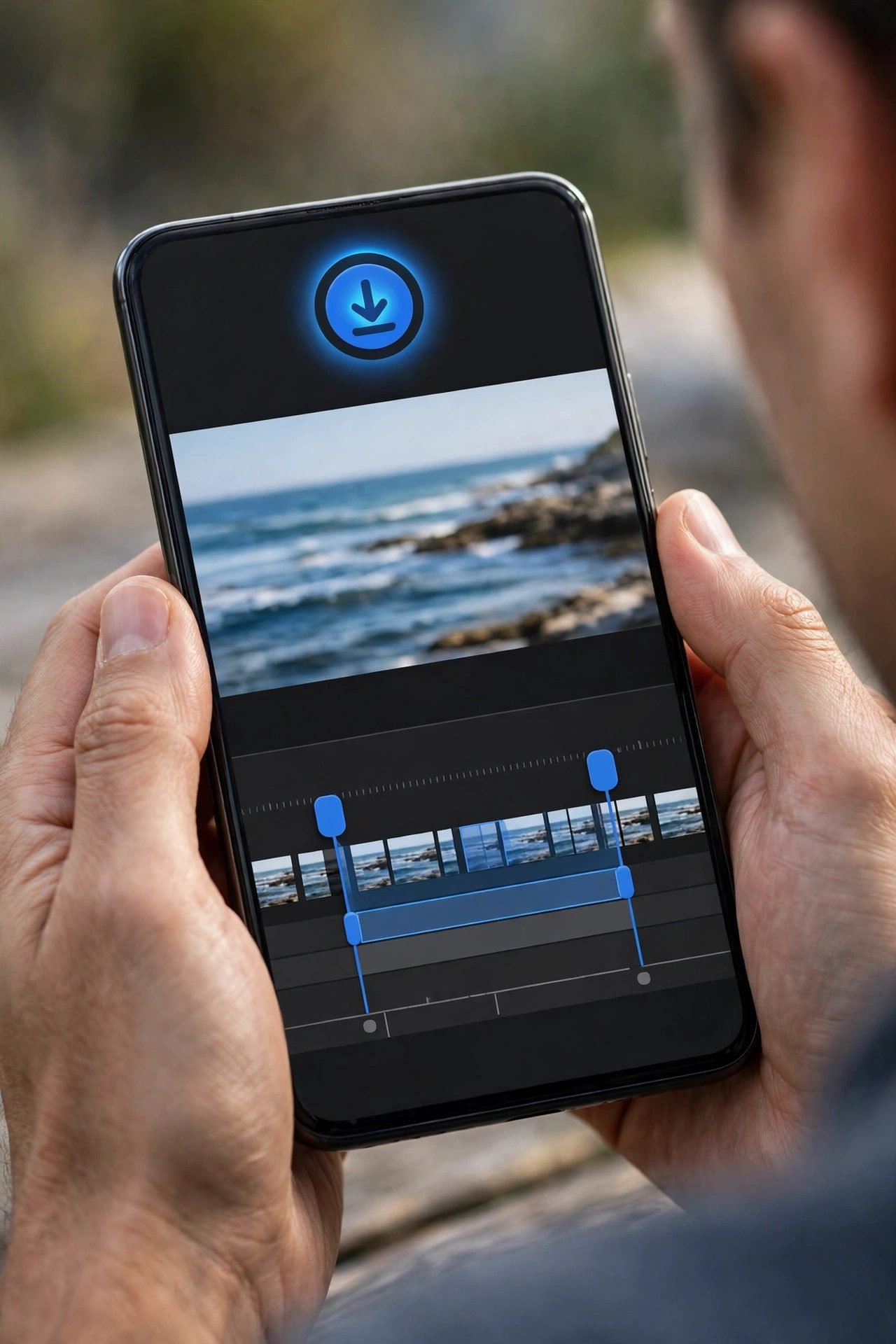
- On the final editing screen, tap the download / save icon (a downward arrow) at the top.
- The Reel saves to your phone’s gallery or camera roll as a plain video file.
- Now post the Reel whenever you are ready — you already have the clean copy saved.
One limitation: music from Instagram’s licensed audio library may not be included in a draft download. If your Reel uses a licensed track, the saved file may be silent. Using original audio or a track you have the rights to avoids this problem.
Tip: Turn this into a habit. Saving the file before posting takes five seconds and means you never have to download your own work back from Instagram later.
Method 2: Export Your Own Reels from Accounts Center
If the Reel is already posted and you no longer have the original file, use Instagram’s official export. This is the safest way to download Instagram Reels without watermark online for content you own, because no third-party site is involved.
- Open Instagram and go to your profile.
- Tap the menu (three lines), then open Accounts Center.
- Tap Your information and permissions, then Export your information (some accounts still show this as “Download your information”).
- Tap Create export, choose your Instagram profile, and select Export to device.
- Choose the information you want — for this purpose, your posts and Reels are enough — then pick a date range and start the export.
- Wait for Instagram’s email or notification that the export is ready, then download it within the time limit shown.
Menu names move slightly between app versions. If a label looks different, search the Instagram Help Center for “export your information” and follow the current wording there.
The export is a safety net, not a replacement for keeping your original edits — Instagram re-encodes uploads, so an exported file can be slightly lower quality than the video you first created.
Method 3: Turn On “Save Original Posts” So It Happens Automatically
If you regularly repurpose your Reels for YouTube Shorts, TikTok, or a backup folder, set Instagram to keep a copy for you automatically.
- Go to your profile and tap the menu.
- Open Archiving and downloading (under “Your app and media” in some versions).
- Turn on the option to save your original posts / photos to your device.
From then on, a copy is saved to your phone when you post. Check the setting after major app updates, because menu locations and defaults can change.
Method 4: With the Creator’s Permission, Ask for the Original File
For collaborations, brand work, testimonials, or a Reel a friend filmed for you, the professional method is also the simplest: ask the creator to send you the original video file.
- Message the creator and explain exactly where the video will be used — for example, your YouTube channel, a product page, or an offline presentation.
- Ask them to share the original file through Google Drive, email, or any file-sharing service they prefer.
- Agree on credit: even with a clean file, adding the creator’s username in your caption or on screen is good practice unless they say otherwise.
- Keep the permission message saved, in case the use is ever questioned.
This is the only method that gives you a true download Instagram Reel in HD without watermark for someone else’s content — full quality, no watermark, and no terms or copyright problem, because the owner agreed to it.
What About Third-Party “Reel Downloader Without Watermark” Sites?
Search results are full of sites promising a free Instagram Reel downloader without watermark for any public link: paste the URL, tap download, get a clean MP4. Before using any of them, understand the trade-offs clearly.
The risks are real:
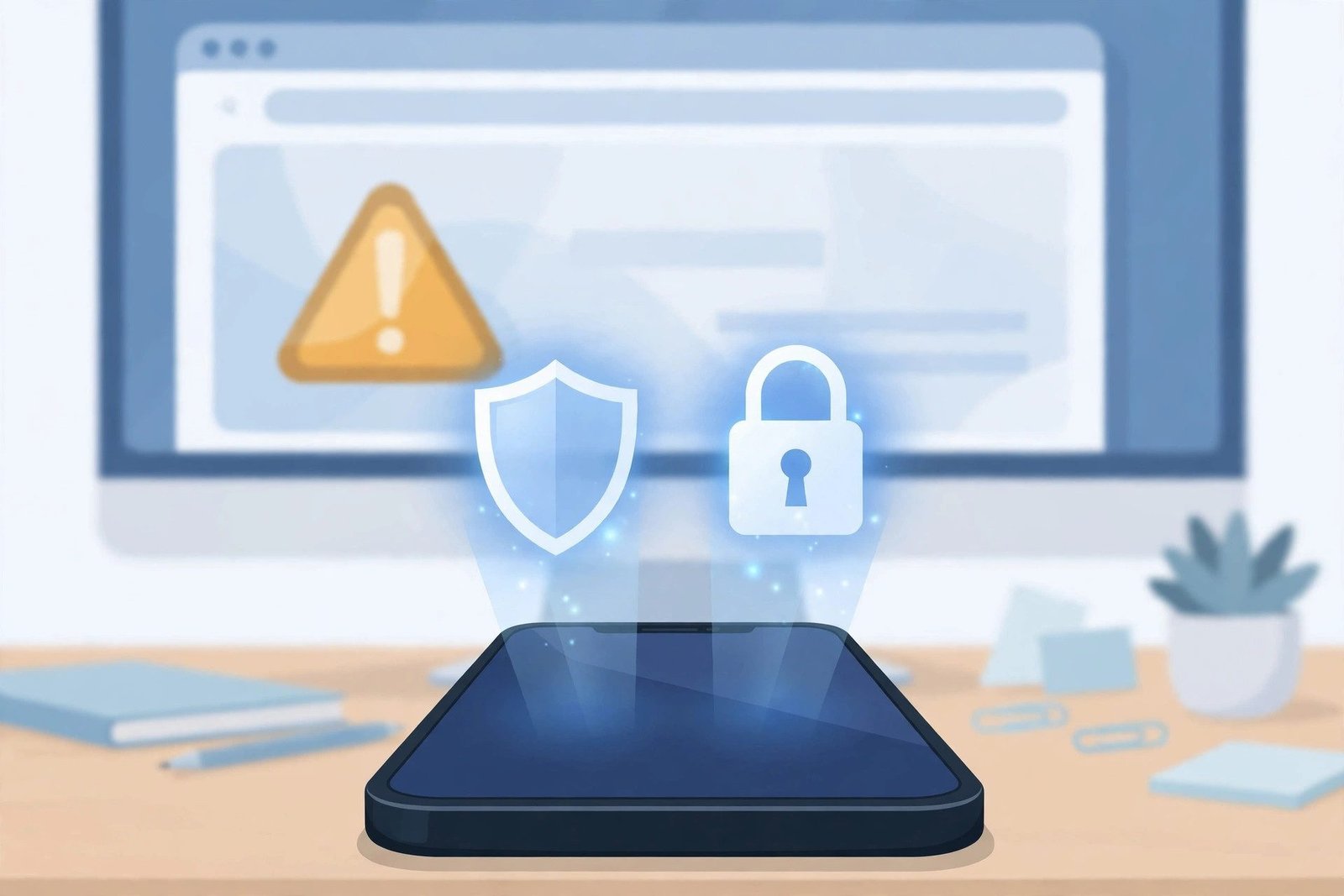
- Login traps. A genuine public-link tool never needs your Instagram username or password. If a site or app asks you to sign in, close it. Entering your password there can hand your account to a stranger.
- Malware and forced installs. Pop-ups that push an APK download, a browser extension, or a “verification” step are a common way harmful software spreads. A download should be one tap, with nothing to install.
- Copyright and terms. Downloading another person’s Reel and reposting it — with or without a watermark — can infringe their copyright and breach Instagram’s terms, and giving credit does not by itself make it legal.
- Quality claims. These tools can only fetch the version Instagram serves. “4K original quality” claims for a Reel that was uploaded in standard quality are marketing, not fact.
If you only need to watch a Reel later inside Instagram, you do not need a file at all. Tap the three dots on the Reel and choose Save — it stays in your Saved collection, costs no storage, and involves no third party. For step-by-step help with saving Reels to your phone’s gallery, see our related guide. And if you want to browse public profiles without logging in instead of using risky login-based tools, that is always the safer route.
Troubleshooting: Why Your Download Did Not Work
There is no Download button on a Reel.
The account is probably private, the creator has turned off Reel downloads, or — for public accounts belonging to users under 18 — downloads are off by default. There is no setting on your side that changes this.
The saved Reel has no sound.
Licensed music is the usual cause. Instagram may remove the audio from downloaded copies when the track is not licensed for use outside the app. Reels with original audio download with sound intact more reliably.
My own Reel downloaded with a watermark.
You used the in-app Download button on your posted Reel, which stamps the file. Use Method 1 (save before posting) or Method 2 (Accounts Center export) instead for a clean copy of your own content.
The export email has not arrived.
Large exports can take time. Check your spam and promotions folders, confirm the email address on your account is correct, and wait before submitting a second request — duplicates can slow things down further.
A downloader site shows errors or endless pop-ups.
Stop there. That behaviour is the warning sign, not a step to push through. Use the official methods above instead.
Quick Safety Checklist
Before you download any Reel, run through this list:
- Is this my own video, or do I have the creator’s permission?
- Am I using an official Instagram feature, or a site I fully trust?
- Did anything ask for my Instagram password? If yes, leave immediately.
- Am I planning to use this commercially? Downloaded Reels from other creators are not permitted for commercial use.
- Have I kept the creator’s credit where credit is due?
Frequently Asked Questions
Can I download Instagram Reels without a watermark for free?
Yes — for your own Reels. Save the video from the editor before posting, turn on the save-original-posts setting, or export your information from Accounts Center. These official methods are free and produce a clean file.
Is it legal to download someone else’s Reel without a watermark?
Downloading for personal reference is different from reposting. Republishing another creator’s video as your own, or using it commercially, can infringe copyright and break Instagram’s rules — with or without a watermark. Get the creator’s permission first, ideally in writing.
Why does Instagram’s download have a watermark?
To keep credit attached to the file. Downloaded Reels carry the Instagram logo, the creator’s username, and audio attribution so viewers can see who made the video and where it came from.
Can I download Reels from a private account?
No. Instagram does not allow downloads from private accounts, and any service claiming otherwise should not be trusted — especially if it asks for your login details.
What is the best quality I can get?
The original file, saved before posting, is always the highest quality. Instagram compresses every upload, so any later download — official export included — is a copy of the compressed version, not your untouched original.
Conclusion
Learning how to download Instagram Reels without watermark comes down to one distinction: whose Reel is it? If it is yours, you have three clean, official routes — save it before posting, export it from Accounts Center, or let the app save originals automatically. If it belongs to someone else, ask for the original file with permission, and treat any site promising a one-click clean copy of any Reel as a risk, not a shortcut. Keep your password out of third-party sites, keep the creator’s credit where it belongs, and you will get the files you need without putting your account in danger.
Related guide: How to Download Instagram DP in HD