
Learning how to go live on Instagram is one of the fastest ways to talk to your followers in real time. Instead of posting a photo or a Reel and waiting for comments, you open a live video and your audience can watch, react, and ask questions while you are still on screen. It works for creators, small businesses, teachers, and anyone who wants a more personal connection with their followers.
Short answer: To go live on Instagram, open the Instagram app, tap the plus icon, choose Live, add a title, and tap the live button to start broadcasting. Your followers get a notification, and they can join, comment, and send hearts while you stream. When you finish, you can save the video to your profile or discard it. The whole setup takes less than a minute once you know where the Live option is.
What Is Instagram Live?
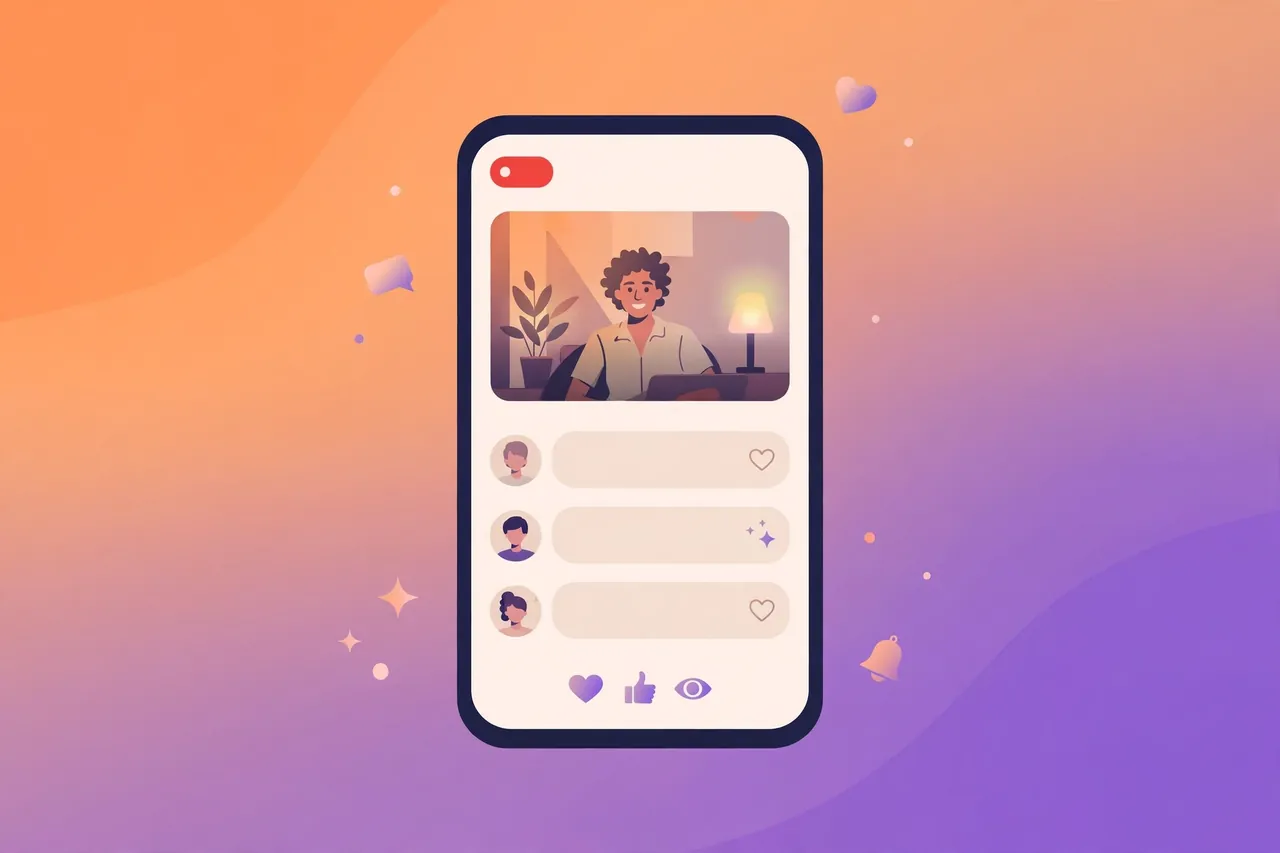
Instagram Live is a feature that lets you broadcast video to your followers in real time. When you start a live video, your profile picture appears at the front of the Stories row with a colourful ring and a “LIVE” label, and your followers receive a notification that you are live. Viewers can join at any time, leave comments, tap the heart button to react, and send questions.
Live videos are different from Reels and regular posts in one important way: they are unscripted and interactive. People do not expect a polished video. They expect a real conversation. That is why live streams work so well for question-and-answer sessions, product launches, behind-the-scenes tours, tutorials, and announcements.
Before You Go Live: Quick Checklist
A little preparation makes your live stream much smoother. Run through this short checklist before you tap the live button.
- Charge your phone. Live streaming uses a lot of battery. Start with at least 50% charge, or plug in your charger.
- Check your internet connection. Wi-Fi is usually more stable than mobile data. If your video freezes, viewers will leave quickly.
- Pick a quiet, well-lit spot. Face a window or a lamp so light falls on your face, not behind you.
- Clean your camera lens. A quick wipe with a soft cloth removes the blur that makes videos look dull.
- Plan what you will say first. Write down two or three main points so you do not freeze when the camera starts.
- Tell your followers in advance. Post a Story or a Note a few hours before you go live so people know when to join.
Set Up Your Space Before You Go Live
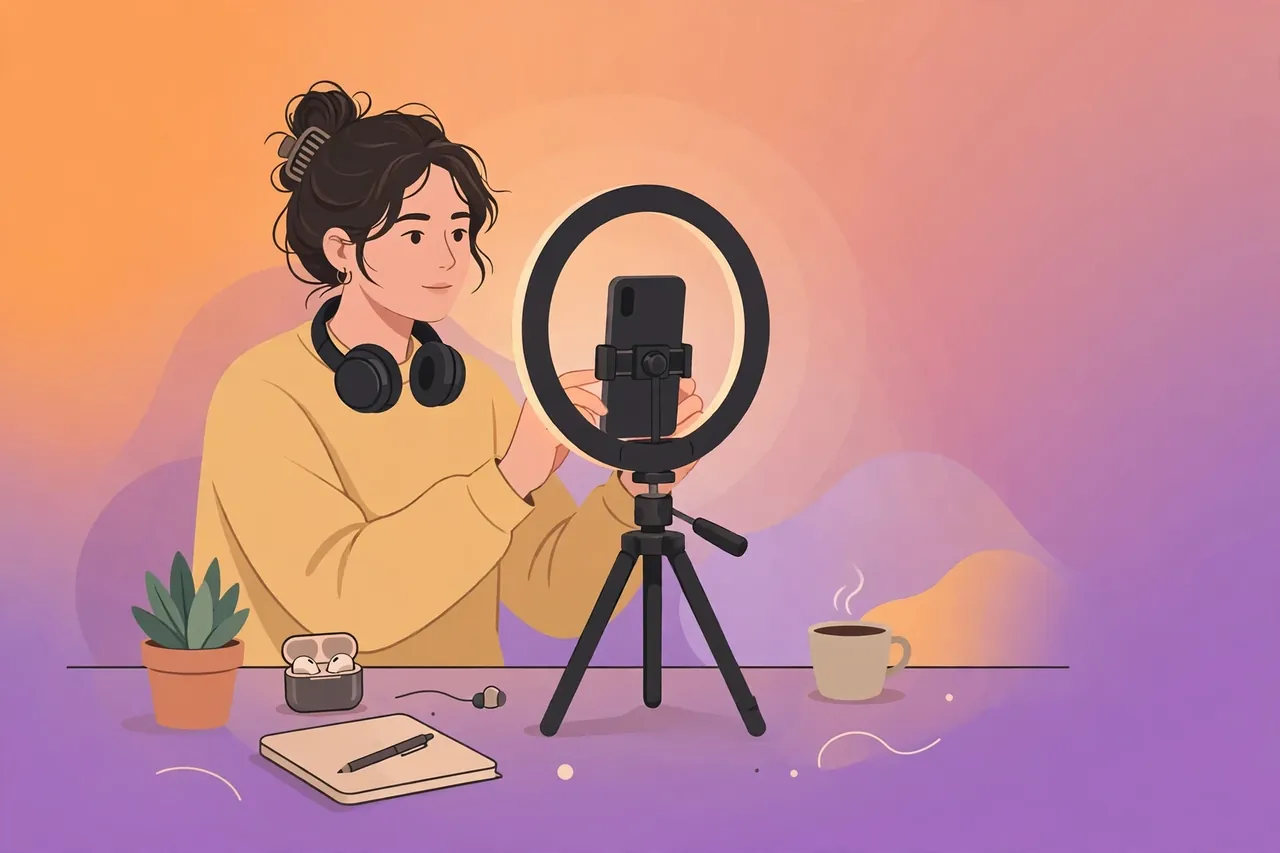
Good lighting and clear sound matter more than an expensive phone. Place your phone on a tripod, a stack of books, or any stable surface at eye level. A phone held in your hand shakes, and a low angle is unflattering, so a stable setup is worth the extra minute.
Choose a background that is tidy and not too busy. A plain wall, a bookshelf, or your workspace all work well. Avoid bright windows directly behind you, because the camera will darken your face to balance the light. If you stream at night, a small ring light or a desk lamp pointed at your face makes a big difference.
How to Go Live on Instagram
Follow these steps to start your first live stream. The layout may look slightly different depending on your app version, but the steps are the same on Android and iPhone.
- Open the Instagram app and make sure you are signed in to the account you want to stream from.
- Tap the plus (+) icon at the bottom of the screen or at the top of your feed.
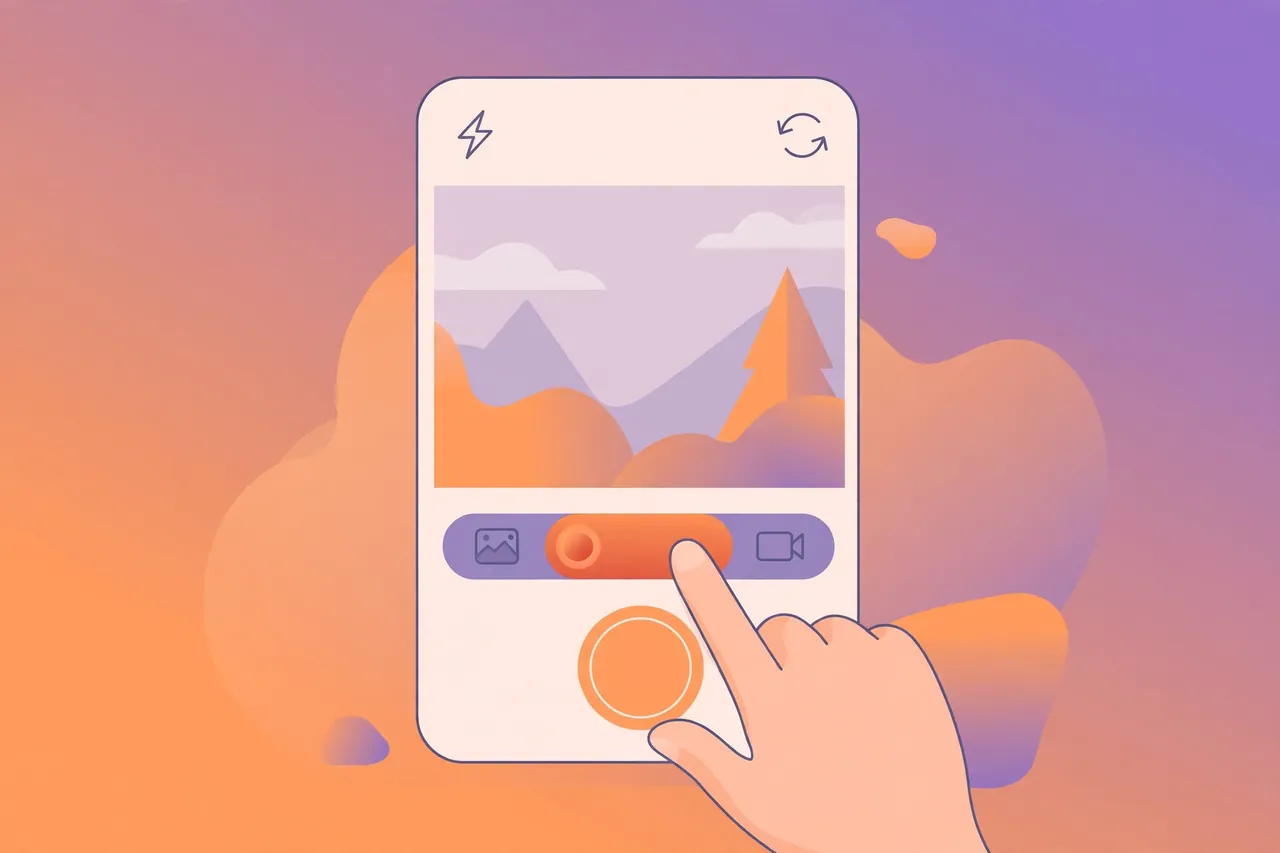
- Select “Live” from the options at the bottom. You may need to swipe across the options (Post, Story, Reel, Live) to find it.
- Add a title for your live video. Tap the title field on the left side of the screen and type a short, clear title that tells people what the stream is about, for example “Q&A: Ask Me Anything” or “New Collection Launch”.
- Choose your audience if needed. You can go live for everyone or choose a smaller audience. The default option broadcasts to your followers.
- Check your camera and connection. Instagram shows a preview of your camera and your connection strength. Wait until the connection looks good.
- Tap the live button (the circle at the bottom centre) to start broadcasting. Instagram counts down briefly, then you are live.
- Talk to your viewers. Greet people as they join, read their comments aloud, and answer questions. Pin an important comment by tapping it and choosing “Pin comment”.
- End the live video by tapping the X at the top right and confirming “End now” or “End video”. Instagram then offers to save, share, or discard the video.
How to Go Live With a Guest
You can invite another person to join your live video so you both appear on screen together — useful for interviews and collaborations. While you are live, tap the people icon, choose a viewer who has requested to join or invite someone specific, and tap “Add”. You can remove a guest at any time without ending the stream.
How to Schedule a Live Video
Instagram lets you schedule a live broadcast in advance from the Live setup screen. Followers can set a reminder, and Instagram can notify them when you start. Scheduling helps when you want more people to attend, because you can promote the date and time in a Story or a post first. It also helps to stream when your followers are usually online — see our guide on the best time to post on Instagram.
Instagram Live Tips to Get More Viewers
Starting a live stream is easy. Keeping viewers watching is the real skill. These tips will help you get more people to join and stay.
- Announce your live in advance. Share the day and time in a Story, a post, or an Instagram Note so followers can plan to join.
- Start with energy. The first minute decides whether people stay. Say hello, explain what the stream is about, and promise something useful in the next few minutes.
- Talk to viewers by name. When someone comments, read their name and answer them. People stay when they feel noticed.
- Ask questions. Simple questions such as “Where are you watching from?” or “Have you tried this before?” turn silent viewers into commenters.
- Keep it focused. Pick one topic per live stream. A clear topic is easier to promote and easier to follow.
- Stream regularly. Going live on the same day each week builds a habit. Followers start to expect you.
- End with a clear next step. Tell viewers what to do next — follow you, check a post, or join the next live. A clear ending is better than a slow fade.
If you also post Reels, a Reel can promote your next live. See our guide on how to use Instagram Reels for business.

After Your Live Ends: Save, Share, or Delete
When you end a live video, Instagram gives you a few options. You can share a replay to your profile so people who missed it can watch later, download the video to your phone, or delete it completely. Sharing the replay is a good idea if the stream had useful information, because it keeps working for you after the live ends.
If you do not want the video saved, choose the delete option. Once deleted, the replay cannot be recovered, so only delete when you are sure.
Troubleshooting: Why Can’t I Go Live on Instagram?
If the Live option is missing or your stream will not start, work through these common causes.
The Live option is missing
First, update the Instagram app to the latest version from the Play Store or App Store. The Live option may also be missing if you are using an old phone or an outdated app version. Restart the app after updating.
The stream keeps freezing or disconnecting
This is almost always a connection problem. Switch from mobile data to Wi-Fi, or move closer to your router. Close other apps that use the internet, and avoid streaming in places with weak signal, such as basements or moving vehicles.
Instagram says you cannot go live right now
Instagram may temporarily block live access if your account is very new, or if you recently broke a community rule. In that case, wait and try again later. Avoid any third-party app that promises to unlock live features — these apps can put your account at risk.
Viewers cannot hear you
Check that Instagram has permission to use your microphone. On your phone, go to Settings, find Instagram, and confirm that microphone access is turned on. Also check that nothing is covering the microphone.
The video is blurry or dark
Wipe the camera lens, add more light in front of you, and check your connection. Low light and weak internet both make live video look worse.
Frequently Asked Questions
How long can an Instagram live stream last?
Instagram live streams can run for up to four hours in one session. Most creators stream for 30 to 60 minutes.
Can I go live on Instagram from a computer?
No. Instagram Live is designed for the mobile app, and you start a live stream from your phone. You can watch a live stream on a computer browser, but you cannot broadcast from it using Instagram’s own tools.
Do my followers get notified when I go live?
Yes. When you start a live video, your followers receive a notification, and your profile picture appears at the front of the Stories row with a “LIVE” label. Followers who have notifications turned off for your account may not be alerted.
How do I see who watched my live stream?
While you are live, you can see the number of viewers and the names of people who join and comment. After the live ends, Instagram shows you the total viewer count, but it does not provide a full list of everyone who watched the replay.
Conclusion
Now you know how to go live on Instagram: open the app, tap the plus icon, choose Live, add a title, and tap the live button. The technical part takes less than a minute. The part that matters is what you do on camera — a clear topic, good light, steady sound, and real conversation with your viewers. Start with a short stream, such as a 15-minute question-and-answer session, and build from there. Your first live does not need to be perfect. It just needs to happen. For more ideas, the Instagram Creators site offers official tips for live video, and the Instagram Help Center covers the rules for going live.