

You are halfway through a Reel — a recipe, a tutorial, a joke you want to read again — and it keeps playing before you can catch the details. Learning how to pause Instagram Reels is a small skill, but it saves a lot of frustration, because Reels play automatically and loop when they finish. The method is different on the app and on a computer, and there is no single obvious pause button in the app. This guide shows you every way to pause a Reel on Android and iPhone, how to resume it, and what to do when a Reel simply will not pause.
Short answer: To pause Instagram Reels in the app, press and hold your finger on the screen — the Reel freezes while you hold it and resumes when you lift your finger. On a computer, open Instagram in your browser, hover over the Reel, and click the pause button in the player controls at the bottom. If a Reel will not pause, update the Instagram app, restart it, and check whether you are watching an ad, which can behave differently from a normal Reel.
How to Pause Instagram Reels
Instagram does not show a permanent pause button over Reels in the mobile app, which is why so many people think pausing is impossible. It is possible — the control is just hidden behind a gesture on phones, and behind the player controls on a computer. Use the method below that matches your device.
Method 1: Tap and Hold (App)
This is the main way to pause a Reel on Android and iPhone, and it works in the Reels tab, in the feed, and on someone’s profile.
- Open the Reel you want to pause. Tap a Reel in your feed or open the Reels tab at the bottom of the app.
- Press and hold anywhere on the video. Put your finger on the screen and keep it there. Do not tap and release — a quick tap can open other options instead.
- Read or look while you hold. The video and the audio freeze for as long as your finger stays on the screen, so you can read on-screen text or look closely at a detail.
- Lift your finger to resume. The Reel continues playing from exactly where it stopped. There is no need to tap anything else.
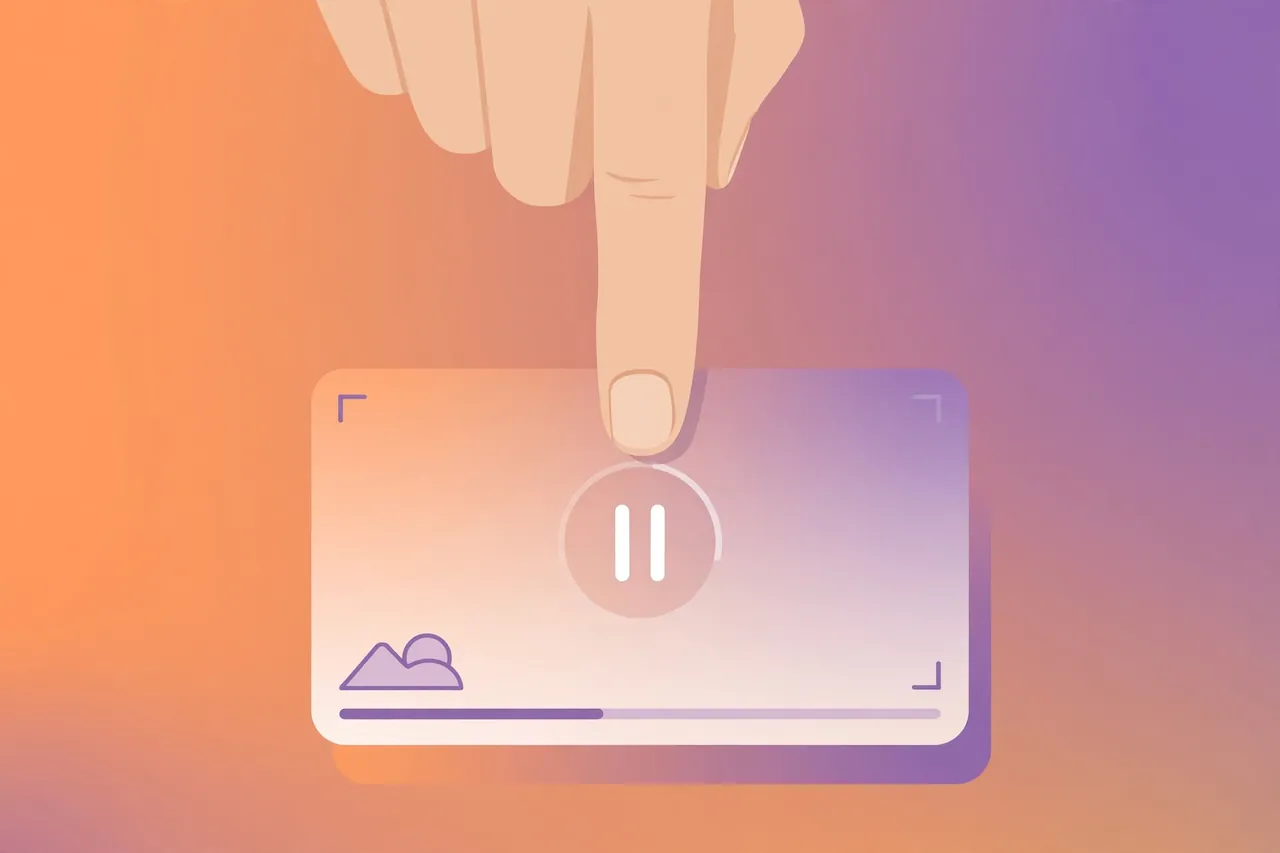
This method is best for short pauses — reading on-screen text or checking a step in a tutorial. For a longer pause it is less comfortable, because you have to keep holding the screen; on a computer, use the pause button below instead.
Method 2: Use the Pause Button (Desktop and Web)
On a computer, Instagram’s web player has visible playback controls, including a real pause button.
- Open Instagram in your browser. Go to instagram.com and sign in to your account.
- Open the Reel. Click a Reel in your feed or open the Reels section from the left menu.
- Move your mouse over the video. The player controls appear at the bottom of the Reel.
- Click the pause button. The video stops, and the button changes to a play button. Click it again to resume from the same spot.
- Use the progress bar to jump. Drag the progress bar at the bottom to move to a different part of the Reel — useful when you want to rewatch one step of a tutorial instead of starting over.

The same controls also let you mute and unmute the Reel. Click the speaker icon in the bottom corner to turn the sound off without pausing the video — handy if you want to keep watching silently.
Method 3: Pause a Reel From the Feed
Reels also appear mixed into your main feed as you scroll. The tap-and-hold method works there too: press and hold on the Reel to freeze it, and lift your finger to continue. If you want to watch it properly, tap the Reel to open it full screen first, then use tap and hold. Opening it full screen also gives you the comments, the caption and the audio controls in one place.
One useful habit: if a Reel catches your eye while you are scrolling, save it before it disappears. Tap the bookmark icon to save it to your Saved collection, then find it later in your profile under Saved. That way you do not need to pause and hold a Reel while you finish something else — you can return to it when you have time.
How to Resume a Paused Reel
Resuming is simple on both platforms. In the app, lift your finger and the Reel continues from the exact frame where it stopped. On a computer, click the play button in the player controls. The Reel picks up where it left off, including the audio.
If the Reel restarts from the beginning instead of resuming, it has probably finished and looped. Reels play on a loop by default, so a short Reel can finish and start again while you are holding it. To avoid this, save the Reel or open it on a computer, where the progress bar shows your exact position.
Other Reel Playback Controls Worth Knowing
Pausing is only one of the controls around a Reel. Knowing the others saves you from fighting the player.
Mute and unmute: Tap the speaker icon in the bottom corner of a Reel to mute it. Instagram remembers your choice, so muted Reels stay muted until you turn the sound back on.
Skip to the next Reel: Swipe up (or scroll down on a computer) to move to the next Reel. Swipe down to go back to the previous one. This is the fastest way to move on when a Reel does not interest you.
Watch the progress bar: The thin bar at the top of a Reel in the app — at the bottom on a computer — shows how much of the video is left. If it is nearly full, the Reel is about to loop, so pause it quickly if you still need to read something on screen.
Read the caption: If the text you need is in the caption rather than the video, tap the caption to expand it and read it at your own pace without pausing. For creators, see our guide on how to use Instagram Reels for business, plus Instagram Reel dimensions and Reels duration limits.
Reel Won’t Pause? Troubleshooting
Sometimes tap and hold does nothing, or the Reel keeps playing no matter what you try. Work through these fixes in order.
- Make sure you are holding, not tapping. A quick tap can trigger other actions, such as liking the Reel or opening a link. Press your finger down and keep it still for a second — the video should freeze.
- Update the Instagram app. Playback behaviour changes between app versions, and an old version can have bugs with gestures. Update Instagram from the Play Store or App Store, then try again.
- Close and reopen the app. Fully close Instagram (remove it from your recent apps) and open it again. This clears temporary glitches that can break gestures and playback.
- Restart your phone. If closing the app does not help, restart the device. This fixes deeper temporary problems with touch input and video playback.
- Check whether it is an ad. Sponsored Reels and ads can behave differently from ordinary Reels, and some do not respond to tap and hold in the same way. If only ads refuse to pause, the problem is the ad format, not your phone.
- Try the web version. If the app keeps failing, open the same Reel on instagram.com in your browser, where the pause button is a visible control rather than a gesture.
If none of these steps works, check whether videos in other apps misbehave too — if so, the cause may be your device, not Instagram. For official help with Reels playback, see the Instagram Help Center and Instagram Creators site.
Frequently Asked Questions
Can you pause Instagram Reels?
Yes. In the Instagram app, press and hold the screen to pause a Reel and lift your finger to resume it. On a computer, open the Reel on instagram.com and click the pause button in the player controls. There is no permanent pause button in the mobile app, which is why the tap-and-hold gesture is the method to remember.
How do you pause a Reel on iPhone?
Open the Reel in the Instagram app, then press and hold your finger anywhere on the video. The Reel freezes while you hold it. Lift your finger and it continues playing from the same spot. The method is the same on iPhone and Android.
Why can’t I pause a Reel?
The most common reasons are tapping instead of holding, an outdated app version, or watching an ad, which can behave differently from a normal Reel. Update Instagram, close and reopen the app, and try pressing and holding for a full second. If it still fails, try the same Reel on instagram.com in a browser.
Does pausing a Reel stop the music?
Yes. When you pause a Reel, both the video and the audio stop together, and they resume together from the same point. If you want the video to keep playing without sound instead, tap the speaker icon to mute it rather than pausing it.
Can you pause Reels on a PC?
Yes. Open Instagram in your browser, play the Reel, and click the pause button in the player controls at the bottom of the video. You can also drag the progress bar to jump to a different part of the Reel, which is not possible with the tap-and-hold method on phones.
Conclusion
Pausing an Instagram Reel is easy once you know the trick: press and hold the screen in the app, or click the pause button on a computer. Save Reels you want to watch properly, use mute when you only need silence, and keep the app updated. The next time a Reel moves too fast — a recipe step, a tutorial detail, a caption you want to read — hold the screen, take your time, and let it resume when you are ready.