

A velocity edit is one of the most recognisable video styles on Instagram Reels and TikTok: a clip suddenly slows down, then speeds up again in perfect time with the music. The good news is that you do not need advanced editing skills to make one. The best velocity CapCut templates do the hard work for you — they already contain the speed changes, the beat timing and the transitions, so you only need to add your own clips. In this guide, you will learn where to find these templates, how to choose the right one, and how to use it step by step.
Short answer: The best velocity CapCut templates are found inside the CapCut app, in the Templates tab, by searching for “velocity”. Preview a few templates, pick one whose clip count and length match your footage, then tap “Use template” and replace each placeholder with your own clips. There is no single best template for everyone — the right one depends on your music, your clips and the platform you are posting to. If a template does not fit, CapCut’s speed curve tool lets you build the same effect yourself.
What Is a Velocity Edit in CapCut?
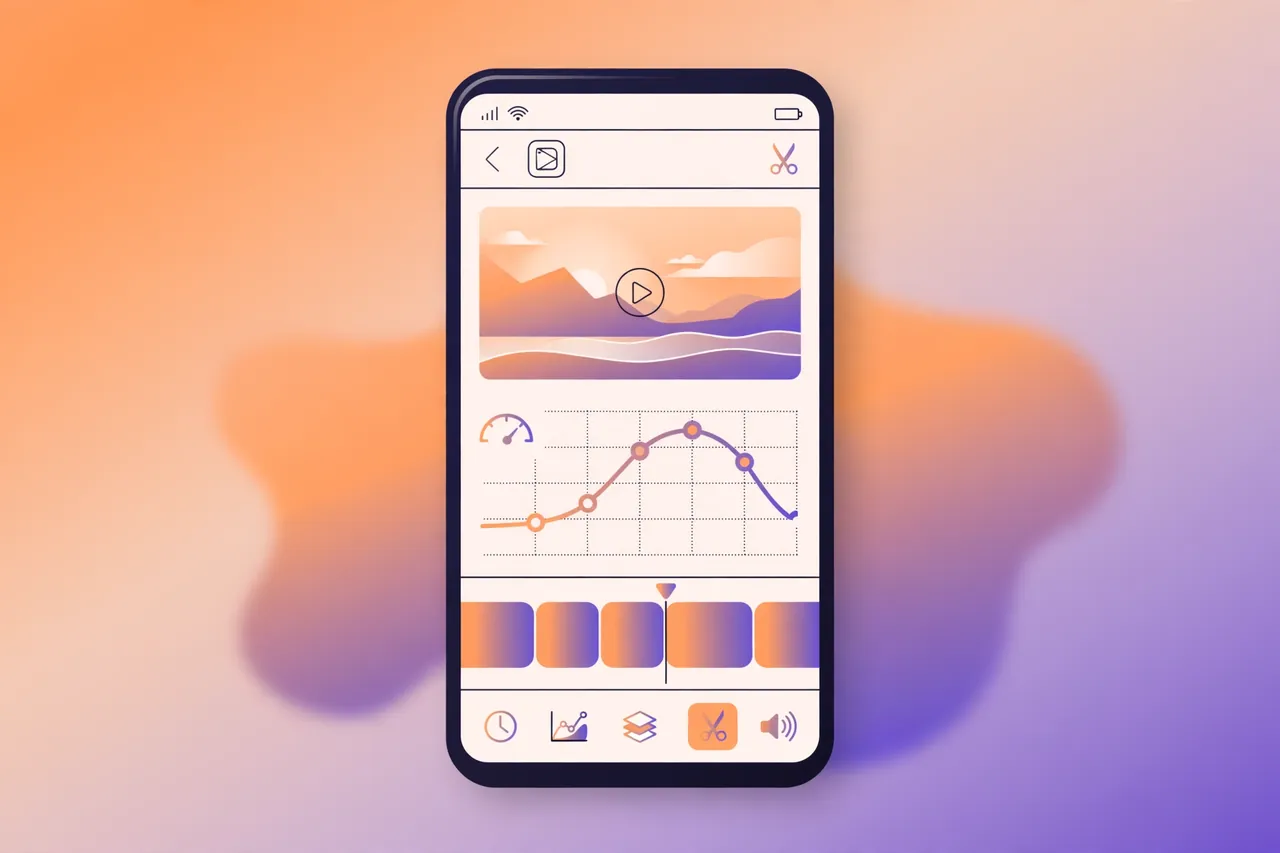
A velocity edit is a video in which the playback speed changes during a single clip. Typically the video plays at normal speed, slows down for a dramatic moment — a jump, a spin, a splash — and then speeds up again as the beat drops. The effect is called a “speed ramp”, and CapCut provides it through its speed curve tool.
Velocity edits became popular in sports clips, dance videos and travel montages, because the speed change adds energy a plain clip does not have. A template is a ready-made version of this effect: someone has already set the speed curve, the cut points and the transitions, so you can reuse it with your own footage.
How to Find the Best Velocity CapCut Templates
Follow these steps to find a template that fits your footage instead of settling for the first one you see.
- Open CapCut and tap Templates. On the home screen, tap the Templates tab at the bottom to open the template library, where you can browse by category or search.
- Search for “velocity”. Type “velocity” in the search bar, and try related searches such as “velocity edit” or “speed ramp”, because different creators describe the same effect in different words.
- Preview before choosing. Tap a template to watch its preview. Pay attention to the music, clip count and total length: a template that needs eight clips will not work well if you only have three good ones.
- Check the clip count and length. The template page shows how many photos or videos it needs and how long the finished video will be. Match this to your footage and to the platform you are posting to — for Instagram, check our guide to Instagram Reel dimensions first.
- Look at the style, not just the effect. Some velocity templates are fast and flashy, others are smooth and slow. Pick the mood that fits your video: a travel montage suits a smooth ramp, a sports clip suits sharp, fast changes.
If you are new to CapCut templates in general, our overview of CapCut templates for video editing explains how the library works and what to check before exporting. For official guidance on CapCut’s tools and features, see the CapCut official site and the CapCut Help pages.
How to Use a Velocity CapCut Template
Once you have picked a template, using it takes only a few minutes. The steps below work for most velocity templates in the CapCut app.
- Tap “Use template”. Open the template preview and tap the button to use it. CapCut will open the template editor.
- Select your photos or videos. Tap each placeholder slot and choose a clip from your gallery. Pick clips that match the slot’s length — a slow-motion moment needs a clip with enough action in it.
- Trim the clips if needed. If a clip is too long for its slot, drag its edges to choose the best part — and put the most interesting action where the template slows down.
- Preview the result. Play the full video and watch the speed changes. If a slow-motion moment lands on a dull frame, swap that clip or trim it.
- Export in high quality. Tap Export and choose the highest quality your phone handles comfortably. A velocity edit with blurry export settings loses most of its impact, so avoid exporting at low resolution to save space.

Types of Velocity Templates Worth Trying
Velocity templates come in several styles, and each one suits a different kind of video. You do not need to learn their names — just recognise the style when you preview it.
Beat-sync velocity templates change speed on the beat of the music, so every drop or drum hit lines up with a cut or a speed change. These work best for dance clips and short montages where the music drives the energy.
Slow-motion action templates keep most of the clip at normal speed and slow down one moment — a jump, a turn, a splash. These suit sports, dance and travel clips where one moment deserves attention.
Photo slideshow velocity templates apply speed ramps to still photos, zooming and panning across each image in time with the music. These are a good choice when you have great photos but no video footage — for example a birthday montage or a travel recap.
Smooth transition templates combine gentle speed changes with zoom or spin transitions between clips. They feel calmer and more polished, which suits fashion and product showcases.
How to Make a Velocity Edit Without a Template
If no template fits your idea, you can build the same effect with CapCut’s speed curve tool. It takes a little longer, but you control every speed change yourself.
- Start a new project and import your clip. Open CapCut, tap New Project and choose the video you want to edit.
- Select the clip and open Speed. Tap the clip on the timeline, then tap Speed in the toolbar.
- Choose Curve. CapCut offers a normal speed control and a curve control. Tap Curve to adjust the speed at different points in the clip.
- Pick a preset or build your own curve. You can start from one of the built-in curve presets, or drag the points on the graph yourself. Points near the top of the graph play fast; points near the bottom play slowly.
- Place the slow part on the key moment. Drag the low point of the curve so it lines up with the jump, spin or reaction you want to highlight. Everything before and after it will play faster by comparison.
- Preview and fine-tune. Play the clip several times and adjust the curve points in tiny steps until the speed change feels smooth and lands on the beat.
- Export and check the result. Watch it on your phone at full screen, and check that the slow section is smooth rather than choppy.

For more on this workflow, see our guide to the Instagram Reel template in CapCut.
Tips for a Smooth, Professional Velocity Edit
A good velocity edit looks effortless, but a few details separate a clean edit from a messy one. Match the speed change to the music, so the slow moment lands on a beat or a drop. And use high frame rate footage when you can: video filmed at 60 frames per second slows down far more smoothly than video filmed at 30.
Troubleshooting Velocity Templates in CapCut
The template will not load or keeps buffering. Check your internet connection first, then close and reopen CapCut. Templates stream their previews, so a weak connection is the most common cause.
My clips do not fit the template slots. The template expects a certain number and length of clips. Replace a clip with a longer one, trim it to the best section, or choose a template with fewer slots.
The music is out of sync with the speed changes. This usually happens when you replace the template’s audio or trim a clip. Restore the original audio, or re-trim so the key moment lands on the same beat as in the preview.
The exported video looks blurry. Export at the highest quality setting, and start from the highest-quality original clips you have. A velocity edit magnifies softness, because the slow section holds each frame on screen longer.
Frequently Asked Questions
Are velocity CapCut templates free?
Many velocity templates in CapCut are free, while some are marked for CapCut Pro, the paid version. Free templates cover most common styles, so try the free options first.
How do I use a velocity CapCut template?
Open CapCut, tap Templates, search for “velocity”, and preview the results. Tap “Use template” on the one you like, then replace each placeholder with your own photos or videos, preview the result, and export.
Can I make a velocity edit without a template?
Yes. Import your clip into CapCut, tap Speed, then choose Curve. Drag the points on the speed graph to slow down the key moment and speed up the rest. This is the best option when no template matches your footage or your music.
Why is my velocity edit choppy?
The most common cause is a clip that is too short or filmed at a low frame rate. Slowing a video down needs extra frames, so use the longest clip you have and film at 60 frames per second when possible.
Can I use velocity templates for Instagram Reels?
Yes. Most velocity templates are made in vertical video format, which suits Reels and TikTok. Before exporting, make sure the template’s aspect ratio matches the platform — vertical 9:16 for Reels — so your video is not cropped.
Conclusion
The best velocity CapCut template is not the flashiest one — it is the one that fits your clips, your music and your platform. Search the Templates tab for “velocity”, preview a few options, and choose the style that matches your footage and its clip count. If nothing fits, the speed curve tool lets you build the same effect from scratch in a few minutes. Start with a template, film your key moment at a high frame rate, and keep the speed changes on the beat. Your first velocity edit may take a few tries, but once the timing clicks, it becomes one of the easiest ways to make a short video stand out.