
You found a photo on Instagram you want to keep — a recipe, a travel shot, a memory a friend posted — and there is no download button anywhere. An Instagram photo downloader is the tool most people turn to next, but it is only one of several ways to save a photo, and it is not always the right one. Instagram does not offer a button to download someone else’s photo to your camera roll. What it does offer is a Save button inside the app, a setting that keeps copies of your own posts, and a full export of your account data. This guide covers all of them, explains when a downloader is the right choice, and how to stay safe.
What Is an Instagram Photo Downloader?
An Instagram photo downloader is a web-based tool that takes the link of a public Instagram photo and gives you the image file to save on your phone or computer. You paste the post link, the tool fetches the photo from Instagram’s servers, and you download the original image file. Most photo downloaders work entirely in the browser. You do not need to install an app, create an account, or log in with Instagram. A downloader that asks for your Instagram password is not legitimate — a real downloader never needs it.
Downloaders handle single photos, and most also handle carousels — posts with several photos you swipe through — letting you save each image separately. Some also save Reels, stories and videos — see our Instagram video downloader guide for those. One hard limit applies: the account must be public. No web-based tool can download photos from a private account. If a downloader claims it can, it is a scam.
How to Use an Instagram Photo Downloader: Step by Step
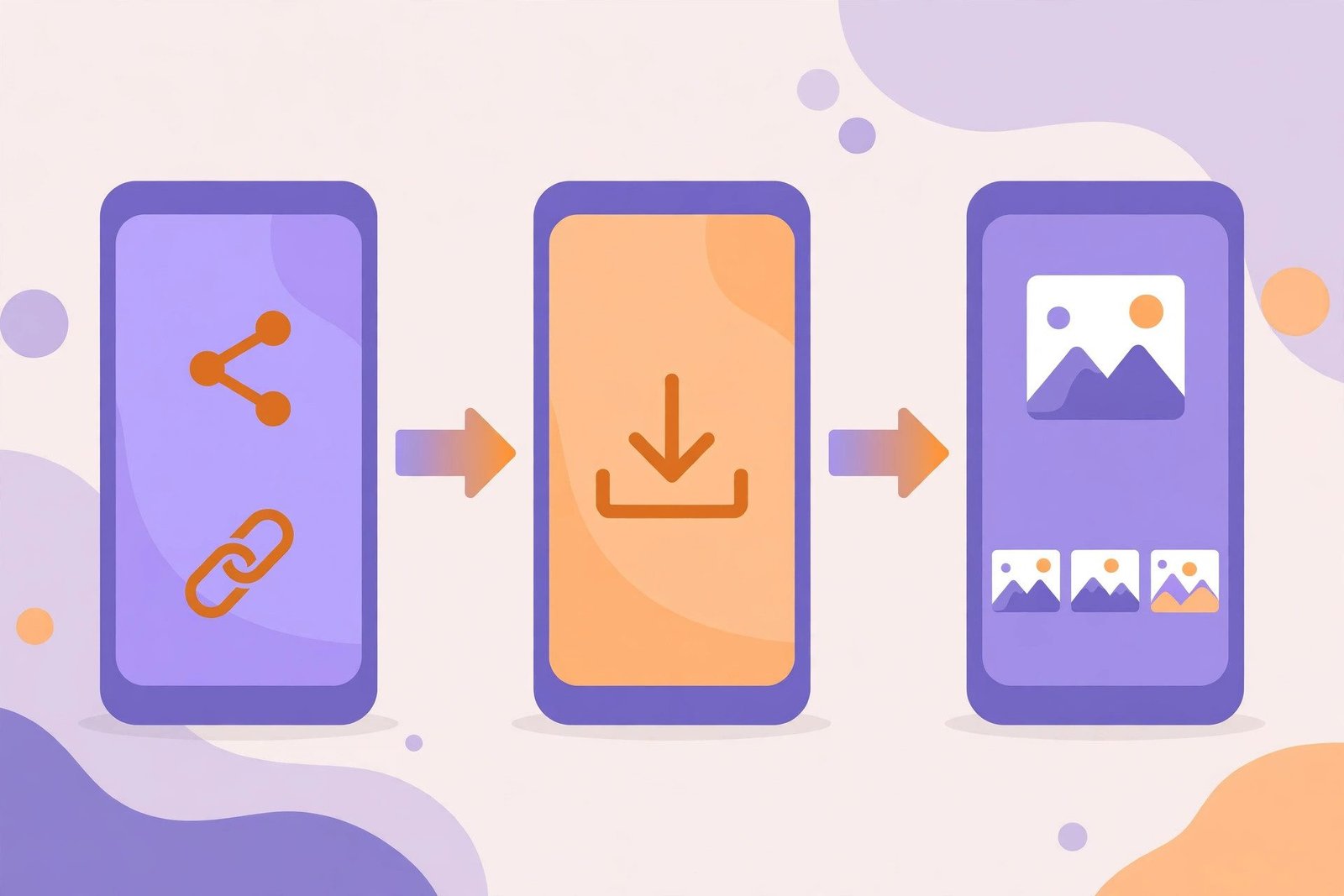
The process is the same on almost every downloader. Here it is, start to finish:
- Step 1: Find the Photo on Instagram — open the Instagram app or website and find the photo you want to save.
- Step 2: Copy the Post Link — On the app: tap the share icon (the paper plane) under the photo, then tap “Copy link.” On a computer: open the post and copy the URL from your browser’s address bar.
- Step 3: Open a Photo Downloader Website — go to a reputable Instagram photo downloader in your browser. Choose one that works without a login, does not ask you to install anything, and does not ask for your Instagram password.
- Step 4: Paste the Link and Download — paste the copied link into the downloader’s input box and tap the download button. The tool will show a preview of the photo, usually at full resolution.
- Step 5: Save the Photo to Your Device — tap the download link. On Android, the photo usually goes straight to your Downloads or Gallery folder. On iPhone, tap the download icon and then “Save to Photos” or “Save to Files.” On a computer, the file downloads to your default downloads folder.
For carousels, most downloaders show each photo separately, so download the ones you want one at a time.
Save Your Own Photos with Instagram’s Own Tools
Before reaching for a downloader, check whether Instagram itself already does what you need. For your own photos, its built-in options are safer, free, and give you the best quality.
Save Original Photos Automatically
Instagram has a setting that keeps a copy of every photo you post in your phone’s library the moment you post it.
- Go to your profile and tap the three lines in the top-right corner.
- Tap Settings and activity, then Archiving and downloading.
- Switch on Save original photos. On some Android versions it is called Save posted photos.
From then on, each photo you post — including filters and edits — is also saved to your phone. This only works for new posts, and it is not available on computers.
Download Every Photo You Have Ever Posted
For a complete backup of your own account, use Instagram’s export tool.
- Go to Settings and activity, then Accounts Center.
- Tap Your information and permissions, then Download your information.
- Pick your Instagram account and choose Download to device.
- Select what to include — choose Media for photos and videos — set a date range, and submit the request. Instagram emails you a download link when the file is ready.
Instagram says it may take up to 30 days, though many exports arrive within a few hours. Once the export is ready, you have 4 days to download it, so save the file promptly. This is the right route if you want a backup of every photo you have ever shared — but it covers your own account only.
Save Posts Inside the App
If you only need to find a photo again later, tap the bookmark icon under any post to save it to a private collection on your profile. Nobody else can see your saved posts. The difference is simple: Save keeps the photo inside Instagram; a downloader gives you the actual file.
Photo Quality: What to Expect
Instagram stores photos at a maximum width of 1080 pixels, so no downloader can give you a sharper copy than that. If a photo looks slightly soft after downloading, that is the quality Instagram stored — the downloader cannot improve it. That said, a downloader grabs the original image file, so you keep the full 1080-pixel resolution with none of the app’s buttons or interface in the way. A screenshot, by comparison, captures whatever is on your screen — including the like, comment and share buttons — and at your screen’s resolution, which is usually lower. For a clean, full-quality copy, a downloader beats a screenshot every time.
Is Using an Instagram Photo Downloader Safe?
Downloading a public photo through a browser tool is generally safe — but only if you choose the tool carefully. A safe downloader works without any login or account, never asks for your Instagram password, does not require you to install an app or extension, and does not ask for your phone number or email. Downloads start directly in the browser, with no extra software.
Avoid any site that asks you to log in with Instagram, asks you to download a .exe or .apk file to “enable” downloads, shows aggressive pop-ups, asks you to complete a survey or “human verification” step, or promises to download photos from private accounts.
Safety Tips
- Never enter your Instagram password on a downloader site. A real downloader does not need it.
- Keep your browser and antivirus updated so malicious download buttons are flagged.
- Do not install anything a downloader site tells you to install. Photo downloads work in the browser.
- Check the file you downloaded. A real photo file ends in .jpg or .png. If you get a .exe, .apk, or .zip file you did not expect, delete it and do not open it.
Is It Legal to Download Instagram Photos?
Downloading a photo for your own personal use — looking at it offline or keeping a reference — is widely accepted and is what these tools are designed for. Reposting someone else’s photo is where the rules change: do not re-upload another creator’s photo as your own, as that is copyright infringement, and Instagram can remove the repost or restrict your account. Give credit if you share, and ask permission before any commercial use — downloading a public post does not grant you rights to republish it. Your own photos are always fine to download. For video formats, see our guide on converting Instagram videos to MP4.
Instagram Photo Downloader vs. Screenshot
If a downloader is not working, a screenshot is the simplest backup. It works for any post you can see, including posts from private accounts you follow, and it needs no third-party site at all. The trade-off is quality and cleanliness: a screenshot captures your screen, buttons included, at screen resolution. A downloader gives you the cleaner file at full stored resolution. A screenshot is quicker and works everywhere, including private posts — use it when the downloader fails or the post is private.
Troubleshooting
The downloader says “photo not found” or “invalid link”: make sure you copied the full link from a public post. Links from private accounts or deleted posts will not work. Copy the link again and check for extra characters.
The photo downloads but the quality looks low: Instagram stores photos at a maximum of 1080 pixels wide, and no downloader can sharpen a low-resolution upload. For your own photos, the original on your phone is always higher quality.
The download opens the photo instead of saving it (iPhone): long-press the photo or the download button and choose “Save to Photos” or “Download Linked File.”
The site asks me to log in or install an app: close it and use a different downloader. A legitimate tool needs neither your login nor any installation.
Can I download photos from a private account I follow? No. Web-based downloaders cannot access private account content. A screenshot is the only way to keep a copy of a private post you can see, and you should only do that for personal use.
FAQs
Q: What is an Instagram photo downloader?
A: An Instagram photo downloader is a web tool that saves public Instagram photos as files on your phone or computer. You paste the post link, and the tool gives you a download button. No login is required, and it only works on public posts.
Q: Can I download Instagram photos without an app?
A: Yes. Most Instagram photo downloaders work entirely in your web browser on Android, iPhone, and desktop. You do not need to install any app or log in with your Instagram account.
Q: How do I save my own Instagram photos in the best quality?
A: Turn on Save original photos in Settings so every new post is copied to your phone, or use Download your information in Accounts Center to export every photo you have ever posted. Both are Instagram’s own tools and give you the best available quality.
Q: Is it legal to download Instagram photos?
A: Downloading a photo for personal, offline viewing is widely accepted. Reposting someone else’s photo as your own without permission is copyright infringement, so always credit the creator or ask before sharing.
Q: Why won’t my Instagram photo download?
A: The most common reasons are a private account, a deleted post, or a copied link with missing characters. Check that the post is public and still live, copy the link again, and try a different downloader.
Conclusion
An Instagram photo downloader is the quickest way to save a public photo as a real file — copy the link, paste it into a reputable browser-based downloader, and save the image. For your own photos, Instagram’s own tools are better: turn on Save original photos, and use Download your information for a full backup. Remember the two rules that keep you safe: never enter your Instagram password on a downloader site, and never repost someone else’s photo as your own. Follow those, and saving Instagram photos is quick, easy, and trouble-free.