
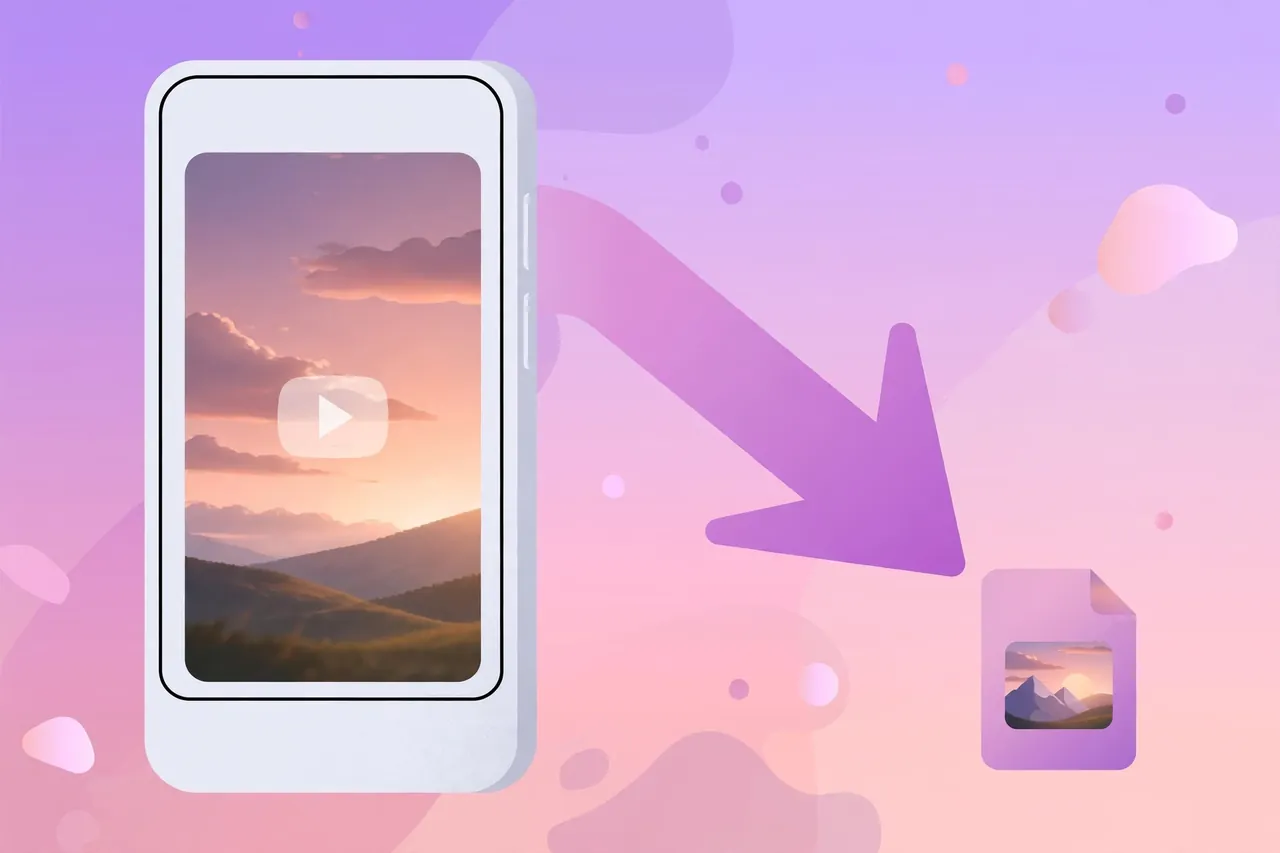
Every Reel and video on Instagram shows a still image before it starts playing. That still image is the thumbnail — the cover a creator picks, or the frame Instagram selects automatically. It is what people see in the feed, on a profile grid, and in search results.
An instagram thumbnail downloader saves that cover image as a separate JPG file. It does not save the video itself, and it does not give you the original photo at full quality. This guide explains what a thumbnail is, what resolution to expect, how to download one safely, how to do it without any tool, and what to do when a download fails.
Short answer: To download an Instagram thumbnail, copy the link of a public Reel or video post from Instagram’s share menu, paste it into a reputable downloader that asks for no login, preview the cover image, and save the JPG. The file is the cover Instagram serves — often 640 to 1080 pixels wide — not the original full-quality image. Private posts cannot be downloaded this way, and you should never enter your Instagram password on a downloader site.
What Is an Instagram Thumbnail?
An Instagram thumbnail is the preview image attached to a video post, a Reel, or a photo post. For a Reel, it is the cover frame the creator chose while uploading, or a frame Instagram picked automatically. For a photo post, the photo itself is the image — there is no separate cover.
Thumbnails appear in the profile grid, the Reels tab, the Explore page, search results, and the feed. Because Instagram compresses everything it displays, the thumbnail is a smaller, lighter version of the original file.
Instagram Thumbnail vs. Full Image: What Is the Difference?
The difference between a thumbnail and a full image is size, quality, and purpose. A thumbnail is a compressed preview that Instagram creates for display. The full image is the file the creator uploaded, stored at a higher resolution. When you download a thumbnail, you are getting Instagram’s display version, not the creator’s original upload.
| Feature | Thumbnail (preview) | Full image (original upload) |
|---|---|---|
| Resolution | Usually 640 to 1080 pixels wide | Up to 1080 pixels wide for feed photos |
| Quality | Compressed, softer detail | Sharper, closer to the original |
| File size | Small, often under 200 KB | Larger, often several hundred KB or more |
| Best use | Preview, reference, cover reuse | Printing, editing, republishing your own work |
This also explains why tools report different sizes for the same thumbnail.
What Resolution Should You Expect?
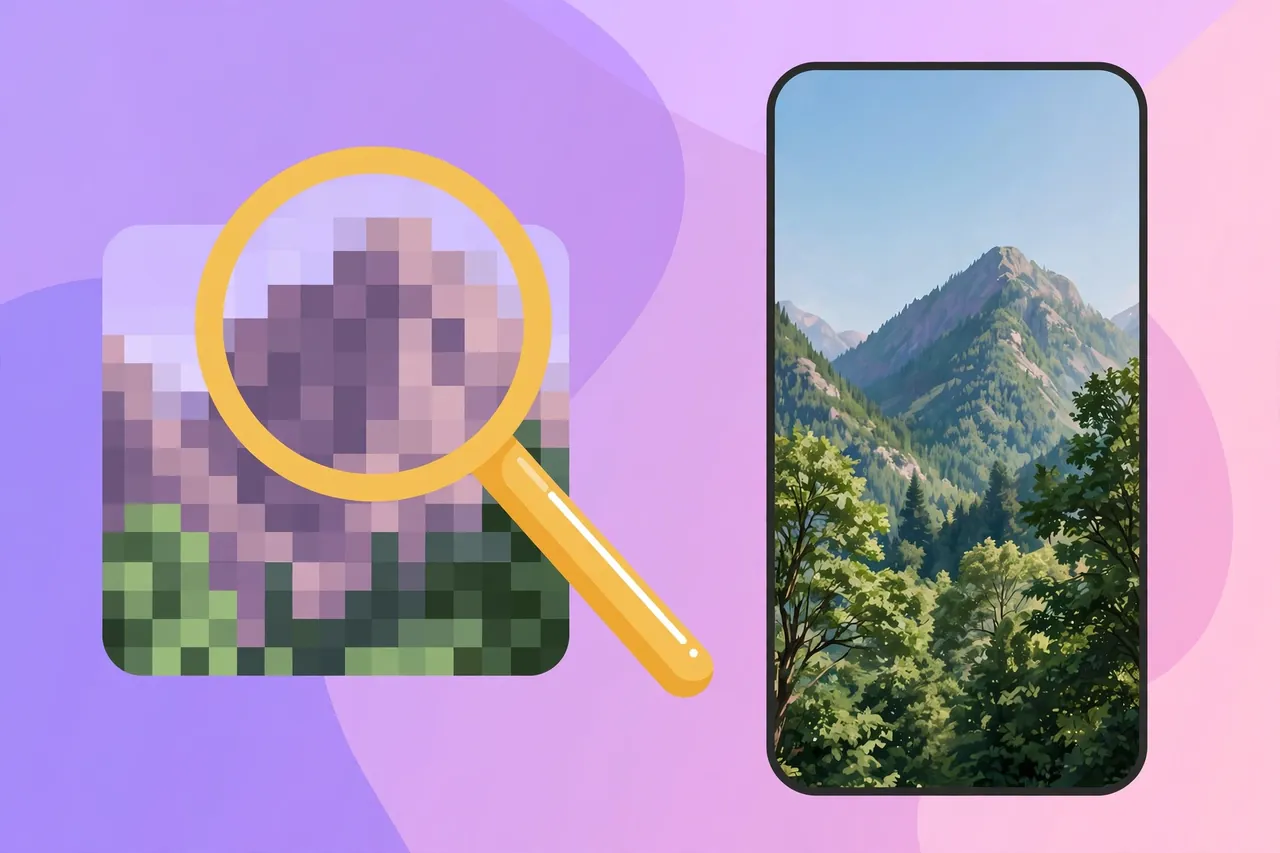
Set your expectations before you download. A thumbnail is a compressed preview, so it looks good on a phone screen but soft if you zoom in or print it. Here is what Instagram typically serves:
- Reel covers: vertical, 9:16 ratio. Often 640 × 1136 or 1080 × 1920 pixels, depending on which version the tool fetches.
- Video post covers: usually the same ratio as the video, often around 640 pixels wide.
- Photo posts: the photo itself, usually up to 1080 pixels wide. There is no separate thumbnail — use an Instagram photo downloader instead.
- Carousel posts: most tools return only the first image as the thumbnail. The other slides are separate images.
No tool can give you more quality than Instagram stores. If a site promises “HD” or “4K” thumbnails, be suspicious — the honest result is the largest size Instagram provides.
How to Download an Instagram Thumbnail (Safe Method)
Follow these steps to save a thumbnail from any public post. You do not need to install an app or create an account.
- Open the Reel or video post in Instagram. Make sure the account is public — no legitimate tool can fetch a private post.
- Tap the share icon and choose “Copy link”. On a computer, copy the address from the browser bar instead. A valid link looks like instagram.com/reel/… or instagram.com/p/….
- Paste the link into a reputable downloader. Pick a tool that works without a login and shows a preview first. Close the tab if it asks for your Instagram password, shows aggressive pop-ups, or demands payment.
- Check the preview and the size. A good tool shows the cover image and its dimensions before you save it. Make sure it is the creator’s chosen cover, not a random frame.
- Tap “Download” and save the JPG. On Android and computers it lands in Downloads; on iPhone it may go to the Files app first, where you can choose “Save Image” to move it to Photos.
If you need the video itself rather than just the cover, use an Instagram video downloader. Saving the video does not give you the thumbnail as a separate file, so the two tools solve different problems.
How to Save a Thumbnail Without a Shady Tool
You do not have to use a third-party site at all. These no-tool methods work for many everyday cases, and they keep your links and your account away from unknown servers.
1. Screenshot and crop. Open the Reel, pause it on the cover frame, and take a screenshot. Crop out the buttons and captions. The quality is lower than a direct download, but it is instant, free, and completely private.
2. Reuse your own cover file. If the Reel is yours, the cover image already exists on your phone — Instagram let you pick it from your camera roll when you uploaded. That original is sharper than anything a downloader can fetch, so check your gallery first.
3. Check the tool before you trust it. If you do use a downloader, check first: no login or password required, a visible preview before download, no forced app install, no payment wall, and no aggressive pop-ups. If a site fails any of these, close it and try a different one. If you only need to find the post again later, tap the bookmark icon to save it inside Instagram instead.
Instagram Thumbnail Download Not Working? Fix It Step by Step
A failed download usually has a simple cause. Work through these checks in order before trying another tool.
- Check that the post is public. Private accounts only show their posts to approved followers. No website can fetch a private thumbnail.
- Check the link format. The link must point to a single post or Reel — instagram.com/p/… or instagram.com/reel/…. Profile links, Story links, and Explore links do not work with most thumbnail tools.
- Copy the link again. Instagram links can expire or change. Go back to the post, copy a fresh link, and paste it again.
- Wait a few minutes and retry. Instagram limits how often its servers answer automated requests. Waiting ten to fifteen minutes often fixes it.
- Try another browser, and check the post still exists. An ad blocker or a full cache can block a download, so try an incognito window. If the creator deleted the Reel or made it private, the thumbnail is gone too — if you cannot open the post in Instagram, no downloader can fetch it.
If none of these work, the thumbnail is probably unavailable.
Is Downloading an Instagram Thumbnail Legal and Safe?
Downloading a thumbnail for personal use — a reference, or a copy of your own content — is generally fine. Reposting someone else’s content as your own, using it in an ad, or selling it is not allowed without the creator’s permission. The thumbnail belongs to the person who created the post.
- Only download public content. Never try to access private accounts or content you do not have permission to see.
- Never share your Instagram password. No legitimate downloader needs your login. If a site asks for it, leave immediately — that is how accounts get stolen.
- Do not repost without permission. Saving a thumbnail is not the same as owning it. Ask the creator before reusing their cover image.
- Respect copyright. Check the Instagram Help Center for the current rules. When in doubt, use the image only as a private reference.
For a broader view of the platform, see Meta’s official overview of Instagram.
Instagram Profile Picture Thumbnail: A Related Case
Many people searching for an instagram thumbnail downloader actually want a profile picture. The two are different: a profile picture is a small square image, usually 150 to 320 pixels wide, and pasting a profile link into a thumbnail downloader will not work — the tool expects a post or Reel link. Story and highlight covers are a separate case too — if that is what you need, see our guide to the Instagram highlight downloader.
Frequently Asked Questions
Can I download an Instagram thumbnail for free?
Yes. Most are free with no sign-up: paste a public Reel or post link, preview the cover, and save the JPG.
What quality will the downloaded thumbnail be?
Expect the size Instagram serves — often 640 × 1136 or 1080 × 1920 pixels for a Reel cover, up to 1080 pixels wide for a photo post. It is a compressed preview, so it looks softer than the original.
Can I download a thumbnail from a private Instagram account?
No. Private posts are only visible to approved followers, so no website can fetch their thumbnails. Any site that claims it can is not trustworthy — do not enter your login details there.
Does an Instagram thumbnail downloader need my password?
No, and it should never ask for one. A legitimate tool only needs the public post link. If a site asks you to log in with Instagram, close the tab.
Can I use a downloaded thumbnail on my own post or website?
Only with the creator’s permission. You may keep it as a private reference, but reposting or using it commercially without permission is not allowed.
Conclusion
An instagram thumbnail downloader saves the cover image Instagram already shows for a public Reel or video post, as a JPG you can keep as a reference. Remember: the thumbnail is a compressed preview, not the original file, so expect around 640 to 1080 pixels wide and do not trust “4K” promises. Only public posts work, only a post or Reel link works, and no legitimate tool needs your password.
The safest path is the simplest: copy the link from Instagram’s own share menu, use a no-login tool with a visible preview, and save the file. If the Reel is yours, check your camera roll first — your original cover is sharper than any download.