
Slow motion turns an ordinary clip into a moment people stop and watch. A walk, a jump, or a sunset can feel cinematic when the movement is stretched out. That is why the best slow motion CapCut templates matter — the wrong pick can leave your video choppy.
Short answer: The best slow motion CapCut templates are the ones that match your footage and mood. For walking and fashion clips, try Viral Song Slowmo or TRENDING SLOWMO. For dramatic face reveals, Sushi Don’t Lie V2 and SlowMo work well. For emotional or travel edits, SLOWMO KAMIN and Beautiful Things are strong picks. Open CapCut, tap Templates, search “slow motion”, preview it with your clip, and export in 9:16 for Reels.
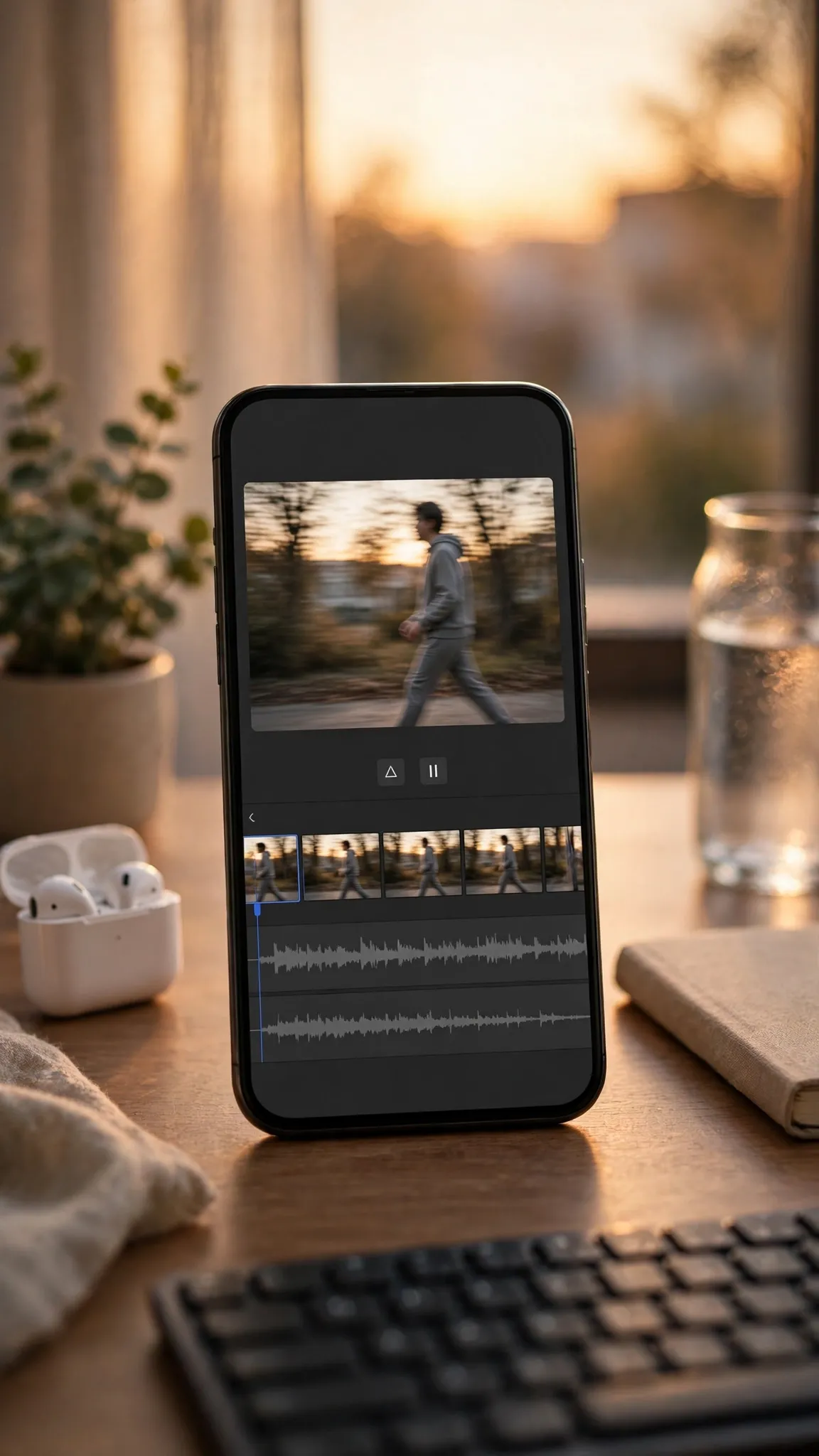
Best Slow Motion CapCut Templates at a Glance
The table below comes from CapCut’s own 2026 roundup; use counts change constantly, so check the preview first.
| Template | Best for | Duration |
|---|---|---|
| Viral Song Slowmo | Walking, fashion, lifestyle | 13 seconds |
| Sushi Don’t Lie V2 | Face reveals, close-ups | 11 seconds |
| TRENDING SLOWMO | Street shots, stylish vlogs | 16 seconds |
| SlowMo | Cinematic reels, jumps | 15 seconds |
| Velocity | Photo montages | 16 seconds |
| SLOWMOTION | Dreamy, graded edits | 10 seconds |
| Or do.. | Fashion, travel, moody vlogs | 15 seconds |
| SLOWMO KAMIN | Emotional storytelling | 27 seconds |
| Trending Slowmotion | Single-take style stories | 18 seconds |
| Beautiful Things | Fluid slow motion | 20 seconds |
10 Best Slow Motion CapCut Templates in 2026
Search each name exactly as written in CapCut’s Templates tab. Availability varies by region, so if a name does not appear, search “slow motion” and compare previews.
1. Viral Song Slowmo
The classic capcut template slow motion walk pick. It slows walking clips into a smooth, dramatic sequence, so an ordinary stroll looks like a fashion shoot — best for vlogs, outfit reveals, and travel clips.
2. Sushi Don’t Lie V2
It fades in from a blurred black screen and snaps into focus on the subject’s face, with a slight handheld shake. Use it for face reveals, makeup transitions, or moody portraits.
3. TRENDING SLOWMO
TRENDING SLOWMO adds a bold, cinematic mood to street shots, fashion edits, and moody vlogs, keeping the focus on your footage. A safe first choice if you are unsure which style fits.
4. SlowMo
SlowMo starts with a blur that clears in time with the music, then flows from one moment to the next. It suits clips where every movement matters, from a wave crashing to a mid-air jump.
5. Velocity
Velocity pairs slow motion with drumbeats and romantic music, a good fit for photo montages. If you enjoy speed ramping, our guide to the best velocity CapCut templates covers presets that mix fast and slow sections.
6. SLOWMOTION
It uses a blue-purple colour grade and motion blur for a dreamy, modern look, with music slowing in sync. At 10 seconds, use it for one striking moment, not a full story.
7. Or do..
Or do.. is a stylish, relaxed template that slows your clips while keeping transitions clean and smooth — good for fashion, lifestyle, travel, and moody vlogs.
8. SLOWMO KAMIN
SLOWMO KAMIN is built for powerful, emotional edits, pairing slow motion with a calm male monologue and subtitles — ideal for a farewell or a quiet walk by the sea. Plan several clips for its 27 seconds.
9. Trending Slowmotion
It opens with a fade-in and closes with a fade-out, linking scenes through fluid camera movement and slow pacing — like one continuous take, ideal for storytelling reels and travel diaries.
10. Beautiful Things
Beautiful Things is designed for flawless, continuous slow motion where every moment stays fluid and clear. Upload your clip and the template does the rest.
Other names in 2026 roundups include Stereo Love and Slowmo Aesthetic. Treat them as search leads and pick the version whose preview matches your style.
How to Use a Slow Motion CapCut Template Link

A slow motion capcut template download is not a file you save — it is a link that opens a specific template inside CapCut. The steps below work for a link or a manual search.
- Open Templates. Launch CapCut on your phone and tap Templates on the bottom toolbar. On desktop, open a new project and choose Templates from the top-left toolbar.
- Find the template. Tap a link and let it open in CapCut, or type “slow motion” in the search bar and watch the preview first.
- Tap Use Template. CapCut shows how many clips or photos the template needs and how long each one should be.
- Add your clips. Pick your video or photos from your gallery and tap Preview. Check the slow-motion moment lands on the part you want to highlight.
- Export in 9:16. Tap Export in the top-right corner and pick your resolution. For Instagram, check the Instagram reel dimensions so your slow-motion moment is not cropped.
One warning: the exact music and effects can vary slightly by region, so always preview a template with your own footage before exporting — and never pay a third-party site for a “premium template link”; these templates are found inside the CapCut app itself.
CapCut Template Slow Motion Walk: Best Picks for Walking Reels
Walking edits are the most popular use of slow motion on Reels. The capcut template slow motion walk style works when the camera moves with you and the slowdown lands on a turn or a step, in time with the music.
Viral Song Slowmo is the most direct pick, designed around walking clips. TRENDING SLOWMO is the backup for a moodier walk. For a group walk, pick a template with more than one clip slot.
To film a walk that looks good slowed down, record at 60 frames per second if your phone supports it, hold the camera at chest height, and film a few extra seconds around the key moment, as templates often trim the ends.
Why Your Slow Motion Looks Choppy (And How to Fix It)

The most common complaint about a capcut slow motion video template edit is that the result stutters. The cause is usually the source footage, not the template: a template changes playback speed but does not create new frames. Slow a 30 frames-per-second clip to a quarter of its speed and CapCut must stretch the same frames across a longer timeline, so each frame lingers and the motion jerks.
Footage shot at 60 frames per second or higher gives the template far more frames to work with — the same template can look smooth on one clip and choppy on another. Where CapCut offers it, Optical Flow generates in-between frames to smooth the motion, but it can smear fast movement, so test it on a short export first. If a template has no speed controls, recreate the timing in a manual CapCut project with the Speed Curve tool, slowing only the section that matters. As a rule, slow down less than you think: a gentle slowdown to around half speed usually looks more cinematic than an extreme one.
Template Not Loading? Troubleshooting Fixes
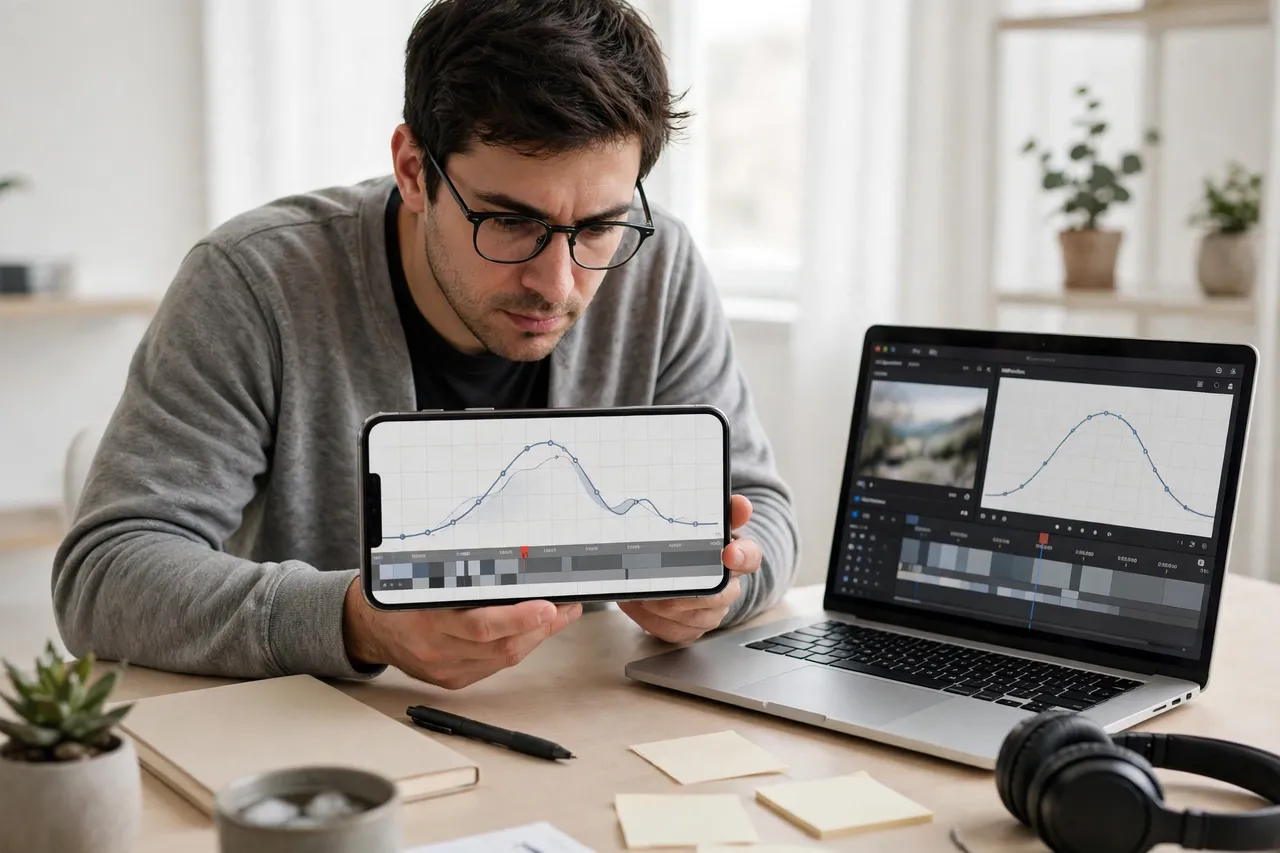
Slow-motion templates sometimes fail to load, show a black preview, or refuse to export. Work through these fixes in order.
- Check your connection. Templates load previews and music from CapCut’s servers. Switch between Wi-Fi and mobile data and try again.
- Update CapCut. Old versions sometimes cannot open newer templates. Update the app, then restart your phone.
- Search by name, not by link. If a link opens a blank page or the wrong template, search the name in the Templates tab. Links on third-party sites can be outdated or region-locked.
- Clear the app cache. In your phone settings, find CapCut and clear its cache. This removes broken preview files without deleting projects.
- Check the clip format. Some templates reject very long clips or unusual aspect ratios. Trim your clip to roughly the length the template expects.
- Try a different template. If one template keeps failing while others work, the problem is with that template. Pick a similar one from the list above.
- Reinstall as a last resort. If the problem continues across many templates, reinstall — but back up unfinished projects first. If a template shows a Pro label, check what it locks before building your edit around it.
Tips to Make Slow-Motion Reels Perform Better
Start with movement already happening, so the slow-motion moment arrives quickly. Put the most interesting frame — the jump, the turn, the reveal — in the first two seconds. Pair the reveal with a short on-screen hook; strong viral hooks for Instagram Reels work well here. Finally, do not slow down every clip: among the best capcut templates for reels, the slow-motion ones work best as one slowed moment inside a normal-paced reel, which feels special, while a full reel of slow motion feels tiring.
Frequently Asked Questions
What are the best slow motion CapCut templates?
Strong picks are Viral Song Slowmo for walking clips, Sushi Don’t Lie V2 for face reveals, TRENDING SLOWMO for street edits, and SLOWMO KAMIN for emotional storytelling. Preview each one with your own clip first.
How do I use a slow motion CapCut template link?
Tap the link to open it in CapCut, then tap Use Template and add your clips. If it opens the wrong template, search the template name in the Templates tab instead.
Are slow motion CapCut templates free?
Many are free, but some carry a Pro label that can limit export quality or features. Check the template page and the export screen before building your edit.
Why does my slow-motion video look choppy in CapCut?
Choppy slow motion usually comes from low-frame-rate footage: slowing a 30 frames-per-second clip stretches the same frames across a longer timeline. Film at 60 frames per second when you can, and use Optical Flow where CapCut offers it.
Can I change the music or speed of a slow motion CapCut template?
You can change what the template allows, such as the music, text, or volume, but the core timing is fixed. For full speed control, recreate the edit in a manual project and use the Speed Curve tool.
Conclusion
The best slow motion CapCut templates do one job well: they make a single moment feel bigger than it is. Start with Viral Song Slowmo for walks, Sushi Don’t Lie V2 for reveals, or TRENDING SLOWMO for a cinematic all-rounder, and preview each one with your own footage first. Film at 60 frames per second when you can, slow down gently, and save the effect for the moment that deserves it.