

A strong password alone is no longer enough to protect an Instagram account. Passwords leak in data breaches, get guessed, or get stolen by phishing pages — and once someone has yours, they can lock you out of your own account. That is why Instagram two factor authentication matters: it adds a second check so a password alone is never enough to get in.
Short answer: Instagram two factor authentication (2FA) requires a temporary code from your phone or authenticator app in addition to your password whenever you log in from a new device. You can turn it on in Settings under Accounts Centre, using either an authenticator app or SMS codes. It takes about two minutes to set up and is the single most effective step you can take to stop someone else logging in to your account.
What Is Instagram Two Factor Authentication?
Two-factor authentication, often shortened to 2FA, is a security method that asks for two different proofs of identity before letting someone in. The first factor is something you know — your password. The second factor is something you have — your phone, which receives or generates a temporary code.
With Instagram 2FA switched on, logging in works like this: you enter your username and password as normal, then Instagram asks for a six-digit code. That code comes from an authenticator app on your phone, or by text message if you choose SMS. The code changes every 30 seconds, so even if someone steals your password, they still cannot log in without your phone.
Instagram offers two main methods: an authentication app (such as Google Authenticator or Duo Mobile) and text message codes. It also provides backup codes — a set of one-time codes you can save somewhere safe and use if your phone is lost or unavailable. Saving those backup codes is the step most people skip, and it is the step that saves accounts later.
How to Turn On Two-Factor Authentication on Instagram
Follow these steps on the Instagram app. The menu names can change slightly with app updates, but the path is the same on Android and iPhone.
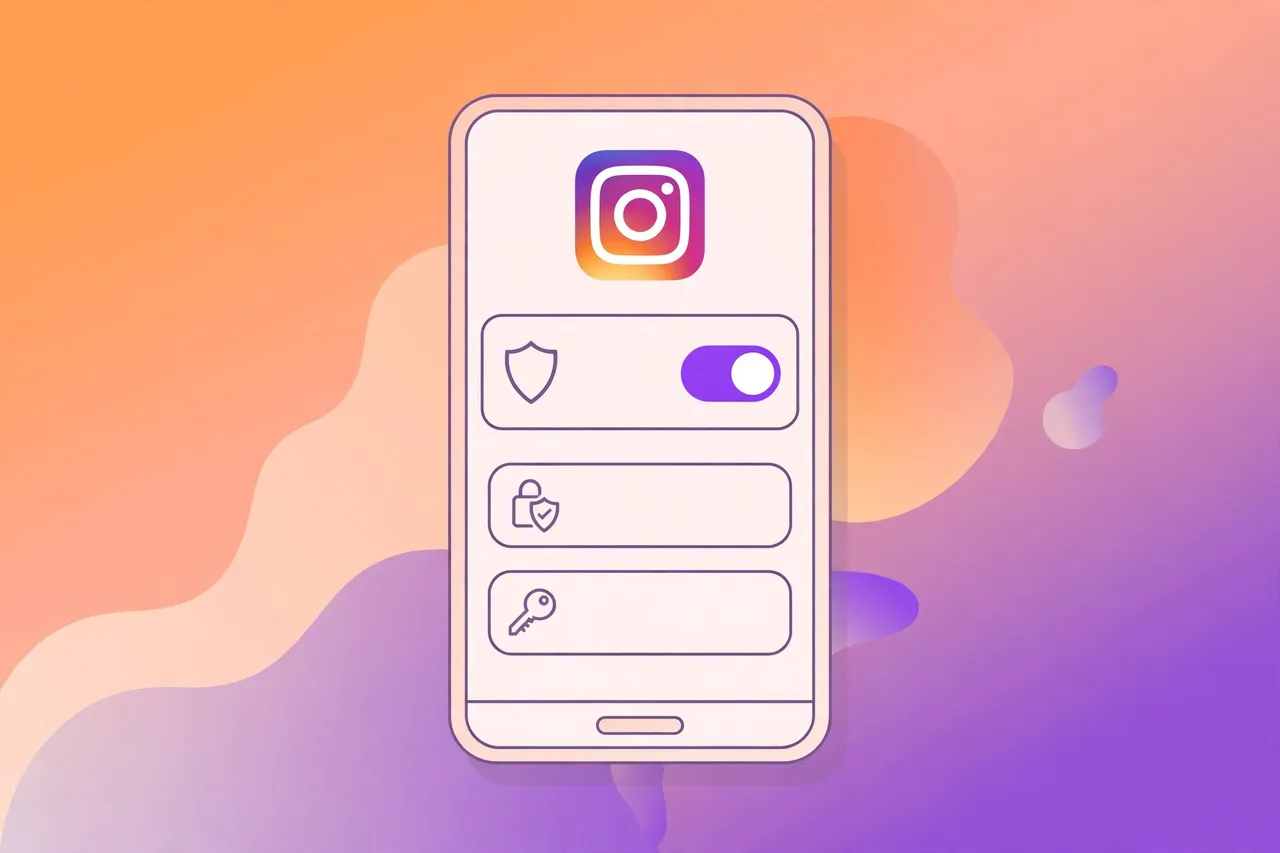
Switching on 2FA takes about two minutes in Instagram settings.
- Open your profile and tap the menu icon (three lines) in the top-right corner.
- Tap Settings, then open Accounts Centre.
- Tap Password and security, then Two-factor authentication.
- Choose your Instagram account if you manage more than one.
- Pick a method: Authentication app or Text message. For the authenticator app, Instagram will ask you to add the account to your app, either automatically or with a key you copy in manually.
- Enter the code shown in your authenticator app or sent by SMS to confirm setup.
- Save your backup codes. Instagram shows a list of one-time codes — screenshot them or write them down and store them somewhere safe, away from your phone.
Once setup is complete, Instagram will ask for a code whenever you log in from a device it does not recognise. Trusted devices you already use are usually not asked every time. If you want the official instructions, the Instagram Help Center keeps the current step-by-step guide for two-factor authentication.
Authenticator App vs SMS: Which Method Is Best?
Both methods protect your account, but they are not equal. An authenticator app is the stronger choice for most people, and here is why.
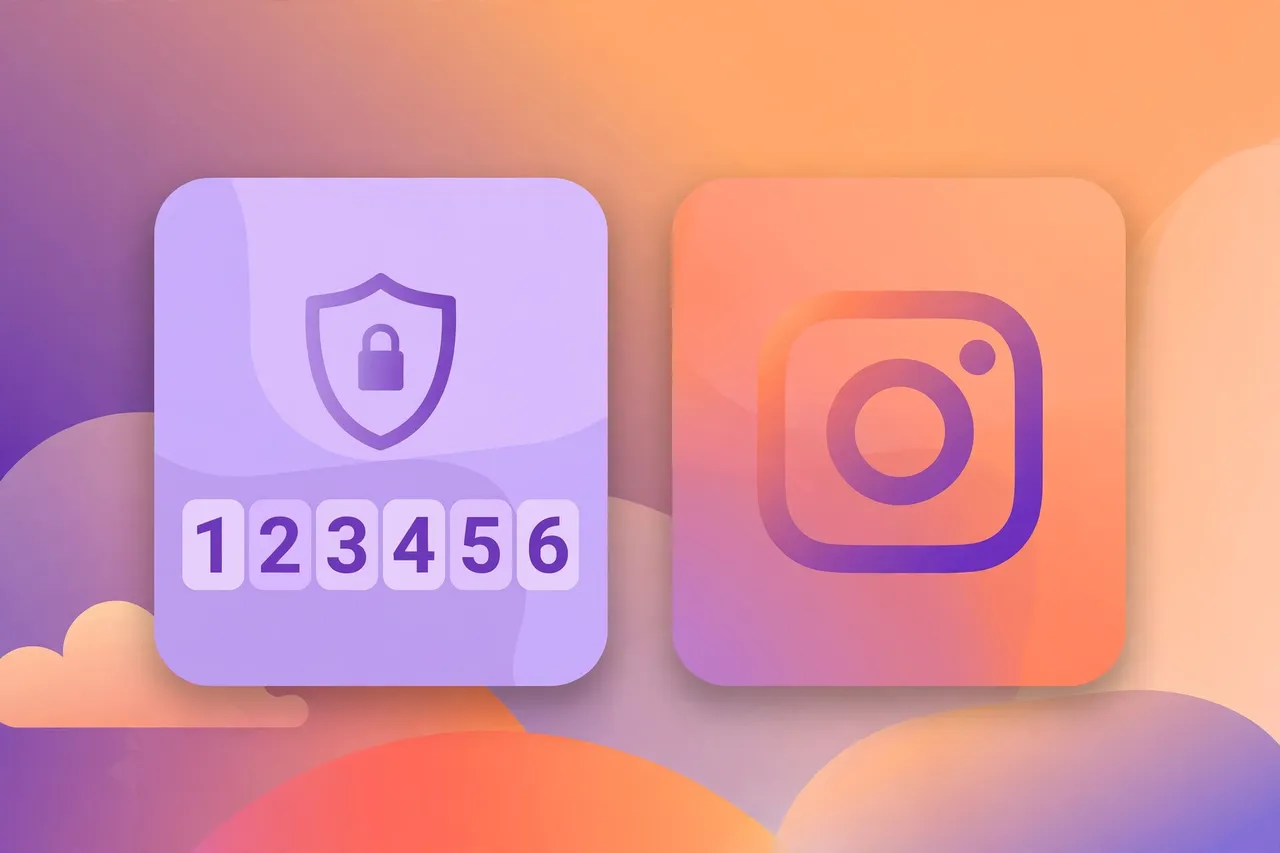
An authenticator app generates a fresh code every 30 seconds.
Authentication app
An authenticator app generates codes on your phone without needing a mobile signal. The codes work offline, cannot be intercepted in transit, and are not affected if someone tricks your mobile provider into moving your number to their SIM — a scam known as SIM swapping. The only downside is that you must keep the app installed and, ideally, back up its accounts so a new phone does not lock you out.
Text message (SMS)
SMS codes are easier to set up because they need no extra app, and they work on any phone that can receive texts. However, text messages can be delayed, can fail when you have no signal or are travelling, and are vulnerable to SIM-swap attacks. SMS is far better than no 2FA at all, but if you can use an authenticator app, choose that instead.
Whatever method you pick, save your backup codes immediately. They are your way back in if your phone is lost, stolen, or replaced. Keep them in a password manager or printed in a safe place — not in a photo on the same phone.
Instagram Two Factor Authentication Not Working
When instagram two factor authentication not working is the problem, the cause is usually simple. Work through these fixes in order.
Losing your phone does not have to mean losing your account — if you saved backup codes.
Codes are not arriving by SMS
First, check your signal and that your phone number in Instagram is current. Wait a few minutes — SMS delivery can be slow during network congestion. Tap “resend code” once rather than repeatedly, as multiple requests can confuse the system. If texts never arrive, switch to an authenticator app instead, which needs no signal at all.
Authenticator codes keep being rejected
This almost always means your phone’s clock is wrong, because authenticator codes are time-based. Turn on automatic date and time in your phone settings, then try a fresh code. Also make sure you are reading the code for the correct Instagram account if you have more than one in the app.
You are asked for a code on every login
This usually happens when you log in from a new browser or after clearing cookies. If it happens on a device you use daily, check that you are not in private browsing mode and that Instagram is allowed to remember the device. Using the app instead of a browser often fixes it.
You never set up 2FA but Instagram asks for a code
Stop and think before entering anything. If someone else turned on 2FA on your account, or if you are on a fake login page, entering a code will not help. If your account was taken over, read our guide on what to do when your Instagram account is hacked and use Instagram’s official account recovery flow instead.
How to Turn Off Two Factor Authentication on Instagram
Knowing how to turn off two factor authentication on Instagram is useful if you are switching methods or moving to a new phone — but think twice before leaving it off for good, because your account is far easier to steal without it.
- Open your profile, tap the menu, and go to Settings → Accounts Centre.
- Tap Password and security → Two-factor authentication.
- Select your account and tap the method you want to remove (authentication app or text message).
- Turn it off and confirm. If you use both methods, turn off each one you no longer want.
A safer approach is to switch methods instead of disabling 2FA entirely — for example, move from SMS to an authenticator app, or add a second method as a backup. Instagram also lets you add WhatsApp as a delivery option in some regions, which can be handy when SMS is unreliable.
Instagram Two Factor Authentication Lost Phone: How to Get Back In
An instagram two factor authentication lost phone situation feels alarming, but there are several ways back in — if you prepared.
First, use one of your backup codes. On the login screen, choose the option to try another way and enter a backup code instead of the app code. Each backup code works once, so use them sparingly and generate a fresh set once you are back in.
Second, if your authenticator app was backed up or synced to your new phone, your Instagram entry may already be there. Many authenticator apps offer cloud backup — check before assuming the codes are gone.
Third, if neither option works, use Instagram’s account recovery. From the login screen, tap “Forgot password?” and follow the prompts. Instagram may ask you to confirm your identity with a video selfie or an email link. This process can take time, and Instagram will not rush it — that is the point of the security. You can read more about how Instagram approaches account safety on About Instagram.
The lesson is simple: set up 2FA today, save your backup codes somewhere other than your phone, and you will almost never be locked out for long. If you ever need to start over entirely, our guide on how to delete your Instagram account explains the permanent and temporary options.
Frequently Asked Questions
Is Instagram two factor authentication free?
Yes. Two-factor authentication is a free security feature built into Instagram. You do not need a paid subscription or any third-party service to use it.
Can I use Instagram 2FA without a phone number?
Yes. If you use an authenticator app, you do not need a phone number for codes — the app generates them offline. You only need a phone number if you choose SMS codes as your method.
What happens if I lose my phone with 2FA on?
Use one of your backup codes to log in, then set up 2FA again on your new phone. If you did not save backup codes, use Instagram’s account recovery flow from the login screen and follow its identity checks.
Does 2FA stop my Instagram account from being hacked?
It makes hacking far harder, but it is not a guarantee. A stolen password alone is no longer enough to log in. You should still use a strong, unique password and stay alert to phishing messages pretending to be Instagram.
Can I turn off two factor authentication on Instagram?
Yes, you can turn it off in Settings under Accounts Centre, then Password and security. It is not recommended — your account becomes much easier to steal — so switch to a different 2FA method instead of disabling it completely.
Conclusion
Instagram two factor authentication is the single most effective step you can take to protect your account, and it takes about two minutes to set up. Choose an authenticator app if you can, save your backup codes somewhere safe, and keep your recovery email up to date. Do those three things and a stolen password becomes an annoyance instead of a disaster — your account stays yours, even if your phone does not. And if you ever use a third-party Instagram tool, check first that it is legitimate — our guide on is Pixwox safe explains what to look for.